Best Video Players & Editors App 2026
AI Mirror: Screen Mirroring TV
Insumos XP· Video Players & Editors
Award score
- Award score
- 3.2Rating
- 10,000,000+installs
- Free
App information
Screenshots
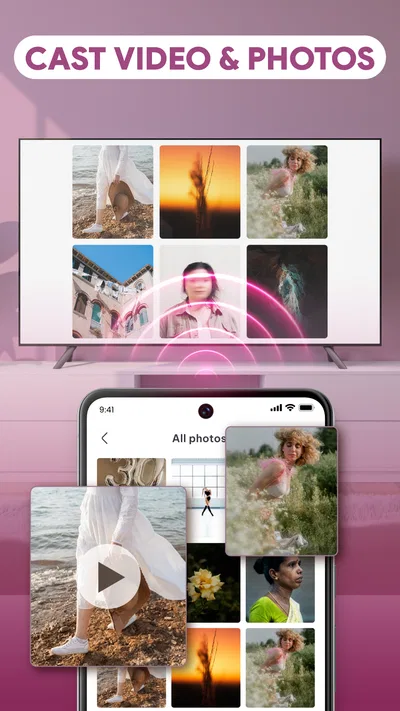
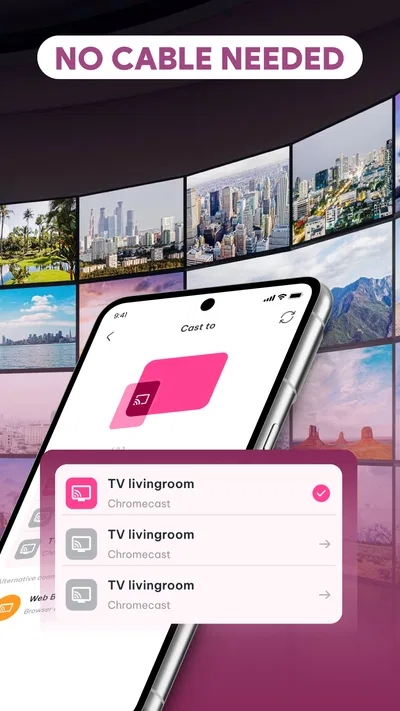
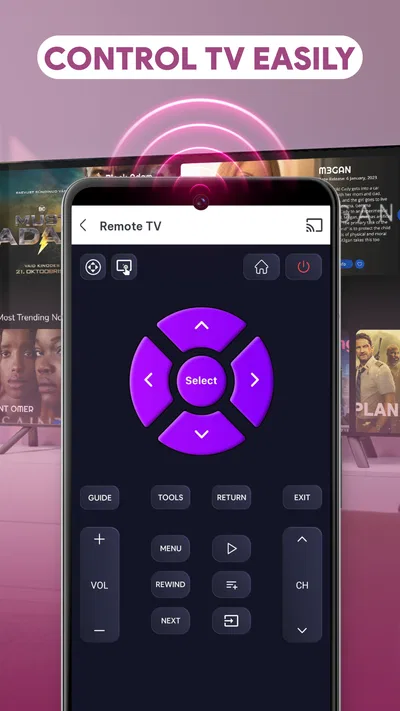
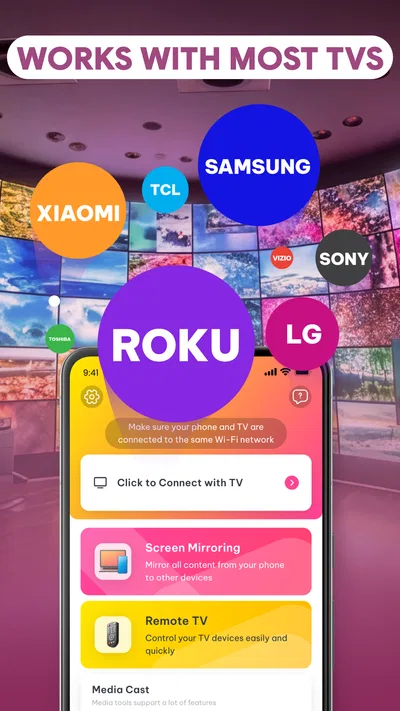
 Analysis byAppsAward
Our review of AI Mirror: Screen Mirroring TV
The most useful way to think about AI Mirror: Screen Mirroring TV is as a bridge between what is already on your phone and a larger display. Its appeal is straightforward: when a video or a set of photos is easier to enjoy with other people, mirroring can spare you from passing the phone around. I’d consider it for casual home viewing and sharing, rather than as a replacement for a full-featured media player or a dedicated streaming device.
Making phone content easier to share
This is a free app in the video player and editor category, developed by Insumos XP. Its focus is casting and screen mirroring, so the central question is not whether it offers a deep library of entertainment, but whether putting content from your phone on a TV fits your routine. That distinction matters: the app is most relevant when you already have something you want to show.
The name may suggest a creative mirror or image-editing tool, but the practical use here is about viewing phone content on a bigger screen. I’d approach it with that expectation. If you want to stream a clip or share photographs with people nearby, a larger display can make the experience more comfortable and social. If you’re looking for a catalogue of shows, advanced video editing, or a complete home-theater system, this is not the job it is designed to do.
Its store summary emphasizes casting videos and photos, which points to a simple, useful role: move viewing away from a small handset screen. That can be valuable even when the content itself is ordinary. A family photo is easier to discuss when everyone can see it at once; a short video is less awkward to replay when nobody has to crowd around one phone.
What mirroring changes in everyday use
Mirroring changes the social shape of a viewing session. Instead of one person holding the screen and deciding who gets a look, the phone can become the control point while the TV serves as the shared display. I find that especially practical for informal moments, such as showing visitors a few pictures or replaying a clip after dinner.
There is a trade-off in that arrangement: your phone remains part of the experience. It is not the same as opening a streaming service directly on a TV and leaving the handset aside. You may still need the phone nearby to choose what to show, and interruptions on the handset can be distracting. For a short, shared session, that is often a fair exchange; for a long film night, a native TV app or a dedicated streaming box may feel more settled.
The app has an average rating of 3.2 from around 14,000 ratings, alongside roughly 406 written reviews. I would treat that as a reason to keep expectations practical rather than assuming every TV-and-phone combination will feel seamless. Mirroring depends on the devices and network environment involved, so it is sensible to try a brief clip before planning a longer gathering around it.
A sensible way to try it
For a first attempt, I’d pick a short video or a handful of photos rather than starting with an important presentation or a full-length film. That small test helps you see whether the phone and TV are working together comfortably before other people are waiting. It also gives you a chance to learn how the viewing controls feel without the pressure of an audience.
For photos, decide on the sequence before you cast. A little preparation makes a shared slideshow feel more deliberate, and it avoids stopping repeatedly to search through a crowded camera roll. For video, open the clip you actually want to show first, then check the result on the TV before settling in. These are simple habits, but they make a screen-mirroring session less fiddly.
It is also worth treating mirroring as a live connection, not as a file transfer. The goal is to display what you are viewing from the phone, so the phone’s own state matters. I would close unrelated apps, keep the content ready, and avoid relying on a fragile setup for anything time-sensitive. That is useful advice for mirroring in general, and particularly helpful when you are demonstrating something to a group.
Where it fits better than the usual alternatives
Compared with casting from an individual video app, screen mirroring can be a more flexible approach when the material is already on your phone or when you want to show photos as well as video. App-based casting is often more convenient when you are watching a supported streaming service, because playback can be handled through that service’s own TV connection. The better choice depends on the source: use a direct TV app when you want a polished, hands-off viewing session; consider mirroring when you want to share phone-based content.
Compared with simply handing your phone to someone, mirroring makes group viewing more comfortable and avoids the familiar shuffle of passing a device from person to person. Compared with a laptop connected to a TV, it can be a lighter option for casual content already on a handset. But a laptop or dedicated media device may be preferable for a presentation, a long movie, or a session where you need dependable control and do not want phone notifications or battery use to become part of the experience.
One less obvious advantage of treating the TV as a shared screen is that it can help people decide together what to watch. You can browse on the phone, then show the selected clip or pictures to everyone. The downside is that browsing itself is still a phone activity, so I would avoid scrolling through private albums in front of a group. Choosing the material beforehand is both more considerate and less distracting.
The limitations I would keep in mind
Screen mirroring is only as comfortable as the connection between the devices. A delay, interruption, or awkward fit on the TV can make a quick demonstration feel clumsy. I would not assume that a successful connection once guarantees the same result in every room or with every device. Test the setup where you intend to use it, particularly before a gathering or a presentation.
There is also a difference between “the picture appears on the TV” and “the content is ideal for a TV.” Phone videos and photographs can look different when enlarged, and the way a picture fits a television may not match the framing you saw on the handset. For a casual look through personal photos, that is usually fine. If exact framing or presentation quality matters, prepare the material on a device and display method designed for that purpose.
The app is rated for Everyone, and it has passed 10 million installs. It is currently at version 1.0.2 and requires Android 8.0 or later. Those details make it straightforward to assess whether it is broadly suitable for an Android device, but they do not remove the need to check how your own television setup behaves. I would install it only if phone-to-TV sharing is a real need, rather than expecting the app to improve every kind of video viewing.
Who is likely to get the most from it?
I’d recommend trying it if you regularly show people videos or photos stored on your phone and would rather have everyone watch on one screen. A particularly good everyday example is hosting relatives who want to see recent travel pictures: instead of passing the handset around, you can make the TV the common viewing point and keep the phone in your hands to move through the images.
It may also suit someone who wants a simple way to share a short clip in a living room without moving the content to another device first. That convenience is the real payoff. The app does not need to become part of a complicated media setup to be useful; it just needs to make an occasional, already-planned viewing moment easier.
I’d skip it if you mainly watch subscription services that already have reliable TV apps, or if you want a dedicated player with extensive playback controls and a remote-first experience. I’d also choose another approach for a high-stakes work presentation where interruptions, connection uncertainty, or screen formatting would be a problem. In those situations, a direct wired connection, a laptop, or the service’s own TV app can be a better fit.
My verdict on the big-screen handoff
AI Mirror: Screen Mirroring TV makes the most sense as a practical sharing tool: it gives phone videos and photos a chance to work better in a room full of people. Its value is less about adding new content and more about changing where familiar content is viewed. If that is a problem you encounter, a quick test with a short clip is a sensible way to judge whether it belongs in your routine.
I would keep my expectations focused. Mirroring is convenient for informal viewing, but it does not automatically offer the polish of a native TV app or the reliability of a carefully prepared presentation setup. The app’s 3.2 average suggests it is worth approaching with that same measured attitude. For casual photo sharing and short videos, it could be a handy option; for uninterrupted movie nights or work that has to go perfectly, I’d use a more purpose-built alternative.
Overall, I’d suggest it to someone who wants their phone to serve as a simple controller for shared viewing and is comfortable testing the connection before settling in. If you rarely show phone content on a TV, there may be little reason to add another step to your viewing habits. But when the need comes up, turning a personal screen into a shared one can make a small, everyday moment noticeably easier.
Pros
- Makes it easy to mirror a phone screen on a compatible TV.
- Useful for sharing photos and videos on a larger display.
- Can help present mobile content without gathering around a small screen.
- Works with supported televisions and streaming devices.
- Offers a practical way to view phone content from across the room.
Cons
- Mirroring may require both devices to use the same Wi-Fi network.
- Connection quality can vary with network speed and signal strength.
- Some televisions may not support the required mirroring feature.
- Screen mirroring can use extra phone battery.
- Audio and video may not stay perfectly synchronized on every setup.
Best Video Players & Editors App 2026
Our verdict
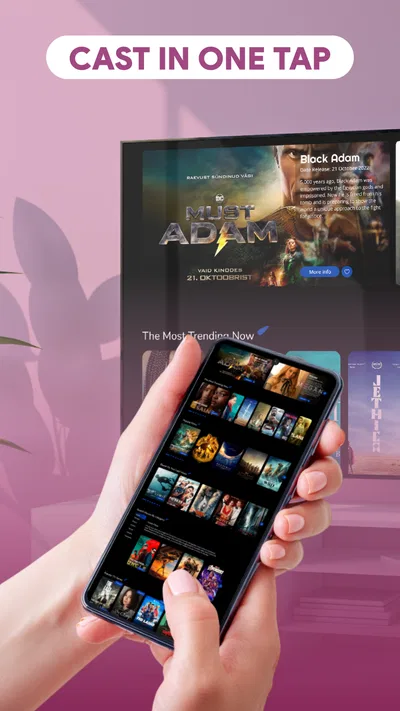
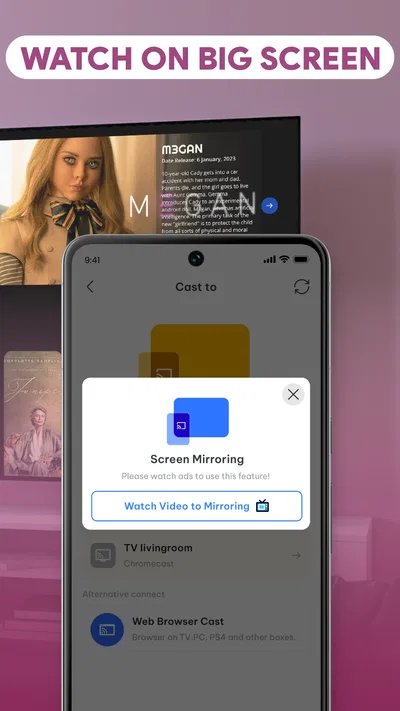
Cast to TV & screen mirroring made easy. Stream videos & photos on big screen.
Frequently Asked Questions
What does AI Mirror: Screen Mirroring TV do?
AI Mirror: Screen Mirroring TV is intended to display content from a compatible phone or tablet on a television or other supported screen. Depending on the app’s current features and your devices, this may let you view photos, videos, or other on-screen content on a larger display. Check the app listing and your TV’s compatibility details before downloading, since supported content and connection options can vary by device and app version.
How do I connect AI Mirror: Screen Mirroring TV to my television?
The usual first step for screen-mirroring apps is to connect your phone and television to the same Wi-Fi network, then open the app and choose a detected compatible display. Some TVs may require screen mirroring or casting to be enabled in their settings. Exact steps depend on the phone, TV, and app version, so consult the in-app instructions and device documentation if the television does not appear.
Does AI Mirror: Screen Mirroring TV work with every phone and television?
No screen-mirroring app can be assumed to work with every combination of phone and television. Compatibility may depend on your device’s operating system, the TV’s casting or mirroring support, network configuration, and the app’s current requirements. Before installing, review the app-store compatibility information and confirm that your TV supports a connection method the app can use. Older devices or restricted networks may not work as expected.
Is AI Mirror: Screen Mirroring TV free to use?
Pricing and access can change, so check the current Google Play or Apple App Store listing before you install. The listing should explain whether the app is free to download, whether it offers in-app purchases or a subscription, and whether particular features have limitations. Review the payment terms carefully, especially any trial duration and renewal details, so you understand potential charges before starting a purchase or trial.
What should I check if screen mirroring is laggy or will not connect?
First, make sure the phone and TV are on the same Wi-Fi network and that both devices have screen mirroring enabled where required. Restarting the app, router, or devices can sometimes resolve a temporary connection problem. A weak or crowded network may cause delays, while a VPN or guest network may prevent devices from finding each other. Also check for app and system updates and verify device compatibility.

Download AI Mirror: Screen Mirroring TV
Similar apps
View all 7.7
YouTube
Video Players & Editors
 7.1
CapCut - Video Editor
Video Players & Editors
 8.6
YouTube Studio
Video Players & Editors
 9.4
Edits: Video Editor
Video Players & Editors