- Award score
- 3.8Rating
- 10,000,000,000+installs
- Free
App information
- Version
- VARY
- Updated
- Requires
- Varies with device
- Price
- Free, in-app purchases
- Developer
- Google LLC
- Content rating
- Teen
Screenshots
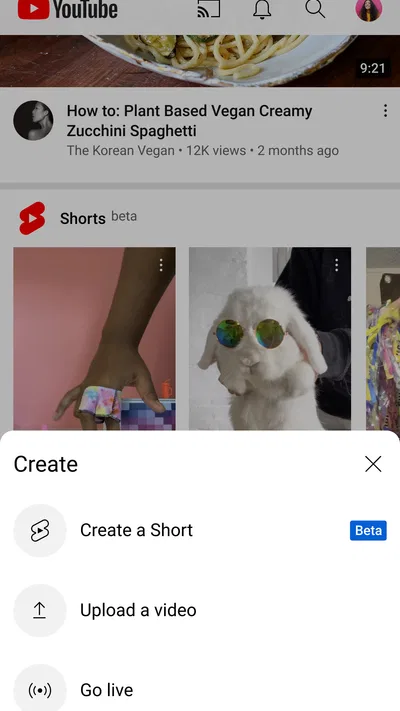

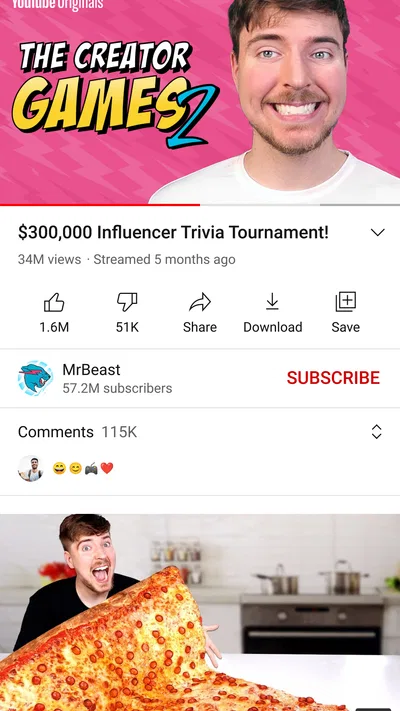
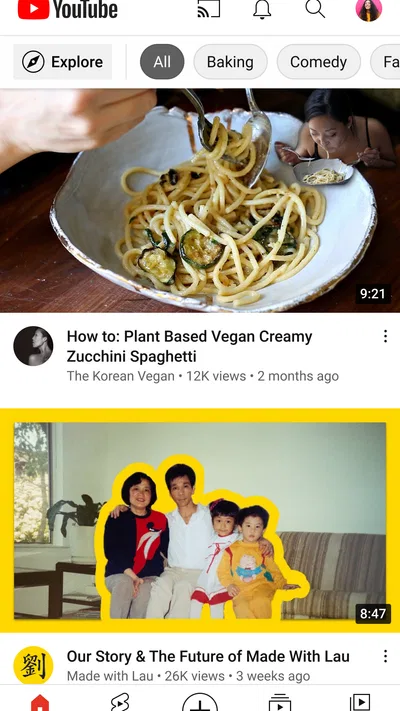
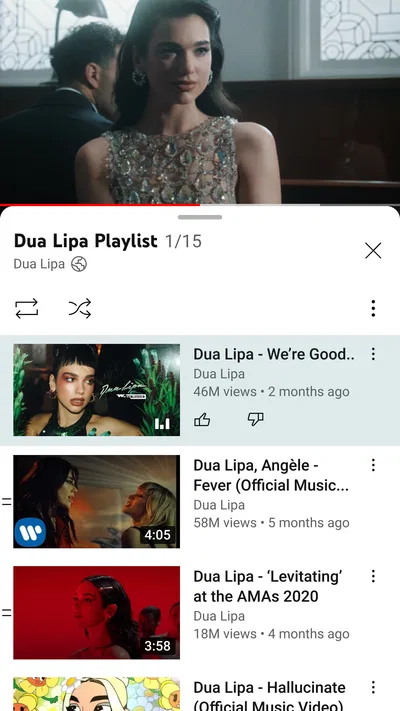
 Analysis byAppsAward
Our review of YouTube
I find YouTube easiest to understand when I treat it not as one giant video shelf, but as a place I can shape around a specific need. I might open it to learn a repair, follow a creator, catch up on a topic, or put on something familiar while cooking. The app is free to install and use, though some content and optional purchases can involve payment. That distinction matters: watching does not require buying anything, but the experience can include invitations to pay.
As a video player and editor app from Google LLC, YouTube is familiar to many people before they even install it. Its scale is striking: it has more than ten billion installs and an average rating of 3.8 from around 172 million ratings. I take those numbers as evidence of broad reach, not a promise that every part of the app will suit every viewer. Its Teen content rating is also worth keeping in mind if you are setting it up for a younger person.
What to expect when you open YouTube
The first screen is less like a neat catalogue and more like a changing set of suggestions. That is useful when I want to discover something without knowing exactly what to search for, but it can feel busy if I came in with one clear task. Search is usually the better starting point for a first visit: enter a subject, a creator, or a phrase from the video you need, then judge results by title, channel, and context rather than tapping the first item automatically.
Articles related to YouTube
Because the service includes channels as well as individual videos, following a creator can make future visits more purposeful. I use subscriptions as a deliberate shortlist rather than subscribing to every channel that produces one good clip. This keeps the feed more relevant and makes it easier to spot new uploads from people I actually want to hear from.
The main strength is breadth. A dedicated streaming service may be better for a carefully curated film or series experience, while a podcast app can be calmer for listening. YouTube is more compelling when the answer might be a demonstration, a point of view, a lecture, a music performance, or a niche hobby video. Its open-ended variety is also its trade-off: search results and recommendations require more personal judgement than a tightly edited catalogue.
A simple setup that makes the first visit easier
After installing the app, I would begin by deciding whether I want a personalized experience. Signing in can connect the app to a Google account and make subscriptions and viewing activity more continuous across visits. If I prefer to browse without building a personal history, I can start by searching directly and avoid treating the first recommendation screen as a required setup step. Either way, I would check which account is active before subscribing or interacting, especially on a device shared with family.
For a new user, the most useful early setup is not a long tour of every menu. It is choosing a handful of channels that genuinely match your interests, then using search for specific questions. That combination gives recommendations a clearer signal without making the app feel like a chore to manage. If you are helping a teenager get started, remember that the app’s Teen rating is not a substitute for deciding what viewing boundaries work in your household.
One practical habit is to separate “I want this now” from “I want to keep this for later.” Search serves the immediate task; saving a video or subscribing can help with future viewing, depending on the controls available in your app. I avoid subscribing just to bookmark a single useful tutorial, because it can make the subscription list noisy. A better approach is to keep subscriptions for recurring sources and use the app’s save-for-later option for one-off finds.
Getting to a first useful result
For a reassuring first success, choose a question you can verify in a few minutes. I might search for a particular cooking technique, a software setting, or the name of a creator recommended by a friend. Before pressing play, I scan the channel name and title, then check whether the video appears to address the exact problem. If it is a how-to, I look for a clear demonstration rather than relying on a confident-sounding title.
Once playback starts, the best workflow depends on the kind of video. For a short answer, I watch through and note the key step. For a longer explanation, I use the progress bar to revisit the relevant part instead of replaying the entire video. Captions can help when the room is noisy or a speaker is difficult to understand, and slowing playback can make a fast demonstration easier to follow. These small adjustments are more valuable than endlessly browsing for a supposedly perfect video.
A realistic everyday example: if I am trying to understand why a houseplant’s leaves are changing, I search for the plant and the symptom, then compare a couple of explanations rather than acting on the first result. I pay attention to whether the creator shows the plant and describes conditions that match mine. YouTube is excellent for seeing a process, but it cannot guarantee that a video’s advice fits every situation. For medical, safety, or costly repair decisions, I would use it as a starting point and confirm important guidance with a dependable expert.
That is where the platform’s scale has a double edge. A video can make an unfamiliar task feel approachable, but popularity alone is not proof of accuracy. I treat demonstrations as useful evidence of what one person did, not automatic confirmation that the same method is right for me. When instructions conflict, I compare sources and prefer explanations that show their reasoning and limitations.
Understanding recommendations, subscriptions, and the interface
New viewers sometimes assume the home screen is a complete catalogue or that every recommendation reflects a deliberate choice. I would not read it that way. It is a starting point shaped by what the app thinks may interest me, so a recommendation is not necessarily the best match for today’s task. Search gives me more control, while subscriptions are a more stable way to return to channels I chose myself.
Another common confusion is the difference between a channel and a video. A channel is the creator’s ongoing home; a video is one individual upload. If I want more of the same kind of explanation, I inspect the channel and decide whether its wider output is worthwhile before subscribing. If I only need one answer, I can simply watch that video and move on.
Autoplay and recommendations can be convenient when I want a continuous viewing session, but they can also carry me away from the reason I opened the app. I turn that tendency into a choice: when I am researching, I stop after finding the answer; when I want background entertainment, I let the next suggestion guide me. The distinction helps keep casual browsing from swallowing time I intended to spend on something else.
Playback quality and usefulness also depend on the source video, not just the app. A blurry upload, a rushed explanation, or an unhelpful title can make a search feel disappointing even when the player itself works fine. If the first result misses the mark, I refine the query with a detail such as the device model, technique, or skill level. Adding that context often works better than repeating the same broad search.
Where the free experience fits—and where it may not
YouTube is free, but the app also lists in-app purchases ranging from a few cents to nearly a thousand dollars per item. That broad range can cover different kinds of paid content or options, so I would check the exact offer and its terms before confirming any purchase. I do not regard the existence of purchases as a reason to avoid the app; I do regard it as a reason to keep an eye on prompts, especially when a child uses the device.
The app has been available since October 20, 2010, and it remains a familiar choice for people who want an enormous mix of creator-led video and practical demonstrations. Its rating is 3.8, which feels consistent with a service that can be indispensable for one task and frustrating for another. A viewer who wants a quiet, tightly organized library may prefer a specialist subscription service. Someone who mainly wants audio in the background may be happier with a dedicated music or podcast app. I reach for YouTube when visuals, creator variety, or a specific searchable answer matter most.
It is also not the right tool when I need a guaranteed authoritative answer simply because a video looks polished. For high-stakes information, I check the source and seek confirmation elsewhere. And if I know I tend to lose time in recommendation feeds, I set a clear purpose before opening the app: find one tutorial, watch one creator, or answer one question. That small boundary makes the experience more useful without requiring a complicated routine.
A sensible next step after your first video
Once you have found one worthwhile video, decide what you want from the app next. Subscribe if you expect to return to that channel; save the video if you need to refer back to it; or refine your search if the result was close but not quite right. I find that this deliberate next step is more satisfying than scrolling simply because there is more to see.
My recommendation is to use YouTube as a flexible, searchable video tool, not as an unquestioned source or an endless queue. It is especially good for first-time learners who benefit from seeing a task demonstrated and for viewers who enjoy following individual creators. Start with one concrete question, assess the source, and adjust playback to suit the task. If you want a more curated or distraction-free experience, another kind of app may fit better; if you want variety and a practical route from curiosity to a visible answer, YouTube is an easy place to begin.
Pros
- Personalized recommendations make it easy to discover videos.
- Subscriptions keep favorite creators together in one feed.
- Captions help viewers follow videos without sound.
- Playback speed controls make long videos easier to manage.
- Casting sends videos to compatible TVs and devices.
Cons
- Ads can interrupt videos unless you use a paid plan.
- Background playback is limited without a paid subscription.
- Some videos are unavailable in certain countries.
- Recommendations can become repetitive over time.
- The app can use significant mobile data when streaming.
Best Video Players & Editors App 2026
Our verdict
Enjoy your favorite videos and channels with the official YouTube app.
Frequently Asked Questions
Is YouTube free to download and use?
YouTube is free to download on Android and iOS, and you can watch a large amount of video content without paying. The free experience includes advertisements, and some videos, movies, or channel features may have separate charges or restrictions. YouTube Premium is an optional subscription that adds benefits such as ad-free viewing, background play, and offline downloads where available.
Do I need a Google account to watch YouTube?
You can watch many public videos without signing in, so a Google account is not required for basic viewing. Signing in lets you subscribe to channels, save videos to playlists, see your viewing history across devices, and interact through features such as comments. Some content or age-restricted videos may require you to sign in, and account settings can help manage recommendations and privacy.
Can I watch YouTube videos offline?
Offline downloads are available in supported locations and generally require YouTube Premium, although availability and eligibility can vary by country, video, and account. When a download option is offered, you can save a video in the app and watch it later without a live connection, subject to YouTube’s limits and download-expiration rules. Downloaded videos are not saved as ordinary files for unrestricted sharing.
Does YouTube work on both Android and iPhone?
Yes. YouTube has official apps for Android phones and tablets and for iPhone and iPad, as well as a website that can be accessed through a browser. The main viewing experience is similar across platforms, but interface details and feature availability may differ based on your device, operating-system version, region, and app updates. Install the official app from Google Play or the Apple App Store.
How can I make YouTube safer for children?
YouTube offers supervised experiences and parental-control options, but the standard app contains a broad range of user-uploaded content and is not automatically suitable for every child. Parents can explore YouTube Kids or supervised accounts, review settings together, and use available tools to restrict content, manage screen time, and control searches. These tools reduce exposure to unsuitable material but cannot guarantee that every recommendation or video is appropriate.

Download YouTube
Similar apps
View all 7.1
CapCut - Video Editor
Video Players & Editors
 8.6
YouTube Studio
Video Players & Editors
 9.4
Edits: Video Editor
Video Players & Editors
 6.5
AI Mirror: Screen Mirroring TV
Video Players & Editors