- Award score
- 4.3Rating
- 5,000,000+installs
- Free
App information
Screenshots
 Analysis byAppsAward
Our review of Expo Go
I think of Expo Go as a practical companion for trying React Native projects, rather than a general-purpose app that happens to sit in a developer’s toolkit. Its value becomes clear when you already have a project to run: instead of treating every small change as a reason to build and install a separate app, you can use Expo Go as the place to open and inspect compatible work in progress. That makes it especially appealing for learning, demonstrations, and quick checks on a real phone.
The app is free, and it comes from Expo Project. It sits in the libraries and demo part of the app world, which is a better fit for its purpose than the usual consumer app categories. Its average rating is 4.3 from around 32,000 ratings, and it has passed 5 million installs. Those figures suggest broad interest, but the important question is whether its workflow fits the way you build. In my view, it is most useful when you want a short path between a JavaScript project and seeing that project on a device.
Starting with a project, not a blank canvas
Expo Go is not an app editor where you create a complete product by tapping through visual controls. It is the device-side partner to development work built with JavaScript and React. You still need a project and a way to run it; the app’s job is to let you open a compatible project and see how it behaves on your phone. If you expect it to teach React Native from scratch or generate an app without coding, you will likely find the experience confusing.
That distinction also explains why the first launch may feel less immediately rewarding than opening a typical app. A shopper can browse a store app without preparation, but a developer needs a running project to get much from Expo Go. Once that project is ready, though, the basic routine is easy to understand: start the development workflow, open the project on the device, make a change, and check the result. The phone becomes a hands-on preview rather than a distant target you only see after a lengthy build cycle.
For a learner, this can make small experiments feel more concrete. I would use it to compare two layout choices, check whether a button is comfortable to tap, or see whether text wraps awkwardly on an actual screen. Those are details a desktop preview can make easy to overlook. It is also useful in a workshop: one person can share a project while another opens it on a device, making discussion about a screen more immediate than looking at a screenshot.
A realistic everyday example is polishing a sign-in screen between other tasks. You might adjust spacing on a laptop, open the current project in Expo Go, and check whether the keyboard covers a field or whether the primary action remains easy to reach. The useful habit is to inspect one concrete question at a time. A phone preview is most valuable when it helps you decide something specific, not when you merely open the app and browse without a goal.
What to check before relying on the preview
Before settling into that loop, make sure the development project is actually ready to be opened and that your phone and development setup can communicate as expected. When a project does not appear or fails to load, the cause may be in the project setup or connection rather than in Expo Go itself. I find it helpful to change one thing at a time when troubleshooting: confirm the project runs, then confirm the phone can reach it, then investigate the code. That simple order prevents needless edits to a project when the issue is elsewhere.
Expo Go is free, and its content rating is Everyone. The current version is 58.0.5, with Android 7.0 listed as the minimum operating system. Those details are useful when deciding whether an older Android device can take part in a demo, but they do not guarantee that every project or development setup will behave identically on every device. I would still test on the actual phones that matter to a project, especially if a team has a mix of older and newer hardware.
Habits that make the development loop smoother
The settings worth checking are less about hunting for a secret productivity switch and more about making the surrounding workflow predictable. I would first check how the project is being served and whether the device is using a connection that can reach the development machine. If a network is restrictive, trying the available connection approach supported by the project setup may be more useful than repeatedly reopening the app. The key is to treat connectivity as part of the development environment, not as a mysterious Expo Go preference.
Next, keep a clean distinction between the project you intend to inspect and any other project you have been working on. When switching tasks, verify that the device has opened the current project before judging a screen. This sounds obvious, but it prevents a surprisingly common kind of confusion: a developer changes code, sees no corresponding difference on the phone, and assumes the preview is broken when the device is simply showing another session or an older state.
For faster work, I recommend making the preview part of a repeatable cycle rather than an occasional final check. Pick a small task, such as adjusting a list row or testing a navigation transition. Open the relevant screen, make the change, then return to the same point in the flow and assess it. Repeating that sequence gives you a more reliable comparison than changing several unrelated components before looking at the device.
One non-obvious benefit of this discipline is that it helps separate visual judgment from code judgment. A component can be technically correct while still feeling cramped or awkward to use. On a phone, you can notice thumb reach, scrolling friction, and how much content fits before a user has to move. I would use Expo Go early for those questions, not just at the end, because catching a layout assumption early is usually easier than revisiting a finished screen.
Another useful pattern is to keep a short list of checks for each feature you preview. For a form, I might check whether fields remain visible with the keyboard open, whether errors are readable, and whether the main action is easy to find. For a navigation change, I would check the route into the screen and the path back out. These are not special functions of Expo Go; they are habits that make its device preview more informative and help you avoid confusing a quick visual pass with a complete test.
It can also make collaboration less cumbersome. If a teammate is deciding between two screen arrangements, a device preview lets you discuss the actual experience rather than arguing from code or static images. I would keep the discussion focused: ask the other person to perform a task, such as finding a control or moving through a flow, and watch where they hesitate. That approach turns the app into a useful review tool without pretending that a preview session replaces proper testing.
Where the quick-preview approach has limits
The central trade-off is that Expo Go is a development companion, not a guarantee that your finished app will behave exactly like a released build. A project must fit the environment it can run in, and some development needs may call for a different workflow. If a project depends on native configuration or capabilities that are not available through the Expo Go setup you are using, the preview may not be the right place to validate that part. In that situation, use a build and testing route suited to the project rather than trying to force every requirement through one app.
This is where beginners can lose time. Expo Go makes compatible experiments approachable, but it does not remove the need to understand what the project is doing. When a package or device feature behaves differently than expected, the answer may involve the project’s configuration, platform behavior, or the limitations of the preview environment. I would not assume that a successful screen preview proves every native integration is ready for release.
It is also not a substitute for testing across a range of devices. A screen that looks balanced on your own phone may feel different on a smaller display, and behavior can vary between platforms. Expo Go is excellent for quickly answering “what does this change look like here?” It is less suited to answering “will every part of this app work reliably for every user?” For that, you need broader testing and, where necessary, a production-like build.
If you are choosing among common options in this space, the distinction is straightforward. Expo Go is attractive when your priority is a quick device preview for a compatible JavaScript and React project. A browser-based simulator can be more convenient when you want to stay at your computer, while a dedicated native build workflow is a better fit when you need to validate native configuration or release behavior. Those routes are not rivals in every situation; experienced developers often choose the one that answers the current question, then use another when the project moves forward.
That makes Expo Go a poor fit for someone who only wants to install a finished consumer app, or for a developer expecting a complete visual app builder. It may also frustrate a team whose main task is validating native integrations that require a different setup. I would skip it if you do not have a compatible project to open, or if your immediate goal is to test a release candidate in conditions close to publication. In those cases, another tool or a more complete build process will give a more relevant result.
Who gets the most out of it
I would recommend Expo Go most strongly to React Native learners, independent developers prototyping screens, and teams that want to discuss a project on real devices while it is still changing. It is particularly handy when feedback needs to be quick and specific: “Does this control feel too low?” or “Can I complete this flow without losing my place?” Those questions are easier to answer with a live preview than with a code review alone.
It is less compelling for people who want an app that works independently of a development project. The category can be misleading if you expect a library of ready-made demos to use as an end user; the practical value is tied to development. The app’s release date is December 8, 2015, and it has developed into a familiar entry point for this style of workflow, but longevity does not make it a universal solution. What matters is whether your project and testing needs match what the preview environment can handle.
For repeat use, I would keep the routine modest: open the project, test one change, note what you observed, and move on to the next question. If a result seems wrong, check the project and connection before rewriting code. If the feature touches a native capability, plan a suitable build-based check instead of relying on the quick preview. Those small decisions make the app more effective than simply treating it as a shortcut that should cover every stage of development.
My overall take is that Expo Go earns its place by making a compatible React Native project easier to experience on a phone while you work. It cannot replace learning the project setup, checking real device differences, or testing a finished build, but it can shorten the distance between an idea and a useful first impression. If you want to learn, prototype, or collect focused feedback on a changing screen, I think it is well worth trying. If you need a release-grade test or a no-code app-making tool, choose a workflow designed for that job instead.
Pros
- Preview React Native projects on a device without building a standalone app.
- Scan a QR code to open a compatible project quickly.
- Supports live updates during development.
- Available for both Android and iOS.
- Useful for testing layouts on real devices.
Cons
- Requires an Expo project or a compatible development server.
- Some native modules need a custom development build.
- Project behavior can differ from a standalone app.
- A network connection is often needed to load projects.
- It is intended for development rather than everyday app use.
Best Libraries & Demo App 2026
Our verdict
Expo is a free & open source platform to build apps using JavaScript and React.
Frequently Asked Questions
What is Expo Go, and what can you use it for?
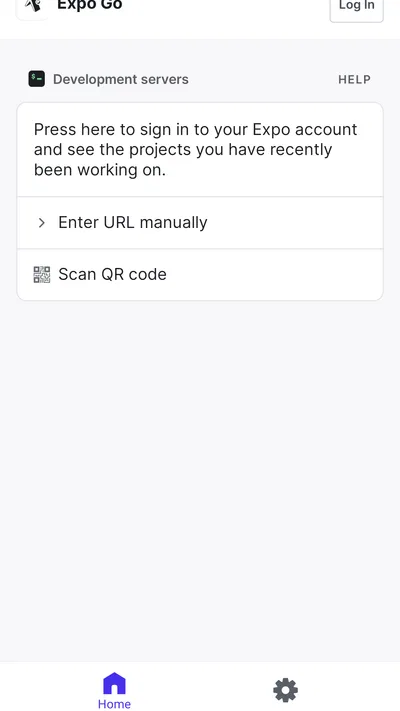
Expo Go is a mobile app for previewing projects built with the Expo framework for React Native. After opening a compatible project on a computer, you can scan a QR code or open a development link to load the project on your phone. It is intended for development and testing, rather than as a store for discovering or downloading finished apps.
How do you open a project in Expo Go?
Install Expo Go on your iOS or Android device, then start an Expo development server for the project on your computer. You can usually scan the displayed QR code with the appropriate camera or Expo Go interface, or open a shared development link. Your phone and computer may need to be on the same network; connection settings, firewalls, or using a tunnel can affect whether the project loads.
Does Expo Go work with every React Native app or Expo project?
No. Expo Go includes a predefined set of native capabilities, so it can run compatible Expo projects but cannot automatically load every React Native app or custom native module. If a project relies on native code that is not included in Expo Go, its developer may need to create a custom development build instead. Check the project’s setup instructions and required dependencies before expecting it to run in Expo Go.
Is Expo Go free, and do you need an account to use it?
Expo Go is generally available as a free app, but the project you want to preview still needs to be created and served using Expo’s development tools. Whether you need an Expo account depends on the particular workflow or service you use; basic local testing may not require one. Review current Expo documentation and the app-store listing for up-to-date account, service, and platform requirements.
Is Expo Go suitable for testing or publishing a finished app?
Expo Go is mainly a convenient way to preview and test compatible projects during development. It does not turn a project into a standalone app for distribution through the Apple App Store or Google Play. Before release, developers typically use an appropriate build and publishing workflow, and should test the resulting app separately. Remember that a development preview can behave differently from a production build, especially when native features are involved.

Download Expo Go
Similar apps
View all 9.0
IGAMES PS2
Libraries & Demo
 9.1
Mods & Map for MCPE Minecraft
Libraries & Demo
 8.3
AirPlay - Cast Tv
Libraries & Demo