- Award score
- 4.2Rating
- 100,000+installs
- Free
App information
Screenshots
 Analysis byAppsAward
Our review of AirPlay - Cast Tv
When I think about a TV-casting app, the important question is not just whether it can put something on a bigger screen. It is whether the connection is dependable enough to make that feel easier than watching on my phone. AirPlay - Cast Tv is a straightforward casting-focused app from FastSoft, in the Libraries & Demo category. Its purpose is easy to understand, but the quality of the experience depends heavily on the devices and network involved, so I would approach it as a practical tool to try rather than a guarantee that every screen will work seamlessly.
When the network is part of the experience
Casting is a handoff between a phone, a television or receiving device, and the connection that lets them communicate. That makes the network central to using this app. If I am at home and both devices are set up on a compatible local network, trying to move viewing from a small screen to a TV is a sensible use. If I am on a guest network, using mobile data, or dealing with a television that is not ready to receive a cast, the same simple intention can become a troubleshooting task.
The app’s brief store description identifies TV casting as its purpose, but that alone does not tell me which televisions, media sources, or connection methods will suit a particular household. I would check that the intended TV supports the receiving method I want to use and that my phone can reach it on the current network before relying on the app for an important occasion. This is especially useful in homes where several TVs or wireless networks appear with similar names: knowing which room’s screen I want before starting helps avoid selecting the wrong destination.
A realistic example is putting a video or other viewable content on the living-room screen while friends are over. I would first confirm that the TV is awake and ready, then open the app and look for the appropriate destination. That small bit of preparation matters more than it might seem: guests are waiting, and discovering that a television is on another network is an awkward interruption. For casual use, the extra step is manageable; for a planned presentation or time-sensitive event, I would test the setup beforehand.
Network quality can also change the feel of casting after a connection begins. A busy home connection, a weak signal near the TV, or interference from other devices can make playback less smooth or cause the connection to falter. I would treat the phone and TV’s placement as part of the setup, not as an afterthought. Moving closer to the router or using a more reliable home network may be more helpful than repeatedly restarting the app.
What I would check before settling in
My first check would be practical rather than technical: can the phone and intended screen see each other under the current setup? If not, I would confirm the TV is powered on, check the network selected on each device, and retry discovery once those basics are in place. I would also avoid switching networks midway through a viewing session unless necessary, since a change can disrupt the path between the phone and receiver.
For households with more than one person casting, it helps to agree on a simple routine: identify the TV by room, make sure it is available, and only then begin. This is a small workflow improvement rather than a special app feature, but it reduces the common confusion of sending content to a bedroom screen instead of the living room. If a cast is being used for a shared activity, I would keep the phone nearby until the screen is showing what I intended.
Useful in familiar places, less predictable on the move
This app makes the most sense to me in a familiar environment where I already know the screen and network. At home, I can learn which TV is the right destination and repeat the same steps next time. In a hotel, a friend’s home, a classroom, or an office, the situation is less predictable. The available screen may use a different setup, the network may restrict communication between devices, or the person in charge may not want extra devices connected. I would not assume that a phone-to-TV cast will be available just because a screen is present.
That distinction matters for travel. If I want dependable access to entertainment in an unfamiliar room, the TV’s own apps or a device I already know how to use may be a better fallback. If I am visiting someone who has already confirmed that their screen accepts casting from my phone, this app could be worth trying. The deciding factor is not whether casting sounds convenient in general; it is whether the receiving screen and network are actually prepared for it.
For a quick family photo or a short clip, the setup effort may be worthwhile because a larger shared display changes the social experience. For a long film, a work presentation, or anything where interruptions would be costly, I would test the connection before people gather. I would also keep an alternative ready, such as viewing directly on the phone or using the television’s built-in option. That is not a knock on this app specifically; it is a sensible way to handle any casting workflow that depends on several devices cooperating.
What to do when a cast does not start
The most frustrating moment with a casting app is often the gap between tapping a destination and seeing the expected content on the TV. I would avoid repeatedly tapping different screens or changing several settings at once, because that makes it harder to tell what fixed the problem. Instead, I would work through a short sequence: confirm the TV is ready, check that both devices are on the intended network, close and reopen the casting app, then try the destination again.
If the screen still does not appear or the cast drops, I would restart the receiving device or refresh its connection before assuming the phone app is at fault. A receiver can be temporarily unavailable even when the phone is working normally. I would also check whether another device is already using the TV, since a shared screen can create a conflict or simply make the intended destination less obvious.
There is a useful trade-off here: casting avoids having to crowd around a phone, but it adds a connection chain that can fail at several points. When I need a quick, low-stakes display, that trade-off is fine. When I need a presentation to start at an exact moment, I would have the content ready on a second device or use a direct connection method that I have already tested. I would not make an unfamiliar wireless setup the only plan.
The app is currently at version 2.6.1, and its minimum operating system requirement is Android 7.0. Those details help with basic compatibility planning, but they do not by themselves establish that a particular TV or receiver will work. I would check the phone’s software and the screen’s casting support separately rather than treating the app’s compatibility as a promise about the whole setup.
Keeping the session considerate of data and battery
Because casting involves a phone and a receiving screen, I would pay attention to which network I am using, especially away from home. If I am on a limited mobile plan, I would avoid assuming that a cast will use only the home TV’s connection or that it will not affect data use. The safer choice is to use a trusted Wi-Fi network when practical and to check how the content source itself handles streaming. The casting app’s stated purpose does not settle how every source delivers its media.
I would also keep an eye on the phone during a longer session. A phone may remain useful as the control point, but leaving the display active or repeatedly reconnecting can be inconvenient and may use more battery than a short cast. For a long viewing session, I would make sure the phone has enough charge and keep it somewhere accessible rather than treating it as a device I can put away immediately.
Privacy is another everyday consideration when using a shared screen. Before starting, I would make sure the content I want to show is ready and avoid exposing unrelated phone activity while navigating. In a room with other people, a deliberate workflow—open the intended material first, then connect—reduces accidental distractions. This is a general benefit of being careful with screen sharing, but it is especially relevant when a phone is doing both the casting and the browsing.
Who is likely to find it worthwhile?
I would consider trying AirPlay - Cast Tv if I regularly want to move content from my phone to a compatible TV and am comfortable doing a little setup when needed. It is aimed at a clear, everyday task, and the app is free to install. It has an average rating of 4.2 from around 1.4 thousand ratings, with more than 100 thousand installs, which suggests that other users are trying it for the same general purpose. Those figures are useful context, but they cannot tell me whether it will fit a specific television or network.
The app is rated for Everyone, so its age classification is broad; that does not change the need to use good judgement when sharing content on a household or public screen. The app includes in-app purchases ranging from $16.99 to $64.99 per item. I would check what an item offers and whether it is relevant to my use before buying anything. If all I need is occasional casting, I would first see whether the free experience handles my particular setup rather than assuming a purchase is necessary.
Compared with a TV’s built-in casting or media apps, a separate phone app can be useful when I want a phone-centered way to start a session. The built-in option may be simpler if it already supports the content I want, while a dedicated receiver or wired connection may be preferable when reliability matters more than convenience. I would not replace a working setup just for the sake of trying another route. The best choice depends on whether the app makes my own phone-to-screen routine easier.
I would skip it if I rarely cast, if my TV already handles everything I watch comfortably, or if I need a guaranteed connection in places with unfamiliar networks. I would also be cautious if I am unwilling to troubleshoot occasional discovery or connection problems. For someone who only wants to show a few pictures once in a while, the TV’s native sharing tools may be enough. For someone who often shares phone content at home and can test the receiver in advance, trying this app is more reasonable.
My connectivity verdict
My view is that AirPlay - Cast Tv is best treated as a convenient option for a known, compatible setup—not as a universal solution for every television or network. Its appeal is the simple goal of getting phone content onto a larger screen, while its main limitation is the dependence on the phone, receiver, and connection all cooperating at the same time. I would use it for relaxed home viewing or casual sharing, keep a fallback for important moments, and test any new screen before I count on it.
That balance is what makes the app easier to judge. If the TV is already ready to receive a cast and the network is stable, the convenience may outweigh the occasional setup friction. If either part is uncertain, a built-in TV app, a familiar casting device, or a direct connection may save time. I would try the free app with a low-stakes clip first, learn how my own screen behaves, and decide from that experience whether it deserves a regular place in my viewing routine.
Pros
- Works with compatible AirPlay-enabled TVs and receivers.
- Lets you stream media from your device to a larger screen.
- Can mirror your screen for photos and presentations.
- Useful for sharing content without connecting a cable.
- Simple casting can make watching videos more comfortable.
Cons
- Requires a compatible AirPlay receiver or smart TV.
- Casting reliability can vary with your Wi-Fi connection.
- Some streaming apps may block screen mirroring.
- Audio or video may occasionally lag during playback.
- Features and compatibility can differ across devices.
Best Libraries & Demo App 2026
Our verdict
AirPlay - Cast to Tv appears to be an app that allows users to Cast to Tv
Frequently Asked Questions
What is AirPlay - Cast Tv, and what can I use it for?
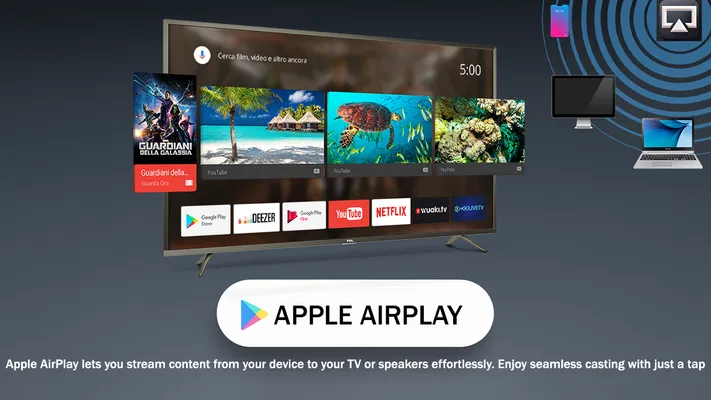
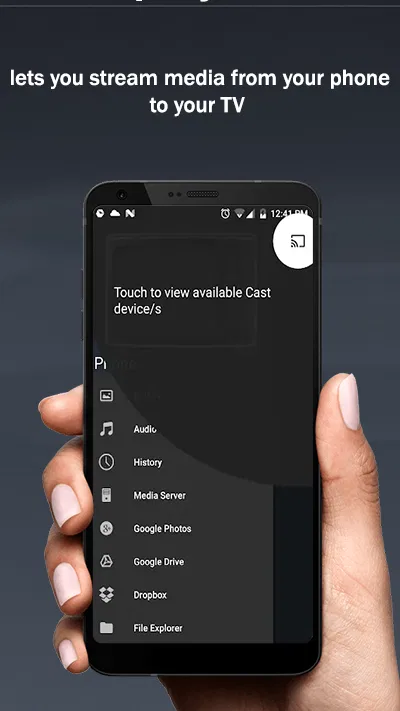
AirPlay - Cast Tv is a screen-casting app designed to help you send compatible media or mirror content from a mobile device to a television or other supported display. Depending on the app version and your TV, it may be useful for sharing photos and videos, watching online media on a larger screen, or presenting content. Available features can vary by device and connection method.
How do I connect AirPlay - Cast Tv to my television?
In most cases, your phone and television need to be connected to the same Wi-Fi network, and the TV must support the casting method the app uses or have a compatible receiver enabled. Open the app, choose the available device from its connection list, and follow the on-screen prompts. Menu names and setup steps can differ between TV brands and app versions.
Does AirPlay - Cast Tv work with every smart TV or streaming device?
No casting app can guarantee compatibility with every television, phone, or streaming device. Support depends on the hardware, operating system, receiver features, and network setup. Check the app’s current store listing and your TV’s specifications before downloading, especially if you use an older television. Some devices may require a compatible streaming receiver or an alternative connection method.
Why might casting or screen mirroring fail or appear delayed?
A weak or congested Wi-Fi connection is a common cause of connection drops, buffering, or delayed playback. Confirm that both devices are on the same network, move them closer to the router, and close apps that may be using substantial bandwidth. Restarting the app, phone, TV, or router can also help. Performance may still vary with the content and device capabilities.
Is AirPlay - Cast Tv free, and what should I check before downloading it?
Pricing and access to specific features can change, so review the app’s current listing in the Google Play Store or Apple App Store for subscription details, in-app purchases, compatibility, and recent updates. Also check its requested permissions and privacy information before installation. Casting may require a stable Wi-Fi connection, and some features or receiving devices may not be available on every setup.

Download AirPlay - Cast Tv
Similar apps
View all 8.6
Expo Go
Libraries & Demo
 9.0
IGAMES PS2
Libraries & Demo
 9.1
Mods & Map for MCPE Minecraft
Libraries & Demo