- Award score
- 4.5Rating
- 50,000,000+installs
- Free
App information
Screenshots
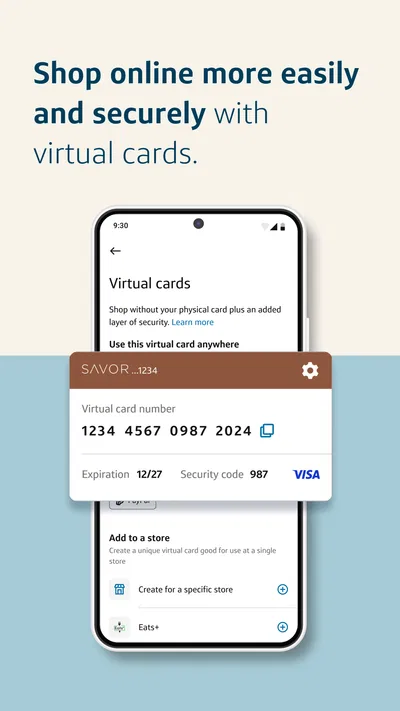
 Analysis byAppsAward
Our review of Capital One Mobile
Banking on a phone is most useful when it removes small obstacles: checking whether a payment went through, handling a check without a branch visit, or freezing a card before a misplaced wallet becomes a bigger problem. Capital One Mobile brings those kinds of account tasks together, and I find its strongest case is practical rather than flashy. It is a finance app from Capital One Services, LLC, built for people who already use Capital One and want routine banking within reach.
There is an important boundary to keep in mind: this is not a general-purpose banking app for every institution. Its value depends on having eligible Capital One accounts and being comfortable managing them on a phone. If that describes you, the app can make everyday account checks easier. If you mainly want one place to see balances from several banks, a broader financial organizer may suit you better.
Finding the information you need
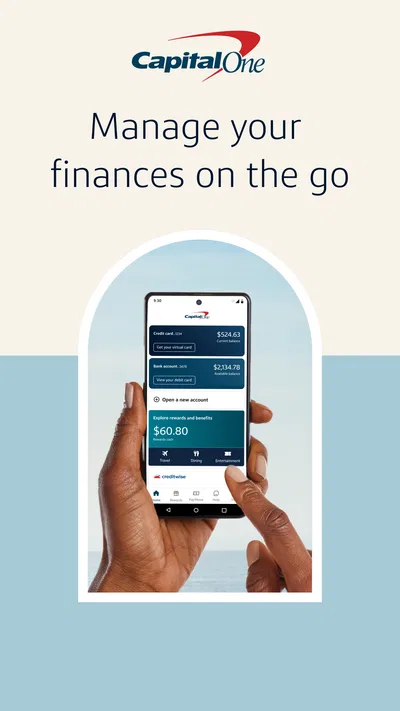
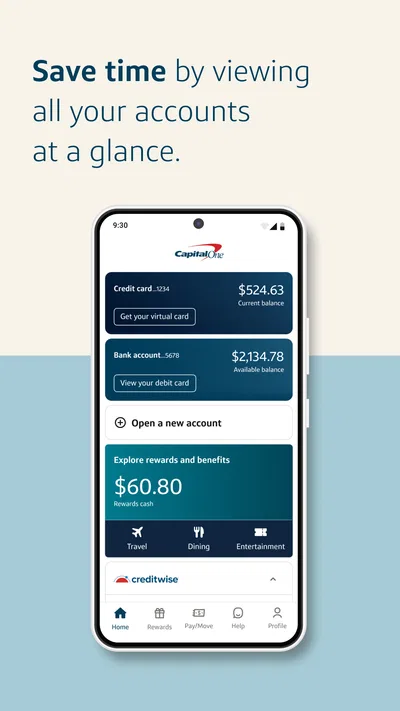
The app’s central appeal is that common actions—paying bills, checking account details, depositing checks, and managing a card—sit within the same mobile banking experience. That matters when you are trying to complete one quick task, not learn a complicated financial dashboard. In my view, clear access to essential banking actions is more valuable here than a crowded collection of tools.
Navigation matters especially when a person is stressed or in a hurry. A card that may be lost, for example, calls for a direct response rather than a long search through menus. Card locking is a useful safeguard in that moment, although it should not be confused with permanently replacing a card or resolving unauthorized transactions. I would treat it as a first step while checking the account and deciding what else needs attention.
Capital One Mobile has a 4.5 average from around 1.7 million ratings, and it has been available since July 29, 2011. Those figures suggest that it is an established choice, but they do not tell me whether its current screens will feel intuitive to every person. The more relevant test is whether you can locate the actions you use most without relying on memory or repeatedly retracing steps.
For readability, I recommend trying the app on your own device before depending on it for time-sensitive banking. Check whether account labels and balances are easy for you to distinguish, whether text is comfortable to read, and whether you can return to the main account view without confusion. The experience can vary with screen size, display settings, and individual vision needs; I would not assume that one layout works equally well for everyone.
Making routine tasks easier to follow
Bill payment is most helpful when it is part of a deliberate routine. I would use the app to review the payee and amount before confirming, then check the resulting activity afterward rather than assuming that tapping a button settles every detail. This simple two-step habit is useful for anyone who has difficulty keeping track of which bills have been handled, and it can also catch a mistaken amount before it becomes a larger headache.
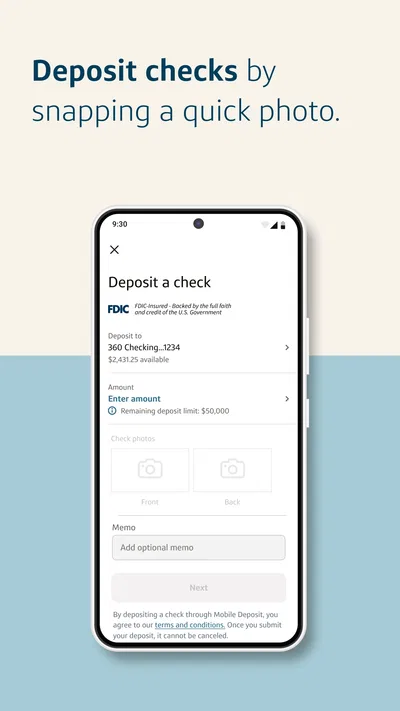
Check deposit offers another concrete convenience: it can reduce the need to travel simply to deposit a paper check. But the camera-based process may take more concentration than a balance check. If you have trouble positioning a phone, seeing the check clearly, or holding both steady, it may be easier to ask someone you trust for help or use another deposit method available to you. I would not choose a mobile deposit workflow until I had tested it calmly with a low-pressure transaction.
For someone who benefits from predictable sequences, it helps to separate tasks. Open the app to review an account first; start a payment only when you have the amount and recipient ready; handle a deposit when you can give the camera process your attention. This avoids bouncing among screens and reduces the chance of losing your place. These are ordinary habits, but they make mobile banking more manageable when memory, focus, or fatigue is a concern.
Using it with different abilities and in different situations
Motor needs can change what “convenient” means. A phone may be easier than visiting a branch, yet small touch targets or a camera-based task can be demanding for someone with limited dexterity or hand tremors. I would test the actions that matter to you—especially entering payment details and framing a check—before making the app your only way to bank. If a task feels awkward, using a larger device or a different banking channel may be the sensible choice.
Sensory context matters too. A bright screen can be hard to use outdoors, while a busy environment can make it difficult to focus on account details. For a quick balance check, a quiet moment and a familiar screen can help. For a payment or deposit, I would avoid multitasking: interruptions make it easier to lose track of the amount or whether a step was completed. The app is most useful when you can give important actions your attention.
Consider a realistic weekday situation: you are leaving work, notice a bill is due, and want to take care of it before it slips your mind. You can open the app, review the account, and work through the payment while the details are fresh. If you are on a crowded train, though, entering financial information may be uncomfortable or distracting. Waiting until you are somewhere private and steady is a better trade-off than rushing just because the phone is in your hand.
Situational access also includes connectivity and device readiness. A mobile banking app cannot help much if your phone is unavailable or the connection is unreliable at the moment you need it. I would keep another way to reach essential account support in mind and avoid leaving a critical payment until the last possible moment. That is not a special flaw of this app; it is a practical limit of relying on any phone for important financial tasks.
Who will get the most from it
This app makes the most sense for Capital One customers who regularly check their accounts, pay bills, deposit checks, or want a quick way to lock a card. It is free, rated for Everyone, and has more than 50 million installs. The current version is 6.55.5, and it requires iOS 11 or later. Before installing, I would check that your device meets that requirement and that the account services you need are available to you.
Compared with visiting a branch or using a desktop banking site, a phone app is better for quick checks and tasks you can complete wherever you are. A desktop can be more comfortable for reviewing lengthy information or typing carefully, while an in-person option may be preferable if you need direct help or find camera and touch interactions difficult. Compared with a broad budgeting app, Capital One Mobile is more focused on acting on Capital One accounts than bringing an entire financial life into one cross-bank view.
One useful way to decide is to list the three banking actions you do most often. If they are all account-related tasks that this app supports, it may reduce friction in your routine. If your main need is detailed budgeting across institutions, accessibility controls the app does not provide for your particular needs, or hands-on assistance, another tool or channel may be a better fit. I would not install it expecting it to replace every form of financial support.
Where convenience has limits
Mobile access can make banking more independent, but it also places responsibility on the user to protect the device and pay attention to each transaction. I would use the phone’s available screen and security settings, avoid handling sensitive tasks where others can easily see the display, and review account activity after making changes. These are sensible precautions for mobile banking generally, not a claim about a specific security feature in this app.
Another limitation is that a digital workflow can be less forgiving when something goes wrong. A blurry check image, an incorrect payment detail, or an unexpected screen can be harder to resolve if you are already tired or have difficulty reading small details. The practical tip is to do unfamiliar tasks when you have time, rather than in a rush, and to pause before submitting anything involving money. If the app’s layout or interaction becomes a barrier, choosing a different device or contacting Capital One through a suitable support channel is reasonable.
People with sensory, cognitive, or motor disabilities should judge the actual experience on their device rather than relying on assumptions about accessibility. I would try the app alongside the phone’s built-in accessibility settings and see whether the key screens remain understandable and usable. If a feature or screen does not work well with your setup, that is a meaningful reason to use another route; convenience is only real when you can complete the task reliably.
A practical choice, with personal fit at its center
My overall view is that Capital One Mobile is a useful companion for existing customers who want routine account management close at hand. Its most compelling everyday strengths are the ability to handle bill payments, check deposits, and card locking in one place. The experience is less compelling if you need a comprehensive cross-bank planner, prefer larger-screen interaction, or find mobile touch and camera tasks difficult.
For an inclusive decision, I would focus less on the app’s broad popularity and more on your own most important workflow. Can you read the account information comfortably? Can you reach the controls and complete a payment without strain? Can you use the deposit process safely and patiently if you need it? Testing those questions before depending on the app will tell you more than a feature list can.
If the answers are yes, I think it is worth keeping available for the small banking jobs that otherwise interrupt your day. If they are no, that does not mean you have to give up mobile banking entirely; a different device, a desktop session, or direct assistance may be more accessible. The right banking app is the one that lets you act with confidence, not merely the one with the most features.
Pros
- Biometric sign-in makes account access quick and convenient.
- Card lock controls help limit unauthorized purchases if a card goes missing.
- Custom alerts can help users spot account activity sooner.
- Mobile check deposit saves a trip to a branch or ATM.
- Credit score tools are available without a separate monitoring app.
Cons
- Some features require an eligible Capital One account.
- Mobile check deposits may take time to become available.
- App access depends on a stable internet connection.
- Certain account tasks may still require customer support.
- Some users may prefer fewer financial details on a phone.
Best Finance App 2026
Our verdict
Bill pay, card lock, check deposit and more - all on the Capital One Mobile app.
Frequently Asked Questions
What can I do with the Capital One Mobile app?
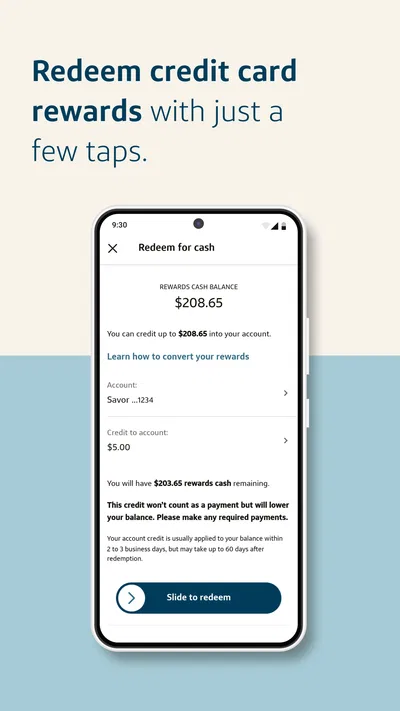
Capital One Mobile lets eligible customers manage their Capital One accounts from a phone or tablet. Depending on the accounts and features available to you, you can check balances and transactions, pay credit card bills, manage alerts, view statements, and access card controls. The app may also support transfers, mobile check deposits, and account management. Available features can vary by account type, location, and eligibility.
Is the Capital One Mobile app free to download and use?
The app is generally free to download, and Capital One does not charge a fee simply for using it. However, normal account terms still apply: for example, credit card interest, late fees, or other charges may apply based on your account and activity. Your mobile carrier may also charge for data or text-message use. Check the app-store listing and your account terms for current details before downloading or using specific services.
How do I sign in to Capital One Mobile, and what if I forget my password?
You’ll need a Capital One online account and your sign-in credentials to access account information. The app may offer security options such as biometric sign-in on supported devices, but availability depends on your device and account settings. If you forget your password or username, use the recovery options in the app or on Capital One’s official website. Never share verification codes or passwords with anyone who contacts you unexpectedly.
Is Capital One Mobile safe to use for banking and card payments?
The app is designed to provide secure access to Capital One accounts and may include safeguards such as sign-in verification, alerts, and device-based security features. Your own precautions matter too: install the official app from a trusted app store, keep your device and app updated, use a strong unique password, and avoid signing in on shared or public devices. Review permissions and account alerts, and contact Capital One promptly if you notice unfamiliar activity.
Can I deposit checks or manage my card in Capital One Mobile?
Some eligible customers may be able to deposit checks by taking photos in the app, while cardholders may have access to tools for payments, transaction review, alerts, and card controls. These options are not guaranteed for every account, and deposit limits, processing times, and other conditions may apply. Check the feature details shown in your app and the relevant account terms before relying on a deposit or making an urgent payment.