
- Award score
- 4.8Rating
- 500,000+installs
- Free
App information
Screenshots


 Analysis byAppsAward
Our review of Ge Browser - Safe & Smart
I like a browser that can keep a quick, ordinary search separate from the tabs and downloads I don’t want mixed into my usual browsing. Ge Browser - Safe & Smart is built around that kind of practical split: it combines private browsing with video downloading, rather than trying to replace every tool on a phone. My take is that it makes the most sense for people who want those two tasks close at hand and are willing to check how the app behaves on their own device before relying on it for sensitive activity.
A simple baseline for browsing and saving
At its core, Ge Browser is a Tools app from Av sign international. The appeal is straightforward: browse privately when a task feels temporary, and use the same app when you want to save a video for later. That can be handier than switching between a standard browser and a separate downloader, especially when you are looking up a clip and already know you’ll want to revisit it offline.
A realistic example is planning a trip on a shared family tablet. I might look up a venue, check a few details, and save a permitted video guide to watch later. A private browsing mode can help keep that short-lived research apart from my everyday browsing, while the download function gives the viewing task a clear endpoint. I would still avoid entering passwords or personal details on a shared device unless I trusted its setup; a private tab is not a substitute for device security.
The app is free, and its Teen content rating is worth keeping in mind if a younger person uses the device. It has a 4.8 average from around 5,800 ratings, with over 500,000 installs. Those figures suggest that many people have tried it, but they don’t tell me whether a specific video source will work or whether the privacy behavior suits my needs. I’d treat the rating as a useful signal, not a guarantee.
Its current version is 1.3.1, and it runs on Android 8.0 or later. If you’re choosing it for an older phone, checking that operating-system requirement first can save an unnecessary install attempt. The version number is also useful when comparing what you have installed with what appears in the app store, particularly if a screen or behavior differs from what a friend describes.
Make private browsing a deliberate habit
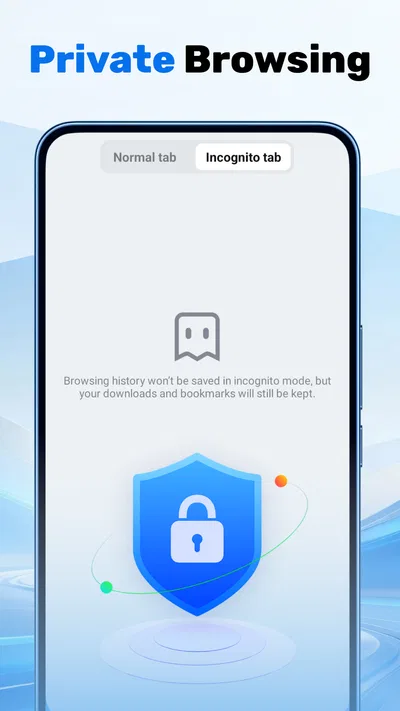
The most useful way to approach private browsing is to decide what belongs there before opening it. I’d reserve it for one-off searches, temporary comparisons, or browsing on a device other people also use. That small habit makes the mode easier to understand later: if I open a private session for a specific task, I’m less likely to confuse it with my regular browsing or assume that every visit is private automatically.
It also helps to finish cleanly. When I’m done with a temporary task, I close the relevant session rather than leaving a collection of half-finished tabs for later. This is a workflow tip, not a claim about a particular automatic cleanup feature: closing what I no longer need is a dependable way to reduce clutter in any browser. If the app presents privacy controls or session options, I would read their wording rather than assuming they work exactly like those in another browser.
One important distinction: private browsing generally concerns what a browser keeps locally, not whether every network, website, or device can see activity. I would not use a private mode as a promise of anonymity, and I wouldn’t rely on it to hide activity from a network administrator or to protect information typed into a site. For stronger privacy needs, a person should assess the full setup, including the device, connection, and services being visited.
Check the controls before building a routine
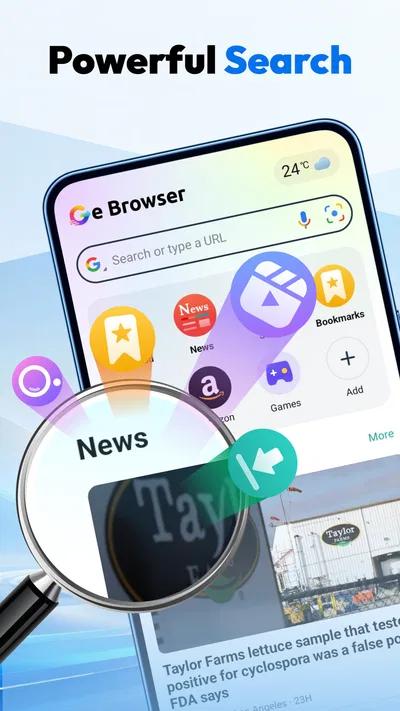
Before making Ge Browser my default for anything important, I’d spend a few minutes exploring its settings and testing the basic flow. The practical questions are simple: where are the browser controls, how does a private session look, and what steps does the app ask me to take when saving a video? Knowing those answers in advance is more valuable than tapping through quickly and discovering friction halfway through a task.
I would also look carefully at any permission prompt the app displays. A video downloader may need access to save a file, but I would grant only what the operating system asks for and only when it makes sense for the action I’m taking. If a permission request seems unrelated to browsing or saving, I’d pause and check its explanation rather than approving it automatically. This is sensible practice for any app, not a claim that Ge Browser requests a particular permission.
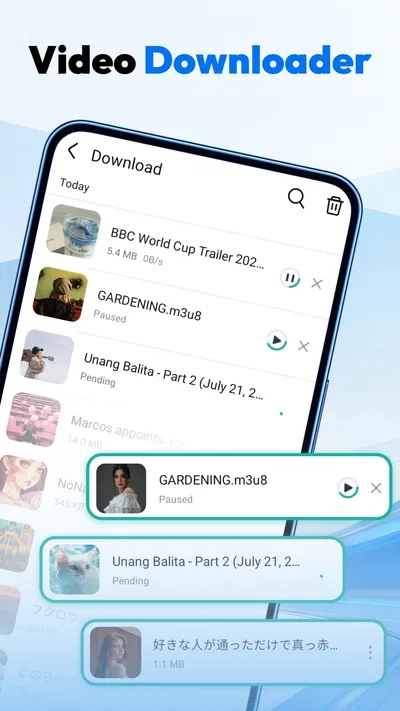
For downloads, I’d test with a short clip that I’m allowed to save before depending on the app for a long journey or a presentation. Confirm that the file appears where you expect, that it plays in a suitable player, and that the source permits downloading. This catches common workflow surprises—such as a saved file being harder to locate than expected—without assuming that every site or format is supported.
That test also helps answer a practical question: does the downloader fit your own sources? Video-saving tools can behave differently depending on a site’s restrictions and the way its content is delivered. I would not assume that a visible video can always be downloaded, or try to bypass a service’s rules. If saving is blocked or unclear, the safer choice is to use the platform’s own offline option when available.
Use repeatable patterns to save time
Experienced users tend to get more value from a small routine than from repeatedly hunting through menus. For Ge Browser, I’d keep the workflow uncomplicated: open the browser for a defined task, use private browsing only when it fits, and save only content I have permission to keep. When a download matters, I’d verify the result immediately instead of assuming the tap worked. That check is especially helpful before leaving Wi-Fi or heading somewhere with unreliable service.
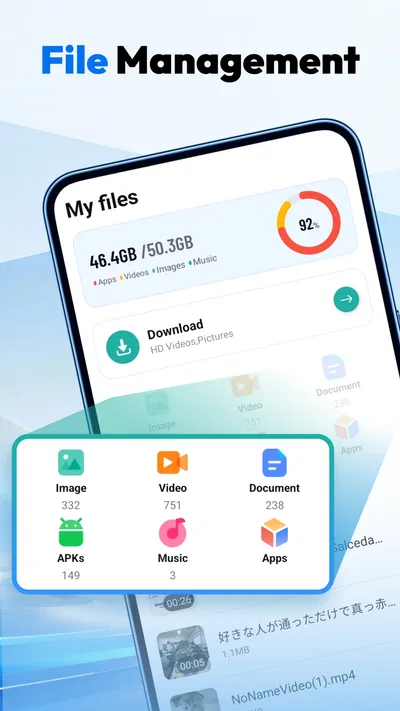
A second useful pattern is to separate browsing from file management. I’d use the browser to locate and save a clip, then switch to the phone’s usual file or media tools to organize it, rename it if appropriate, or remove it when it is no longer useful. That keeps the browser from becoming a catch-all archive and makes it easier to notice what is actually stored on the device. The exact options available for managing files depend on the phone and its installed apps.
If you repeatedly research the same kind of thing, a short mental checklist can prevent mistakes: confirm you are in the intended browsing mode, check that the source is legitimate, and verify a saved file before relying on it. This is more dependable than assuming a browser’s name or privacy label covers every situation. It also keeps the app’s two main jobs—browsing and downloading—from blurring into one vague promise of “safety.”
Compared with a phone’s built-in browser, Ge Browser may be more convenient when video saving is part of the same task. The built-in option can still be preferable if you mainly need everyday web access, already have familiar bookmarks and settings there, or want to avoid maintaining another browser. Compared with a dedicated downloader, Ge Browser’s advantage is the combined workflow; a specialist app may be a better fit if you need detailed file organization or a particular download process that this browser does not provide.
Where convenience has limits
The combined idea is useful, but it does not remove the trade-offs of using an additional browser. You may need to build up your preferred habits and become familiar with its controls rather than carrying over the setup of your usual browser. If your routine depends on a particular browser’s saved data, extensions, or tightly integrated account features, switching for every task could be more effort than it saves.
There is also a limit to what I would infer from the word “private.” I would use the mode to keep a temporary task distinct from normal browsing, not as a complete privacy shield. Anyone who needs clear, verifiable protections for sensitive work should examine the app’s privacy explanations and compare them with a browser whose behavior and controls they already understand. If the requirement is confidentiality rather than convenience, I’d choose the option I can evaluate most confidently.
Video downloads bring their own constraints. A downloader can be handy, but it cannot make every source available offline, and saving a file does not automatically grant permission to redistribute it. Content may also behave differently after saving than it did in a webpage, so I’d test playback before counting on it. For people who mainly stream from services with their own offline viewing features, those official options are often simpler and clearer.
Another point to consider is how much you actually need both functions. If you rarely download videos, the extra browser may add little to your day. If you only want a basic private session now and then, a familiar browser’s existing private mode may be enough. Ge Browser is most compelling when the two activities regularly occur together, not simply because having more tools in one place sounds appealing.
Who will get the most from it
I’d recommend giving it a try if you often look up video content and want a browser with a built-in route to saving eligible clips. It may also suit someone who prefers keeping temporary research separate from routine browsing and is comfortable checking settings rather than assuming every privacy detail. Starting with a low-stakes search and a permitted test download is a sensible way to decide whether its workflow feels natural on your phone.
I’d skip it if your priority is a highly familiar, account-centered browser setup, if you need guaranteed compatibility with particular video services, or if you expect private browsing to make you anonymous. People who save media only occasionally may be better served by their usual browser and the content platform’s own offline tools. Likewise, anyone installing it for a teen should think about the app’s Teen rating and the device’s broader supervision settings, rather than treating the rating as a complete safeguard.
Overall, Ge Browser - Safe & Smart is best understood as a focused convenience: private browsing and video saving brought together for everyday tasks. I like the potential to move from finding a clip to saving an allowed copy without changing apps, but I’d keep expectations measured and test the workflow first. If that combination matches something you do often, the free app is worth trying; if you need advanced privacy assurances or dependable downloads from specific services, your regular browser or an official offline feature may be the better choice.
Pros
- Offers a built-in ad blocker for a cleaner browsing experience.
- Includes private browsing for sessions you do not want saved.
- Provides a simple interface that is easy to navigate.
- Lets you manage bookmarks for quick access to favorite sites.
- May use less device storage than feature-heavy browsers.
Cons
- Some websites may not work properly with ad blocking enabled.
- Privacy features do not replace a VPN or prevent all online tracking.
- It may lack advanced tools found in more established browsers.
- Browser performance can vary depending on the device and website.
- The app may request permissions that users should review carefully.
Best Tools App 2026
Our verdict
Private Browser、Video Downloader、Fast&Safety
Frequently Asked Questions
What is Ge Browser - Safe & Smart?
Ge Browser - Safe & Smart is a mobile web browser intended for everyday browsing, with features presented around safer and more convenient web access. Its exact tools and appearance may vary depending on the app version and device. Before installing, check the app listing for current features, developer information, and recent updates so you know what is available on your Android or iOS device.
Is Ge Browser - Safe & Smart safe to use?
The app’s name suggests a focus on safe browsing, but a name alone cannot confirm how well it protects your privacy or blocks online threats. Review the store listing, privacy policy, requested permissions, and recent user feedback before relying on it. Avoid entering sensitive information on unfamiliar websites, keep the browser updated, and remember that no browser can guarantee complete protection from scams or malicious content.
Is Ge Browser - Safe & Smart free to download?
Check the Google Play Store or Apple App Store listing for the latest price and any in-app purchases, subscriptions, or advertising. App pricing and monetization can change by region and over time, so details shown in older reviews may not match what you see. Read the purchase information before confirming an installation, particularly if the app offers optional paid features or a recurring subscription.
What permissions or personal information might Ge Browser - Safe & Smart require?
A browser may need internet access to load websites and may request additional access for features such as downloads, notifications, or location-based services. The specific permissions depend on the version and platform. Review the permission prompts and the app’s privacy disclosures before granting access, and deny anything that does not appear necessary for your intended use. You can usually manage permissions later in your device settings.
How can I install Ge Browser - Safe & Smart, and what should I check first?
Install the app through the official Google Play Store or Apple App Store, where available, rather than using an unfamiliar download site. Confirm that the developer and app name match the listing you intended to choose, and check compatibility, update history, and device requirements. After installation, review privacy and security settings before browsing, especially if you plan to use saved passwords, downloads, or account sign-ins.

Download Ge Browser - Safe & Smart
Similar apps
View all 9.3
 8.8
 7.7