- Award score
- 3.9Rating
- 500,000+installs
- Free
App information
Screenshots
 Analysis byAppsAward
Our review of PDF Reader: Documents Master
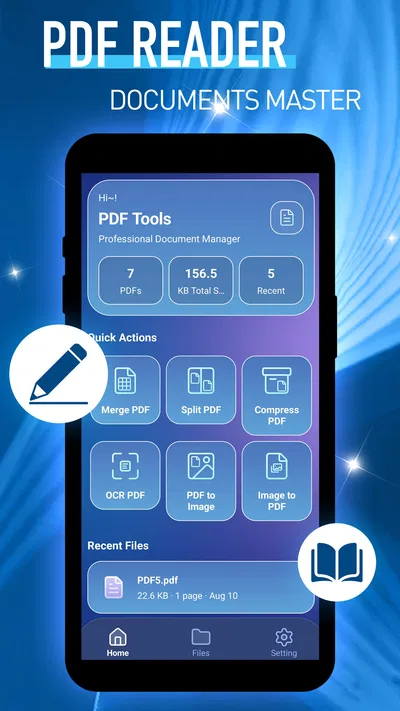
PDF Reader: Documents Master is a focused tool for opening and working with PDF files, rather than a broad office suite trying to do everything. I’d consider it for the everyday moments when a document needs to be read on a phone: checking a form before sending it, reviewing a handout between appointments, or finding a clause in a file someone has just shared. Its appeal is straightforward, but the value of any PDF reader depends on how comfortably it fits into those small, repeated tasks.
A practical reading routine, not a full document office
The first useful question is what you expect from a mobile PDF reader. If your routine is mainly to open a document, read it, and return to it later, a dedicated reader can feel simpler than a full office app. This app is listed as a Tools app by Praya, and its short description identifies it as a PDF Reader. That narrow focus makes the most sense for people who want a reading utility, not a replacement for a desktop editor.
A sensible baseline workflow is to open a file from wherever you normally receive or keep documents, read it in manageable sections, and make a habit of checking the file name before sharing or acting on it. That last step sounds minor, but it helps when several similar forms or invoices are sitting together. I’d treat the app as a place to inspect PDFs, while keeping important originals organized in the storage or cloud service where you already manage your files.
For a realistic example, imagine receiving a travel confirmation and a venue document on the same day. I’d open each PDF, verify the date and address, then leave the files in their existing folders rather than creating a separate, hard-to-maintain filing system inside a reader. The useful habit is not a clever feature; it is making the reader part of a repeatable process: open, check the relevant details, and return to the source location.
The app is free and has an Everyone content rating, so it is approachable for general household use as well as personal document reading. It has a 3.9 average from around 674 ratings, with over 500,000 installs. Those figures suggest a reader that has found an audience, though they don’t tell me whether it will match an individual’s preferred controls or document workflow. I would decide based on the kind of PDFs I handle and whether I need reading alone or substantial editing.
Small settings checks that prevent daily friction
Before relying on any reader for a regular routine, I recommend spending a minute with its available settings rather than assuming the default behavior suits you. Check the display controls and navigation options that are actually present in your installed version. A comfortable text size and a reading mode that works for your screen can matter more over a week than a long list of rarely used tools. I’m not claiming particular controls are available here; the practical advice is to inspect the options the app presents and adjust only what improves your own reading.
It is also worth checking how you prefer to move through long documents. Some readers and users work best page by page, while others prefer a continuous scroll. If the app offers a choice, test both on the same file: page-by-page movement can make it easier to return to a numbered page, while continuous scrolling may be more natural for a report. If there is no such choice, use the available navigation consistently so you do not waste time switching habits between documents.
For small screens, I’d test a dense PDF before deciding the reader is comfortable. A page designed for printing can make columns and footnotes hard to inspect on a phone. Zooming in helps, but it can also make you lose your place; a useful routine is to zoom only for the table or paragraph you need, then return to a whole-page view before moving on. This is a general reading technique, not a claim about a special zoom feature.
One more practical check is how a document opens when you tap it from another app. If the phone asks which reader to use, choosing deliberately can save a few taps later. If you share files with coworkers or family, be careful to send the intended PDF rather than a similarly named copy. Readers help you view a document, but they do not replace a clear naming habit or a backup strategy.
Faster patterns for recurring documents
Experienced users usually get speed from consistent habits, not from memorizing a complicated interface. I’d keep a simple naming pattern for recurring documents—such as combining the subject with the relevant month or project—wherever those files are stored. Then the reader’s job stays focused: open the right file and inspect it. This is especially helpful for receipts, schedules, school notices, and forms that otherwise look nearly identical in a crowded folder.
For a meeting or appointment, prepare the document before you need it. Open the PDF once, check that it is the right version, and note the page containing the detail you expect to discuss. If the reader provides a way to return to a recent file or a specific page, use it; if not, remember the page number or keep the file easy to locate in its original folder. This small preparation avoids scrolling while someone waits for an answer.
When reviewing a multi-page document, avoid reading every line if your task is narrow. First identify what you need—perhaps a deadline, total, address, or signature instruction—then inspect the relevant section and verify the surrounding context. Looking at the adjacent paragraph or table heading helps prevent a common mistake: copying a figure that belongs to a different line. A PDF reader is most useful when it makes that quick verification comfortable, not when it encourages you to skim blindly.
I’d also separate reading from editing in my expectations. If you need to fill in a form, sign a document, rearrange pages, or revise text, first confirm that the installed app provides the specific action you need. A tool described as a PDF reader should not automatically be treated as a full editor. For a one-off annotation or form task, a dedicated editing app may be a better choice; for simply checking a document before responding, a reader can be the more direct option.
Where it fits among familiar alternatives
The usual alternatives fall into two broad groups: lightweight readers and all-in-one document apps. A lightweight reader is appealing when you mainly open PDFs and want fewer distractions. A broader office or cloud-storage app can be more useful if your documents are tightly tied to collaboration, file conversion, or editing. PDF Reader: Documents Master sits in the reader-focused part of that decision, so I’d judge it by how well it supports the act of reading rather than expecting it to handle every document job.
Compared with opening a PDF in a browser or a general file viewer, a dedicated reader can be a more natural choice for repeated document checks. The trade-off is that a specialist reader may not be the best center for a workflow involving spreadsheets, word-processing files, and team revisions. If you already use an office suite that handles your PDFs reliably, installing another app may add little. If you often need a straightforward way to open PDFs separately from your editing tools, a focused reader is easier to justify.
The most useful comparison is not a feature-count contest. Ask whether you need dependable reading, or whether your real task is changing the document. For contracts, application forms, or shared work files that require annotation and approval, choose a tool whose editing and sharing behavior you have checked before the deadline. For reference material, menus, manuals, and notices, a reader-oriented app may be enough. That distinction prevents disappointment more effectively than assuming every PDF app offers the same capabilities.
Limits to keep in mind before making it a habit
The main limitation I would keep in view is scope. A reader can be central to a routine without being the place where every document task happens. If you expect automatic filing, powerful search across a large archive, cloud synchronization, password handling, or advanced markup, verify those needs against the app itself before depending on it. I would not build a work process around an assumption that a feature exists just because it is common in some competing products.
There is also a difference between reading a PDF and knowing that its contents are correct or safe. A polished page can still contain outdated information, and a document from an unfamiliar sender deserves the same caution as any other attachment. Check the sender and the document context before acting on payment instructions or personal-data requests. The reader’s role is to display the file; judgment about what the file asks you to do remains yours.
Version 1.0.1 is the current version, and the app requires Android 10 or later. That matters if you are planning to install it on an older phone: check your device’s Android version first rather than discovering the restriction during setup. The release date is September 4, 2026, so I’d also keep expectations measured when comparing its maturity with long-established document suites. For everyday reading, a simple tool may be sufficient; for a business-critical archive, I’d test it with real files before making it part of a formal process.
Privacy and file access deserve a practical check too. Before opening sensitive material, review the permissions and choices shown by the app and your device, and avoid granting access that does not make sense for the task. I would use established storage practices for confidential documents rather than assuming that installing a reader changes where files are kept or how they are protected. That caution applies especially to financial, medical, or identity documents.
Who should use it, and when I would choose something else
I’d recommend giving PDF Reader: Documents Master a try if your phone is where you regularly read PDFs and you prefer a tool whose stated purpose is clear. It may suit students checking handouts, travelers reviewing confirmations, or anyone who needs to inspect a form without opening a full office suite. The free price makes it easy to consider, while the Everyone rating makes its general audience clear. The key is to test it with the types of files you actually use, not only a short sample document.
I would skip it if your main requirement is sophisticated PDF production: editing paragraphs, combining pages, converting formats, managing signatures, or coordinating revisions with other people. In those cases, choose an app that explicitly supports the exact workflow and test that workflow before you depend on it. I’d also avoid adding it just for the sake of having another reader if your phone’s existing viewer already opens files comfortably and your needs are occasional.
My mastery verdict is simple: build a repeatable reading routine, inspect the available settings once, and keep file organization outside the reader unless its actual tools make that arrangement worthwhile. The strongest use case is quick, deliberate access to PDFs on a phone; the clearest reason to look elsewhere is a need to edit or manage documents beyond reading. With that boundary understood, PDF Reader: Documents Master is a reasonable free option to evaluate for everyday PDF checks, rather than a universal document workspace.
Pros
- Opens common PDF files quickly for everyday reading.
- Page navigation makes it easy to find a specific section.
- Text search helps locate terms across a document.
- Zoom controls improve readability on small screens.
- A simple interface is approachable for first-time users.
Cons
- Large PDFs may take longer to open on older devices.
- Small text can require frequent zooming on phone screens.
- Complex layouts may not display exactly as intended.
- Some features may require an internet connection.
- The app may include ads or prompts to upgrade.
Best Tools App 2026
Our verdict
handle your documents with effortless ease and confidence.
Frequently Asked Questions
What can I do with PDF Reader: Documents Master?
PDF Reader: Documents Master is designed for opening and reading PDF files on a mobile device. Depending on the version and the tools available in the app, it may also help you browse documents, search for text, zoom in on pages, and manage files stored on your device. Check the app’s current description and feature list before downloading, since available tools can vary by version.
Can PDF Reader: Documents Master open files other than PDFs?
The app’s name emphasizes PDF reading, so PDF files are its primary focus. Support for other document formats, such as Word files or spreadsheets, should not be assumed unless it is clearly listed in the store description or confirmed in the app. If you need to work with several file types, check format compatibility first and consider testing with a non-sensitive sample document.
Does PDF Reader: Documents Master require an internet connection?
Reading a PDF that is already saved on your device generally does not require an internet connection, but features that retrieve, share, or synchronize files may need one. Requirements can differ depending on the app version and how you access a document. Review the app’s permissions and store listing, and try opening a locally stored file offline if offline reading is important to you.
Is PDF Reader: Documents Master free to use?
Whether the app is free, contains advertising, or offers paid upgrades can depend on its current store listing and version. Before installing, check the pricing details and look for information about in-app purchases or subscriptions. If you only need basic PDF viewing, confirm that reading and essential navigation are available without payment so you know what to expect before using it.
Is it safe to open private documents in PDF Reader: Documents Master?
Treat documents containing personal, financial, or work information with care in any PDF app. Before importing sensitive files, review the app’s privacy information, requested permissions, and any available explanation of how files are stored or shared. Avoid granting access that is not needed for your use, and do not assume documents remain private or are processed only on your device without checking the developer’s current disclosures.

Download PDF Reader: Documents Master
Similar apps
View all 9.3
 8.8
 9.7