
- Award score
- 4.6Rating
- 10,000,000+installs
- Free
App information
Screenshots

 Analysis byAppsAward
Our review of T-Life
I think T-Life makes the most sense when you want one familiar place to handle everyday T-Mobile tasks rather than jumping between account pages and separate tools. It is a free Lifestyle app from T-Mobile USA, and its broad, all-in-one role is both its main appeal and the source of its biggest trade-off: it can simplify a customer’s routine, but it is not especially useful to someone who does not use T-Mobile services.
What to expect when opening it
The app is not a general lifestyle companion. Its value depends on your relationship with T-Mobile, so I would judge it by whether it makes your carrier-related errands easier, not by how much it offers outside that context. If you already manage your mobile service through T-Mobile, keeping the company’s app on your phone can save a little friction when you need to check something or take care of an account task.
The name is short, but the practical idea is straightforward: bring T-Mobile-related activity together in one mobile destination. That is convenient in principle, though an all-in-one layout can feel busier than a focused app. I would expect to spend a little time learning where the things I use most often are, especially if I only open it occasionally.
It has a 4.6 average from around 1.1 million ratings, alongside roughly 105,000 written reviews. Those figures suggest that many people find it useful, but they do not guarantee that every account workflow will feel smooth on every phone. My advice is to treat it as a practical companion to your service rather than assuming the app itself will remove every reason to contact the carrier or use another channel.
Speed is about the task, not just the launch
For an app like this, the important question is not simply whether it opens quickly. A carrier app may need to present account-specific information or complete a service-related action, and the useful measure is how easily you can get from the home screen to the task you actually came to do. I would keep expectations grounded: T-Life is a convenient access point, not a guarantee that every step will be instantaneous.
If you only check in now and then, a slightly unfamiliar menu can matter more than raw speed. A small practical tip is to notice the route you use most and return to it the same way each time, rather than exploring the whole app whenever you open it. That habit helps make an occasional utility feel quicker without expecting it to behave like a lightweight single-purpose tool.
I also would not use the app as my only plan when a task is urgent. If a phone or service issue is disrupting something time-sensitive, it is sensible to have another way to reach T-Mobile available. The app can be a useful first stop, but good planning means not relying on one mobile interface as the sole route to help.
Busy moments and practical routines
The app’s all-in-one approach is most valuable when you have several small carrier-related needs over time. Instead of remembering which separate place to visit for each kind of task, you can start from T-Life and see whether the action you need is available there. That is a modest convenience, but it can make a difference for people who manage their own service and prefer to handle routine errands from a phone.
A realistic example is getting ready to travel. Before leaving home, I would open the app while I still have time, look for the account or service information relevant to my plans, and deal with anything that needs attention before I am relying on a connection away from home. The useful insight is not to wait until you are standing in a station or airport with a weak signal: handle routine checks in advance, when you can switch to another channel if needed.
Another good workflow is to use it during a calm moment rather than only when something has gone wrong. If you open a carrier app for the first time during a stressful service problem, you have to learn its layout and solve the issue at once. A brief, low-pressure visit beforehand can make the app feel less unfamiliar later. That is especially helpful for people who rarely interact with their wireless account.
Heavy use can still expose the trade-off of a broad app. When you are moving between different account needs, it may take more navigation than a tool built around one narrow task. I would not keep tapping through menus just because the app is open; if you cannot quickly find the relevant route, use the support channel that best fits the problem rather than losing time searching.
Reliability and what to do if a task stalls
I would think of reliability here as a combination of the app, your device, your connection, and the account action you are trying to complete. An account screen that takes a moment to load does not automatically mean the app is broken, and a stalled task does not tell you by itself where the problem lies. That distinction matters because repeatedly retrying the same action can waste time without clarifying what is happening.
A sensible recovery routine is to pause, check whether your connection is behaving normally, and try the task again once rather than rapidly repeating it. If the issue continues, switch to another way of contacting or managing your service. This is not a special trick hidden in the app; it is a practical way to avoid turning a temporary delay into a frustrating loop.
I would also separate routine browsing from consequential actions. If you are making a change that matters to your service, take a moment to confirm what the screen says before moving on. That simple pause is useful in any account app, but it is particularly worthwhile when several different account functions share one interface and you may have reached the wrong section.
For people who are comfortable with digital self-service, T-Life can reduce the need to look for a separate starting point each time. For someone who wants a human explanation for every issue, an app may feel like an extra step rather than a shortcut. In that case, going directly to a support option may be the better choice, especially when you need help interpreting a complicated account situation.
Device fit and who should skip it
T-Life has more than 10 million installs and is rated for Everyone, which makes it approachable in broad terms. Still, the right fit is less about age and more about whether you are a T-Mobile customer who prefers using a phone for service-related tasks. If you do not have a reason to manage T-Mobile activity, there is little point in adding another app to your device.
On a phone with limited storage or a crowded home screen, I would ask whether I will use the app often enough to justify keeping it installed. A carrier app earns its place when it saves repeated effort; if you rarely need it, a browser or another contact route may suit your habits better. I would not assume that an all-in-one app is automatically lighter or easier on every device simply because it gathers functions together.
The same goes for people who dislike account tasks on a small screen. If you prefer handling detailed service matters on a larger display, T-Life may be better for quick checks than for every part of your account routine. Use the phone app for convenience when it fits, and choose a larger screen or direct assistance when careful reading and comparison matter more.
How it compares with the usual alternatives
Compared with going through separate carrier pages or searching for a different tool each time, T-Life offers a more centralized starting point. That can be useful if you want one app associated with your T-Mobile relationship. The alternative is not necessarily worse: a browser or direct support route may be clearer for a one-off question, while a phone call can be preferable when you need a person to understand the context behind a problem.
This is why I would not call the app a replacement for every other way of dealing with a carrier. Its strongest role is convenience for people who are already willing to manage routine matters digitally. Its weaker role is resolving a complicated issue that needs explanation, judgment, or back-and-forth conversation. Picking the channel according to the task is more useful than insisting on doing everything inside one app.
T-Mobile USA released it on June 6, 2016, and the app has had time to become a familiar part of the company’s mobile experience. That history and its large audience make it a well-established option, but neither fact means it will match every person’s preferred workflow. I would install it because I expect to use T-Mobile services from my phone, not merely because it is popular.
My verdict on keeping it installed
T-Life is worth considering if you are a T-Mobile customer who wants a convenient mobile starting point for everyday carrier tasks. I like the logic of bringing those interactions into one place, and the free price makes it easy to try without committing to a purchase. Its usefulness is practical rather than universal: the closer your routine is to managing T-Mobile service on your phone, the more sense it makes.
I would be more cautious if you want a dedicated tool for one narrow job, rarely deal with your account, or prefer speaking with support instead of navigating an app. A broader interface can save time once you know your route, but it can also add steps when you only need one specific answer. If that sounds like your situation, using another channel may be simpler.
Overall, I see it as a sensible convenience, not something every phone needs. Try it during an ordinary moment, learn the route to the tasks you actually care about, and keep a backup contact method in mind for urgent or complicated issues. That approach gives you the app’s main benefit without expecting it to solve every service problem on its own.
Pros
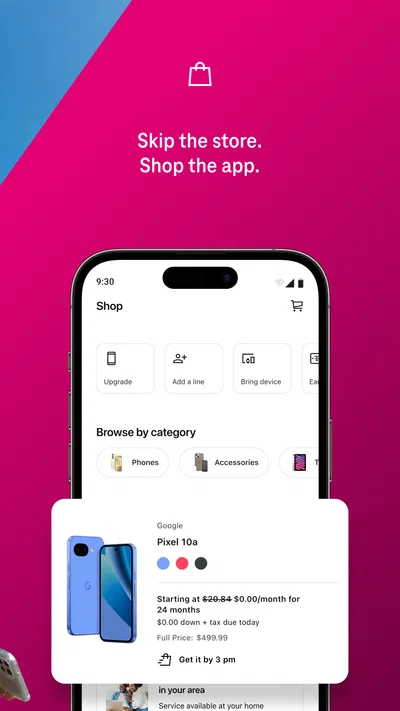
- Manage eligible T-Mobile account details from one app
- Track orders and check device upgrade options
- Access support without visiting a retail store
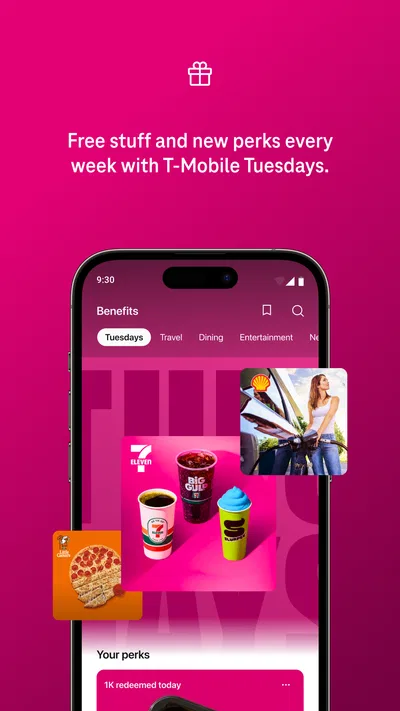
- View available offers tied to your account
- Use the app to manage connected home services
Cons
- Many features require a T-Mobile account
- Some tools may be limited by your plan
- App performance can vary across devices
- Account changes may take time to appear
- Promotions and features can vary by location
Best Lifestyle App 2026
Our verdict
Your all-in-one T-Mobile app.
Frequently Asked Questions
What is T-Life, and what can you do with it?
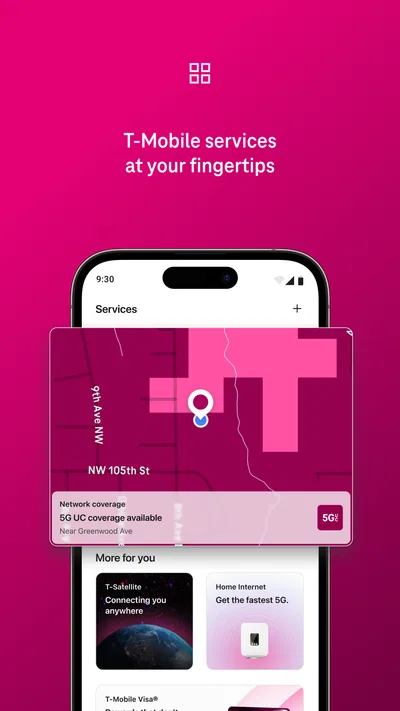
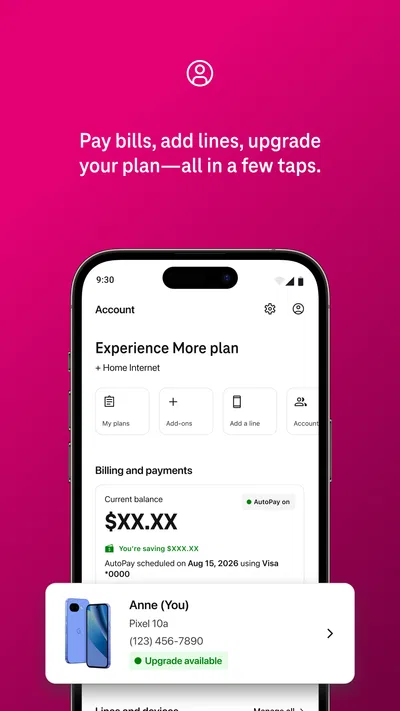
T-Life is T-Mobile’s app for managing eligible T-Mobile wireless and home internet services. Depending on your account and location, it can let you review plan and usage details, pay or manage bills, access support, explore offers, and handle certain account changes. Available features may differ by plan, account role, and app version, so check the current app listing and your account for what is supported.
Do I need a T-Mobile account to use T-Life?
Most account-management features require an eligible T-Mobile account and sign-in, and some actions may be limited to the primary account holder or authorized users. If you are considering switching to T-Mobile, you may be able to explore public information or offers without signing in, but access to service details and account tools generally requires authentication. Have your account credentials available, and use T-Mobile’s official recovery options if you cannot sign in.
Is T-Life free to download and use?
The T-Life app is generally available to download without an app purchase, but downloading it does not make T-Mobile service, plans, devices, or optional add-ons free. Your wireless or home internet charges continue under your service agreement, and data use may count toward your plan when you are not on Wi-Fi. Review the app-store listing and your account terms for current availability, charges, and any offer-specific conditions.
Is T-Life safe, and what information does it access?
T-Life handles sensitive account information, so download it only from the official Apple App Store or Google Play listing and sign in using your own credentials. The app may request permissions needed for particular features, while its collection and use of data are described in the store privacy disclosures and T-Mobile privacy policy. Review those details, keep your device and app updated, and avoid entering account information through links you do not trust.
What should I do if T-Life will not open or a feature is missing?
First, check your internet connection, update T-Life through the official app store, and restart the app or device. Some tools may not appear because of your plan, account permissions, region, or a temporary service issue; signing out and back in may also help. If the problem continues, use T-Mobile’s official support channels and provide the app version and a description of the issue, but never share your password or verification codes.