- Award score
- 4.8Rating
- 500,000,000+installs
- Free
App information
- Version
- 2.243.1555
- Updated
- Requires
- 8.0
- Price
- Free, in-app purchases
- Developer
- InShot Video Editor
- Content rating
- Everyone
Screenshots
 Analysis byAppsAward
Our review of Video Editor & Maker - InShot
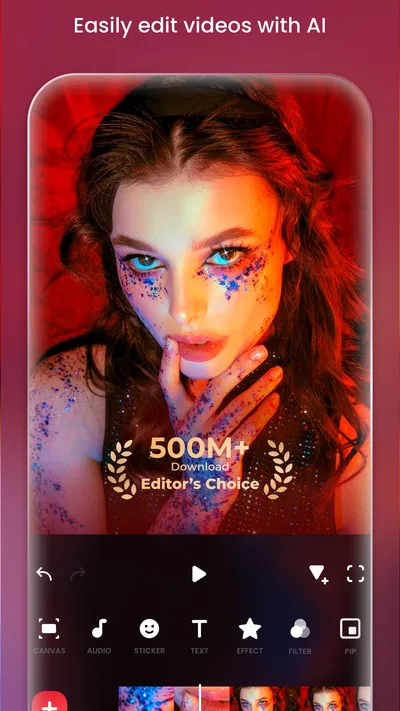
I like mobile editors that let me finish a small video without turning the task into a project, and Video Editor & Maker - InShot is built for that kind of work. It is a photography app from InShot Video Editor, but its real appeal is video editing: trimming clips, arranging a slideshow, adding music and effects, and shaping a quick post for social media. In my experience, it makes the jump from a camera-roll collection to a shareable edit feel approachable, while still leaving room for choices beyond a plain cut-and-join job.
What the free starting point means
The app is free to download, and that makes it easy to try before deciding whether it belongs in your regular editing routine. There are in-app purchases ranging from $0.99 to $199.99 per item, so “free” describes the starting point rather than every possible purchase. I would treat the editor as something to test with a real project first, then judge whether any paid option solves a problem you actually have.
That distinction matters because a wide purchase range does not, by itself, tell you which features require payment or whether a particular item is worthwhile. I would not buy anything just because it appears while editing. Start with a short video you already want to make, see how far the free experience takes you, and consider a purchase only if a specific restriction gets in your way. That is a more reliable value test than assuming you need to pay to make a decent-looking result.
The app has a 4.8 average from around 25 million ratings, and it has passed 500 million installs. Those figures suggest that it is a familiar choice for mobile editing, though popularity cannot tell you whether its workflow suits your habits. It is rated Everyone, and it first appeared on March 5, 2014; the current version is 2.243.1555, with Android 8.0 as the minimum operating system. The large audience is reassuring if you want a widely used tool, but I would still make the decision based on the kind of videos you personally edit.
A practical editor, not a full production desk
The most useful way to think about InShot is as a hands-on editor for short-form, everyday projects. It is a good fit when the footage already exists on your phone and the goal is to make it clearer, more watchable, or better paced. A quick trim, a few clips in order, music underneath, and a restrained effect can be enough to turn a casual recording into something worth sharing. You do not have to approach it as a filmmaker to get value from it.
One workflow I find especially sensible is to decide the story before decorating the timeline. Pick the strongest moments, remove pauses at the beginning and end of clips, then arrange them so the viewer can follow what happened. Only after that would I add music or effects. This order makes a bigger difference than piling on visual treatments, because no filter can rescue a sequence that feels confusing or drags on too long.
For a realistic example, imagine filming a family meal or a walk with a few short clips scattered through the day. I would cut out the moments where the camera is being repositioned, put the most useful shots in a natural order, and use a slideshow-style sequence if still images belong in the same recap. A music track can help the pieces feel connected, but I would keep it quiet enough that spoken moments remain easy to hear. The result can feel intentional without requiring a separate computer session.
Small editing choices that improve the result
A useful, less obvious habit is to make two versions of the same idea rather than forcing one edit to serve every destination. A close crop can suit a vertical social post, while a wider composition may preserve context for a family archive or a screen. Before making a batch of cuts, check whether important faces, signs, or action sit near the edge of the frame. Cropping late can remove exactly the detail that made a clip worth keeping.
Slow motion is most effective when the source moment has a clear action to emphasize: a jump, a turn, a splash, or a quick reveal. I would use it briefly, not across an entire clip, so it reads as a deliberate accent rather than a pacing problem. It is also worth choosing the slow-motion moment before placing music. A beat that works at normal speed may feel oddly delayed once the image slows down, so the sound and picture should be checked together.
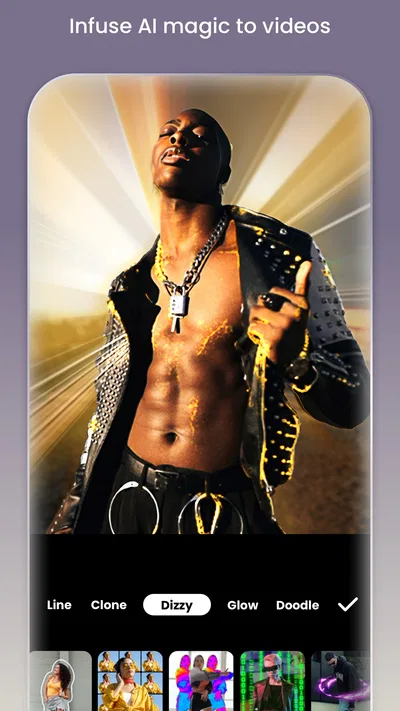
Effects benefit from the same restraint. When a video contains several scenes, repeating one subtle treatment can make the edit feel more coherent than giving every shot a different look. If a clip is already colorful or busy, an extra effect may distract from the subject. I would compare the treated shot with the original before keeping it; the point is to make the subject easier to watch, not to show how many options the editor offers.
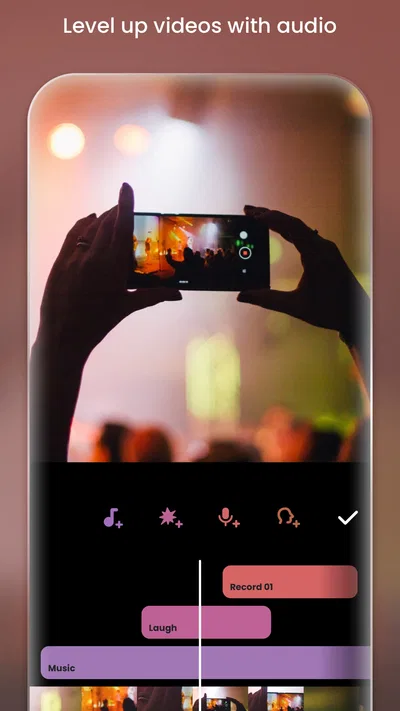
Music is another area where a little planning saves time. I like to choose a track after trimming the footage, because the final sequence gives a better sense of the mood and pacing. If the music makes the edit feel rushed, the answer may be to remove a clip or leave a quiet pause rather than add more effects. For a video with someone speaking, I would check the full edit with headphones before sharing, since background music can mask words even when it sounds fine through a phone speaker.
Where the convenience has limits
InShot’s accessible, phone-first approach is also its main tradeoff. A touchscreen is quick for a handful of clips, but longer edits can become fiddly: small timing changes, repeated revisions, and detailed audio balancing are easier to manage when you have more screen space and a more elaborate editing environment. If you are assembling a documentary-style piece, a complex multi-layer project, or a polished client deliverable, I would lean toward a desktop editor designed for that level of control.
There is also a creative temptation to confuse options with progress. Adding music, effects, and slow motion can make an edit feel more finished, but too many treatments can make a simple personal video look busy. The strongest result often comes from clean cuts and a clear order of events. If you mainly need to trim a single clip and do nothing else, your phone’s built-in tools may already be enough; installing another editor only pays off if you will use the extra creative steps.
Another practical tradeoff is uncertainty around paid value. The available purchase prices range widely, and I would not assume that every useful editing task needs an upgrade. Before paying, identify the exact obstacle you have encountered and check whether the purchase addresses it. If you cannot name the problem, keep editing with what is available. That avoids treating a large menu of options as a reason to spend.
Compared with a basic gallery editor, this app is more appealing when you want to combine several clips, still images, music, and visual touches in one place. Compared with a more advanced mobile or desktop editor, it is better suited to quick, straightforward projects than intricate control. The right alternative depends on what is slowing you down: for a one-off trim, a simpler tool is convenient; for fine-grained production work, a more capable timeline editor is the better match.
Who is likely to get the most from it?
I would recommend giving it a try if you regularly make short recaps, social posts, travel snippets, or simple videos for friends and family. It is particularly useful when you want a single place to bring together footage and photos, then add a soundtrack or a touch of motion without learning a professional editing setup. The free download lowers the barrier to testing that workflow, while the available purchases make it sensible to be deliberate about any spending.
It is less suited to someone who rarely edits, wants only a one-tap fix, or expects deep control over a complicated production. It may also frustrate an editor who prefers a large monitor, keyboard shortcuts, and detailed adjustments across many layers. In those cases, a basic phone tool or a more advanced editor can be the better choice, depending on whether simplicity or precision matters more.
For a first project, I would choose a short sequence with a clear beginning and ending rather than importing every clip from an outing. Trim first, arrange second, then test music and any effect on only the moments that need emphasis. Watch the result once for pacing and once for sound. This small routine helps you learn whether the editor’s style fits you without spending time polishing footage you may later cut.
My buy-or-skip verdict
My recommendation is to start with the free version and use it on a real, modest project. InShot offers a practical route from phone footage to a more considered video, and its tools make sense for people who value speed and a friendly learning curve over detailed production control. I would not pay in advance simply because purchases are available; I would wait until a specific limit affects a project I care about.
The best value here is the chance to make a useful edit before committing to a purchase. If your typical video is short, personal, and made to share, this is an easy app to keep in your toolkit. If your work depends on intricate timelines or you only need occasional basic trimming, I would skip the extra complexity and use a simpler or more powerful alternative that better matches the job. For everyday creators in between those extremes, it is worth trying—and worth paying for only when its paid options solve a need you can clearly name.
Pros
- Easy-to-use timeline makes trimming and arranging clips straightforward.
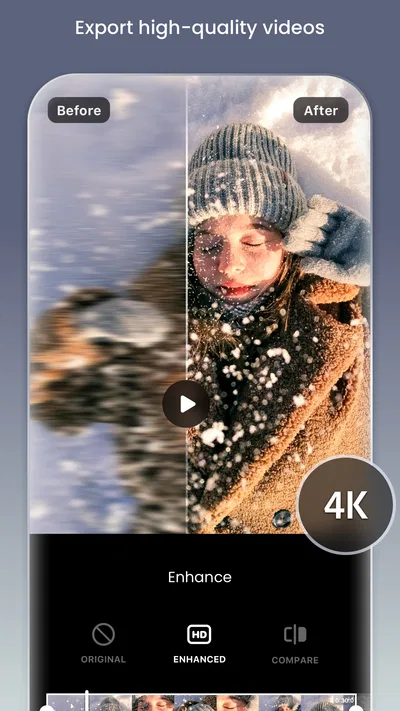
- Exports support common resolutions for sharing on social platforms.
- Built-in music and sound effects add audio without another app.
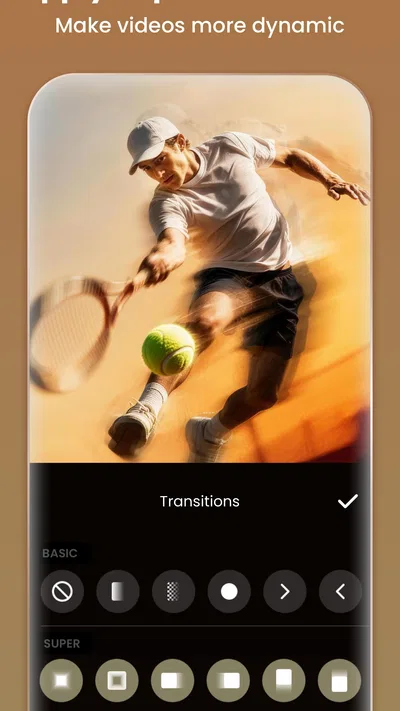
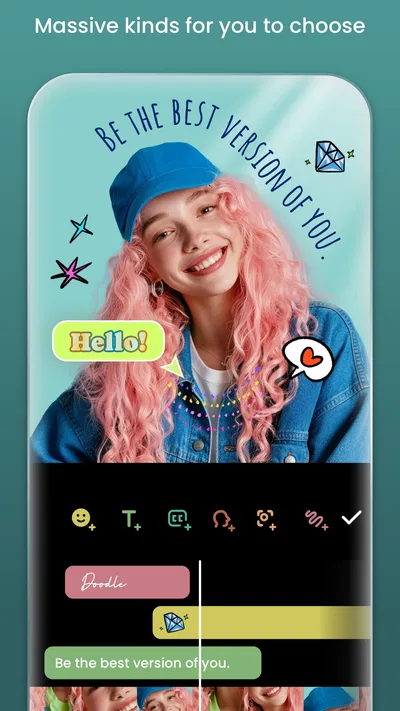
- Includes tools for adding text stickers and transitions.
- Works well for quick edits on a phone.
Cons
- Some features and assets require a paid subscription.
- Free exports may include an InShot watermark.
- Ads can interrupt the editing workflow.
- Advanced color grading options are limited.
- Large projects can take time to export on older phones.
Best Photography App 2026
Our verdict
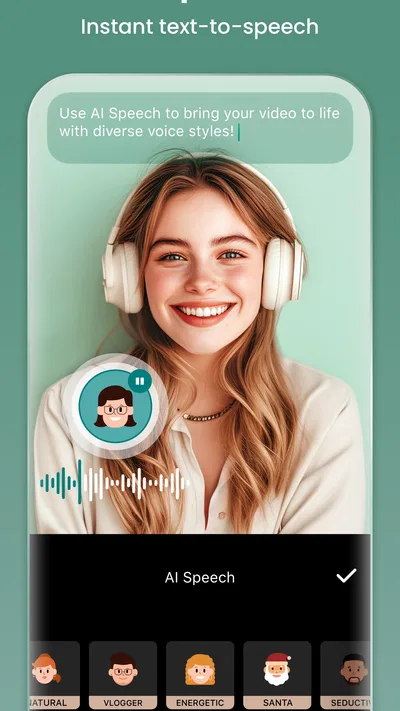
AI video editor with music! Edit video with effects, slideshow & slow motion
Frequently Asked Questions
What can you do with Video Editor & Maker - InShot?
InShot is a mobile video-editing app for creating and polishing clips for social media, personal projects, and other everyday uses. Its tools include trimming and splitting footage, combining clips, adjusting the canvas or aspect ratio, adding text and stickers, and applying effects or filters. You can also add music or sound effects and adjust audio. Available tools may vary by app version and subscription status.
Is InShot free to use, and what does the paid version add?
InShot can generally be downloaded and used without paying, but free editing may include advertisements, watermarks, or limits on certain premium materials and features. The app offers paid options that can provide an ad-free experience and access to additional effects, transitions, stickers, or other content. The exact benefits and prices can change by region and over time, so check the current in-app purchase details before subscribing.
Can you use InShot to edit videos for TikTok, Instagram, or YouTube?
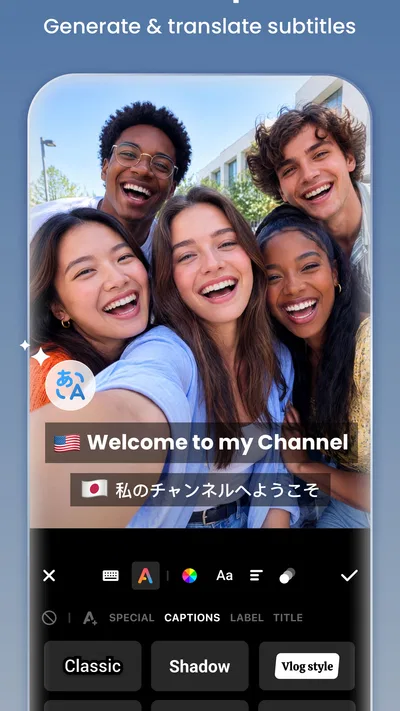
InShot includes canvas and aspect-ratio controls that can help prepare videos for different social platforms, along with tools for adding captions, music, effects, and transitions. You can export a finished video and then upload it through the platform of your choice. However, platform specifications and recommended formats can change, so review the export settings and the destination service’s current requirements before publishing.
Does InShot add a watermark, and how can you remove it?
Depending on the current app version and your editing choices, an InShot watermark may appear on videos exported with the free experience. The app may offer a way to remove it for an individual export, while a paid plan may remove watermarks as part of its benefits. Options can differ by region or change after updates, so check the export screen and subscription terms before relying on a particular removal method.
Do you need an internet connection to edit videos in InShot?
Many basic editing tasks can be completed on your device without a constant internet connection, especially when the footage and audio you need are already available locally. An internet connection may be required to download the app, access or download certain online effects and materials, view advertisements, make purchases, or share a finished video through another service. Keep in mind that editing and exporting can use considerable storage and battery.

Download Video Editor & Maker - InShot
Similar apps
View all 6.8
Hailuo AI: Image&Video Maker
Photography
 7.9
AI Face Aging - Photo Editor
Photography
 8.4
AI Photo Beauty Editor Studio
Photography
 8.8
PicFusion Lab
Photography