- Award score
- 4.4Rating
- 500,000+installs
- Free
App information
Screenshots

 Analysis byAppsAward
Our review of Volume Control Home
I would try Volume Control Home if I often find myself reaching for the phone’s physical buttons just to make one sound easier to hear. It is a free Android app in the Music & Audio category from Utility Apps Home, built around a straightforward idea: keep volume controls close at hand and let media play louder than the usual 100% ceiling. That can be useful, but it is not a magic fix for every quiet speaker, recording, or pair of headphones. The benefit depends on what is playing and what device is producing it.
What to expect from the volume controls
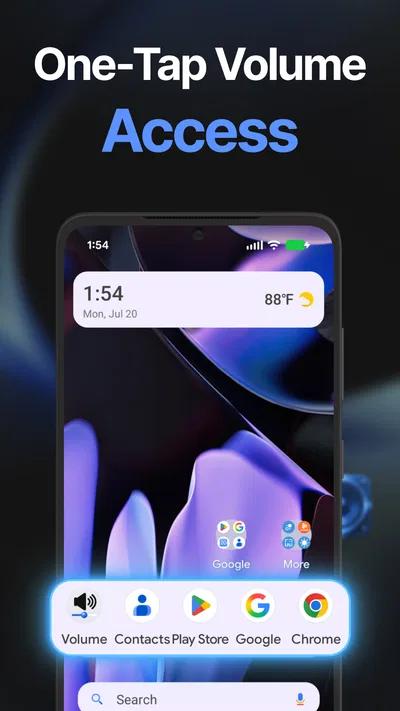
The app’s appeal is convenience rather than a complicated audio toolkit. Its short description, “Volume Control Home,” points to a home-screen-oriented approach, while its main purpose is to give you more direct control over sound. If you routinely switch between quiet podcasts, videos, music, and calls, having volume controls closer to your everyday phone layout may save small but repeated trips through the device’s usual controls.
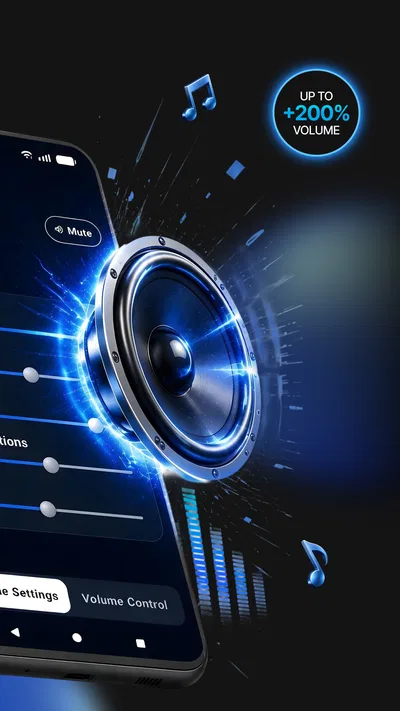
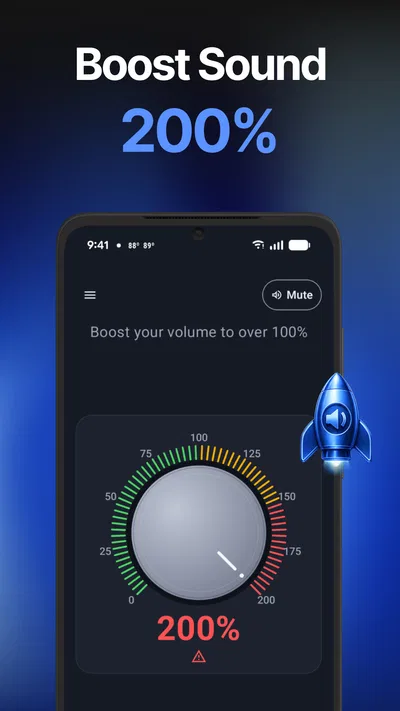
The most distinctive promise is the ability to push media volume beyond the normal maximum. That may help when a track or clip is mastered quietly and you are listening through a speaker or headphones that still have room to go louder. It does not mean every sound on the phone will become louder, nor does it guarantee a clearer result. Raising the level can make distortion more noticeable, and it cannot restore detail that is missing from a poor recording.
I would treat this as a convenience layer for listening, not as a replacement for a proper equalizer, a speaker repair, or better audio equipment. Standard Android volume controls are usually enough if you only adjust sound occasionally. This app makes more sense when those adjustments are frequent or when you want to experiment with extra media volume without navigating through settings each time.
There is a useful distinction to keep in mind from the start: media volume is not the same as ringtone, alarm, or call volume. If a video is too quiet, a media-focused adjustment is relevant. If you are missing calls or alarms, changing the media level may not address the problem. Knowing which sound channel you want to change will make the first use much less confusing.
Who is likely to find it useful
I can see it helping someone who listens to spoken-word clips while cooking, follows a video from across a room, or keeps switching between headphones and the phone speaker. It may also suit a user whose preferred listening level changes often and who wants a quicker way to manage media sound from the home screen. The app has an Everyone content rating, but that does not remove the need for common-sense listening habits, particularly when using headphones.
It is less compelling if your phone already gets comfortably loud, you rarely adjust volume, or you want detailed sound shaping rather than more control over loudness. If the sound is muffled, one-sided, or consistently weak across every app, a volume booster may not be the right answer. Check the audio source, output device, and phone speaker before assuming a higher setting will solve the underlying issue.
Getting started without overthinking it
After installing it, I would begin by locating the app’s control on the home screen and identifying which slider or control corresponds to media. The aim is to make one deliberate change, not to raise every available sound channel at once. Start with a familiar song or video, keep the phone at a comfortable listening level, and compare the result with the standard volume setting.
This simple test gives you a useful baseline. Choose audio you know well rather than a random clip: familiar speech makes it easier to notice whether voices are easier to understand, while a familiar song can reveal when louder playback starts to sound harsh. If you test with headphones, begin at a low level and increase gradually. A setting that seems acceptable through the phone speaker can feel much stronger when sound is delivered directly to your ears.
For a first-time user, the best initial setup is the smallest one that answers a practical question: does this make the media I care about easier to hear? Avoid leaving the control at its highest position just because the app allows extra volume. A little additional loudness may be enough; pushing further can trade comfortable sound for distortion or listening fatigue.
Finding the first meaningful improvement
A realistic first success might happen during breakfast. You are following a quiet news clip while preparing food, but the phone’s ordinary maximum is still hard to hear over the kitchen noise. I would open the home-screen control, raise the media level in small steps, and stop as soon as the speech becomes clear enough. That is a better test than turning everything up and deciding afterward that the result feels too loud.
Another useful workflow is to compare the same clip through two outputs, such as the phone speaker and your usual headphones. If the speaker benefits but the headphones become uncomfortable, you have learned that the extra volume is output-dependent and should not be treated as a permanent setting. Before switching devices, lower the level again. That small habit reduces unpleasant surprises when the next track starts.
For quiet recordings, I would also check the player’s own volume and any available controls before relying on a boost. Some media apps have independent playback levels, and a video may simply have uneven audio. The point is not to stack every possible increase; it is to find the least aggressive adjustment that makes the content usable. Use extra volume as a careful correction, not as an automatic default.
Common points of confusion
The first likely misunderstanding is expecting the app to improve sound quality. More volume can make speech easier to hear, but it does not remove background noise, repair a damaged speaker, or make compressed audio richer. If the sound becomes rough as you raise it, backing off is usually the better choice. A louder version of a distorted signal is still distorted.
The second is adjusting the wrong kind of volume. Phones separate media, calls, notifications, and alarms because those sounds serve different purposes. When a podcast is quiet, focus on its playback level. When an alarm is unreliable, test the alarm’s own setting and the clock app instead. Keeping those categories separate makes troubleshooting faster and avoids accidentally making unrelated sounds startlingly loud.
There can also be a difference between a control being easy to reach and a change being permanent. I would check the level again after changing playback apps, connecting headphones, or returning to the phone speaker. Do not assume that one setting will produce the same perceived loudness everywhere. The source recording, output hardware, and listening environment all affect the result.
Safety is another practical consideration, not a reason to avoid the app altogether. If you use headphones in a quiet room, a level that seems modest on a speaker may be excessive. If you need to listen in a noisy place, consider whether moving to a quieter spot or using suitable headphones is a better solution than continually increasing loudness. Hearing comfort matters more than reaching the highest possible setting.
How it compares with familiar alternatives
The built-in Android controls are the simplest option for occasional adjustments: they are already available and do not require learning another interface. A dedicated equalizer is a better fit if your real goal is changing bass, treble, or the character of the sound. A media player’s own controls can be more useful when only one track or video is unusually quiet. Volume Control Home sits between those choices, emphasizing quick access and extra media loudness rather than detailed audio tuning.
That focus is both its strength and its limitation. If your problem is that you keep hunting for volume controls, bringing them into your routine can help. If the problem is that your headphones sound thin, the app’s central purpose may not address it. If a particular app has low playback, its own settings may be more precise. I would choose the tool based on the cause of the problem instead of assuming a general booster is the answer to every sound issue.
As a first-time user, I would give it a short, practical trial: set up the control, test one familiar clip, and see whether the improvement is worth keeping in your daily routine. If you find yourself adjusting the same media level repeatedly, the home-screen approach may earn its place. If you only use it to push audio to an uncomfortable extreme, it is probably not adding useful value.
Who should install it, and what to do next
The app has a 4.4 average from around 4,900 ratings, with more than 500,000 installs. Those figures suggest that many Android users have tried it, but they do not tell me whether it will suit your speaker, headphones, or habits. It is free, and its current version is 1.6.4; the stated minimum operating system is Android 9. I would still make the decision based on your own listening need rather than popularity alone.
My recommendation is conditional but clear: try it if you want quicker access to media volume and regularly encounter quiet playback. Use small adjustments, test with familiar content, and lower the level before moving from speakers to headphones. Skip it if you are looking for audio repair, rich equalizer controls, or a fix for a hardware problem. Those expectations are better matched by a different solution.
Overall, Volume Control Home is most convincing when it solves a specific everyday annoyance: getting a quiet video or spoken clip to a comfortable level without extra searching. Its beyond-normal media boost is useful only when applied with care, and it cannot guarantee better sound. If you approach it as a convenient control for occasional listening adjustments, rather than a promise of louder and cleaner audio in every situation, you will have a much better idea of whether it belongs on your phone.
Pros
- Provides quick access to volume controls from the home screen.
- Can make frequently used sound settings easier to reach.
- Offers an alternative to hardware volume buttons.
- May help users with limited mobility adjust sound levels.
- Keeps basic volume adjustments close at hand.
Cons
- Requires home screen space for its controls.
- May not work with every launcher or device setup.
- System volume limits still apply to adjustments.
- Can overlap with controls from other sound apps.
- Its usefulness depends on how often you change volume settings.
Best Music & Audio App 2026
Our verdict
Boost media volume past 100%, control every sound from your home screen
Frequently Asked Questions
What is Volume Control Home, and what can you use it for?
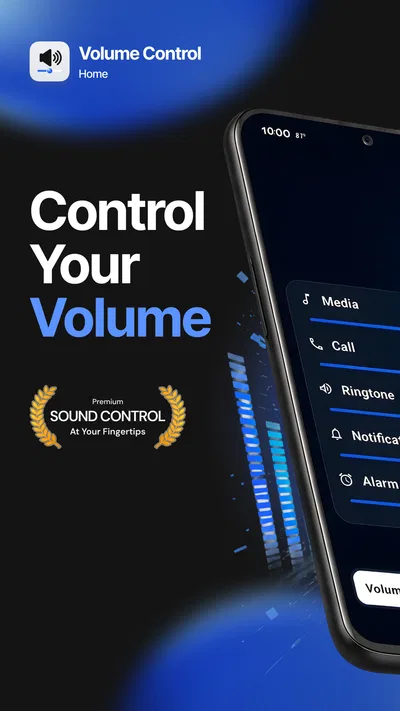
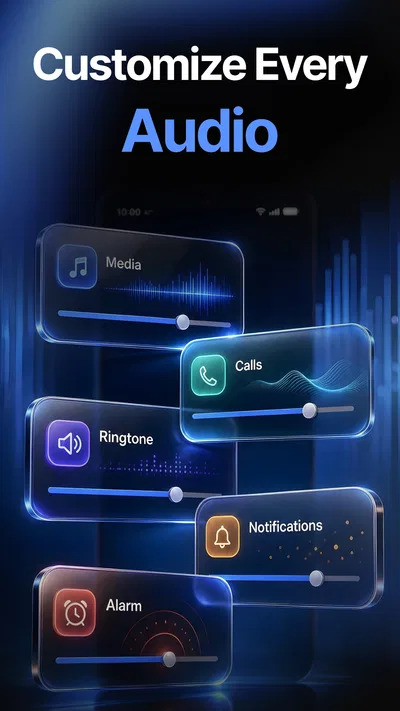
Volume Control Home is an Android app intended to make your device’s volume settings easier to manage from one place. Depending on the version and your device, it may provide controls for categories such as media, ringtone, notifications, alarms, and calls. Android features and manufacturer settings can affect what the app can change, so check the app’s current listing and permissions before installing if you need a particular control.
Is Volume Control Home compatible with every Android phone?
Compatibility can vary with your Android version, device manufacturer, and the app version available in your region. Some phones use customized sound menus or restrict how third-party apps can adjust audio, which may limit certain controls. Before downloading, review the app’s Play Store requirements and recent user feedback for your device type. If the app does not behave as expected, your phone’s built-in sound settings remain an alternative.
Does Volume Control Home require special permissions to work?
The permissions it requests depend on the features included in the version you install. A volume utility may need access related to changing system settings or displaying controls, but you should not assume every permission is necessary for every use. Read the permission prompts and the app’s privacy information before granting access, and avoid enabling an optional permission unless you understand what it allows and why the app needs it.
Can Volume Control Home change media, ringtone, alarm, and notification volume separately?
Android generally offers separate volume categories, but the exact controls available through Volume Control Home may depend on your device and the app’s current version. Some phones combine or rename sound categories, while others reserve particular adjustments for system settings. Check the screenshots and feature description on the app’s store page, then test the controls at a low volume first to confirm which sound stream each setting affects.
Is Volume Control Home free, and are there any privacy or advertising considerations?
The price, advertising, and optional in-app purchases can change, so check the current store listing before downloading rather than relying on older descriptions. Also review the developer’s privacy disclosures to understand what information may be collected or shared. An app’s ability to adjust volume does not by itself establish its privacy practices; consider the requested permissions, data details, and recent reviews before deciding whether it suits you.

Download Volume Control Home
Similar apps
View all 8.7
Spotify: Music and Podcasts
Music & Audio
 7.8
Pandora - Music & Podcasts
Music & Audio
 8.8
Pocket FM: Audio Series
Music & Audio
 9.6
Suno - AI Music & Songs Maker
Music & Audio