- Award score
- 4.1Rating
- 1,000,000+installs
- Free
App information
Screenshots
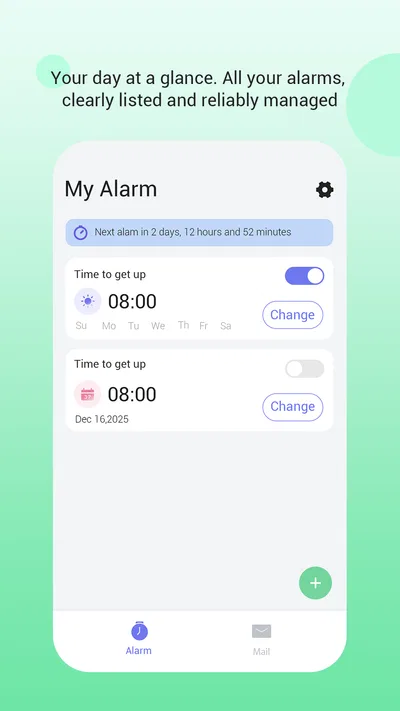
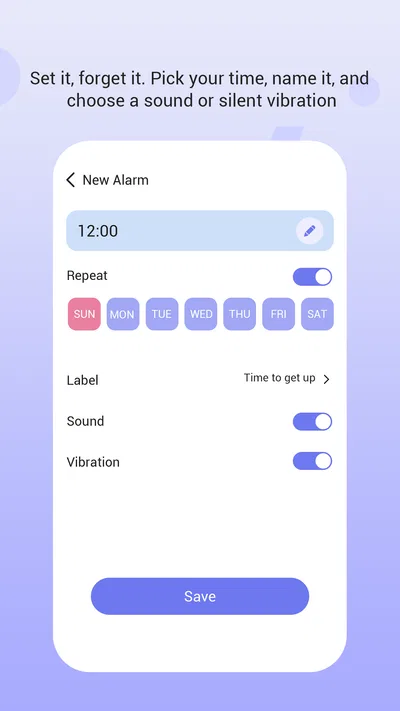
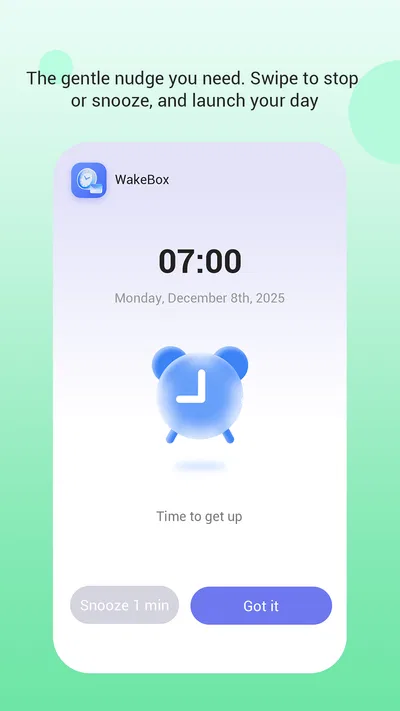
 Analysis byAppsAward
Our review of WakeBox
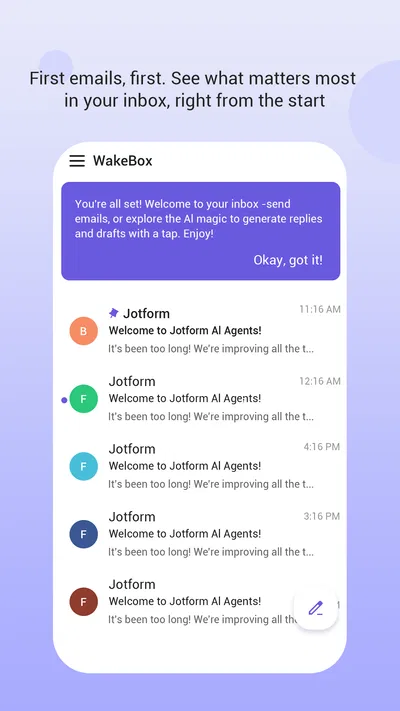
I know how easy it is to treat an alarm as a solved problem: set a time, put the phone down, and hope it gets your attention when morning comes. The trouble is that a quiet notification can disappear into a busy screen, while a complicated alarm app may demand more setup than the problem deserves. WakeBox is aimed at that gap. Its defining idea is a full-screen alert, with email access available as an option, so the alarm can be harder to overlook without making email a requirement.
When a quiet alarm is not enough
I see the appeal most clearly for people who sleep through ordinary notifications, work changing hours, or need a reminder that should interrupt whatever they are doing. A full-screen alert gives the alarm more visual presence than a small banner. That does not guarantee anyone will wake up—no phone alarm can promise that—but it makes the alert itself less easy to miss when the device is in use.
That focused approach also keeps expectations sensible. WakeBox is a productivity app, not a sleep tracker or a full morning-routine planner. I would consider it when the main need is a dependable alarm with a more prominent alert, rather than when I want sleep analysis, habit coaching, or a suite of connected routines.
In a crowded productivity category, that narrow purpose can be a strength. Many people already have a clock app on their phone, and replacing it only makes sense if the way WakeBox presents an alert solves a real annoyance. If a standard alarm reliably wakes you and you value keeping your setup minimal, switching may bring little benefit. If you routinely miss subtle alerts, the full-screen presentation is the more relevant distinction.
Getting to a useful first setup
I would begin by setting one alarm that matters, rather than moving every reminder over at once. That gives you a low-stakes way to learn where the alarm appears and how noticeable it feels in your own routine. Try it at a time when you can observe the alert, then decide whether its presentation suits you before relying on it for an important early start.
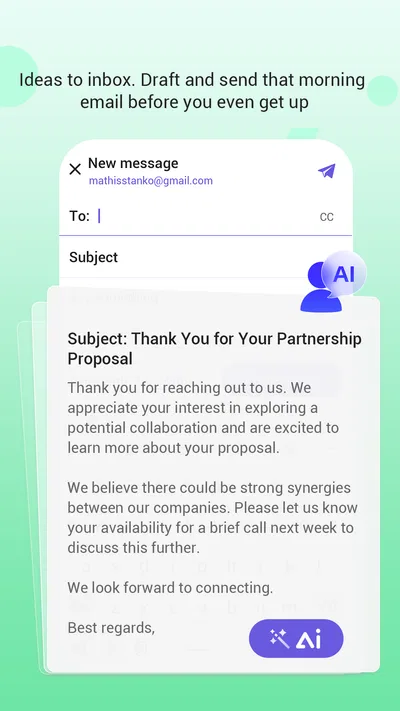
The email option deserves a deliberate decision during setup. Since it is optional, I would not grant or enable access just because it is offered. First decide whether email belongs in the way you plan to use the app; if it does not, keep the alarm workflow separate. That small choice makes the app easier to evaluate and avoids adding an account-related step to a task that may only need a wake-up alert.
One practical tip is to treat the first few mornings as a reliability check, not as proof based on a single successful alarm. Use the same phone placement and sleeping arrangement you normally use, and pay attention to whether the full-screen presentation is noticeable from where you leave the device. The goal is not to test every possible condition; it is to check the setup you will actually depend on.
Another useful habit is to review the next alarm after changing your schedule. People with shift work, early appointments, or irregular weekends can easily carry yesterday’s plan into tomorrow. A quick glance at the active alarm is a small bit of effort that can prevent a much larger morning disruption. WakeBox’s value is greatest when the alarm is set correctly and the alert can do its job.
Where it can save effort in an ordinary day
Imagine preparing for an early train after a late shift. You set the alarm before bed, leave the phone where you can notice its display, and avoid relying on a quiet notification that might blend into other activity. In that situation, the full-screen alert is useful because it reduces the chance of overlooking the alarm once it appears. It does not remove the need to choose the right time or keep the device ready, but it can reduce one source of uncertainty.
It can also suit someone who uses alarms to break up focused work. A prominent alert is easier to spot when a phone is nearby but not being checked constantly. That can help with a scheduled transition—finishing a work block, preparing to leave, or remembering to pause—without turning the phone into a complex productivity system. I would still keep the alarm’s purpose clear: one alert for one action is easier to respond to than a pile of reminders competing for attention.
For shared spaces, the full-screen display may make an alert more visible to the person using the device, but visibility is not the same as discretion. If you need a quiet reminder in a meeting, a subtle notification may be more appropriate. Likewise, if you share a bedroom and want a wake-up method that disturbs nobody else, you should consider how any phone alarm fits the room rather than assuming a larger on-screen alert solves that issue.
The optional email access is a separate consideration from waking up. I would only involve it if it supports a specific workflow I want, rather than treating it as necessary to get value from the alarm. Keeping those decisions separate is a useful way to avoid overcomplicating a straightforward routine: first establish that the alarm works for you, then decide whether the email option earns its place.
Less fuss, with a few trade-offs
Compared with the built-in clock app, WakeBox makes sense if its alert style addresses a problem the default app has not solved for you. The default option usually has the advantage of familiarity and being already at hand. WakeBox’s case is more specific: a fuller-screen interruption and an optional email-related capability. I would not install it solely because it is another alarm; I would install it if the way it presents the alert makes a meaningful difference in my routine.
Compared with feature-heavy alarm tools, a focused alarm can be easier to live with. If what you want is a clear wake-up prompt, there is little value in navigating a collection of sleep charts or extra routines you will not use. On the other hand, people who actively want those tools may be better served by an app built around sleep tracking or customizable morning habits. WakeBox is not the choice I would make for those broader goals.
There is also a real trade-off in using a phone for an important wake-up. The app can make its alert more noticeable, but the result still depends on having the alarm set appropriately and the phone available for it to alert. I recommend keeping your usual dependable backup for a high-stakes event until you have confidence in your own setup. That is sensible with any alarm app, not a reason to dismiss this one.
As an everyday safeguard, I would avoid setting several overlapping alarms unless there is a clear reason. Multiple alerts can create noise and make it harder to tell which one matters. A single alarm for the next required action, followed by a brief schedule check when plans change, is often a cleaner workflow. This is especially helpful for people whose workdays shift, since a simple review can prevent an outdated alarm from creating false confidence.
Who should choose it—and who should pass
WakeBox is developed by BLYTHEWOOD NY LLC and is free to download. It has a 4.1 average from around 2,600 ratings, with more than 1 million installs. Those figures suggest that it has found an audience, but I would still judge it by whether the full-screen alert fits your own needs rather than treating popularity as a guarantee of reliability.
The app is rated for mature audiences aged 17 and up. It was released on December 30, 2025, and its current version is 1.2.6, with Android 7.0 as the minimum operating system requirement. I would check that your device meets that requirement before planning to use it. The age rating is also worth noticing if you are choosing apps for a younger user or managing a shared device.
I would recommend WakeBox to someone who regularly misses ordinary alerts and wants an alarm with a more conspicuous on-screen presentation, especially if a simple tool is preferable to a larger sleep or planning package. I would steer away from it if the built-in clock already works well, if you want in-depth sleep features, or if a discreet reminder matters more than a prominent interruption.
My practical verdict is that WakeBox is worth trying when its particular alert style can remove a recurring bit of morning uncertainty. Start with one important alarm, decide separately whether email access is useful to you, and test the setup in your normal environment before depending on it for a critical start. That approach keeps the app’s promise in proportion: it can make an alarm harder to overlook, while good timing and a sensible backup remain your responsibility.
Pros
- WakeBox offers a simple way to organize alarms and wake-up routines.
- Customizable alarm settings let users tailor their morning experience.
- The interface is easy to navigate for quick setup.
- Multiple alarms can help support different schedules.
- WakeBox can make waking up feel more structured.
Cons
- Some features may require a paid upgrade.
- Alarm reliability can depend on device settings and permissions.
- Battery optimization may interfere with alarms on some phones.
- The app may not suit users who prefer a basic clock alarm.
- Available features can vary between Android and iOS.
Best Productivity App 2026
Our verdict
Reliable alarm clock with full-screen alerts and optional email access.
Frequently Asked Questions
What is WakeBox, and what can I use it for?
WakeBox is an alarm-focused app intended to help you manage waking up and your morning routine. Its exact tools can vary by version and platform, so check the current app listing for the features available on your device. Before downloading, consider whether its alarm options, interface, and any additional functions match what you need from a daily alarm app.
How do I make sure a WakeBox alarm goes off on time?
After setting an alarm, verify its time, repeat schedule, sound, and volume in the app, then check that your phone allows WakeBox to run and send notifications. Battery-saving settings, Do Not Disturb, muted audio, or revoked permissions can affect alarms on some devices. Because behavior may differ by Android or iOS version, test a near-term alarm before relying on it for an important appointment.
Does WakeBox work when my phone is locked or offline?
Alarm behavior depends on the app’s design and your phone’s operating system. Some alarms can ring while a device is locked, but restrictions on background activity, notifications, or audio may interfere. An internet connection may not be necessary for basic time-based alarms, though online features, if offered, could require one. Review the app’s current requirements and test it in the conditions you expect to use.
Is WakeBox free, and does it include ads or in-app purchases?
Pricing and monetization can change by store, region, and app version. WakeBox may be free to download while offering optional purchases, subscriptions, or advertising, but confirm the details on its Google Play or Apple App Store page before installing. Check what a payment unlocks, whether it renews automatically, and how cancellation works so you can decide whether the available features are worth the cost.
What permissions and personal information might WakeBox require?
The permissions WakeBox requests depend on its features and the version you install. An alarm app may need notification access or permission to play sound, while optional tools could request other access. Read the permission prompts rather than granting everything automatically, and review the store’s privacy information for data collection, sharing, and deletion details. If a requested permission seems unrelated to your intended use, investigate before proceeding.