- Award score
- 4.0Rating
- 10,000,000+installs
- Free
App information
- Version
- 1.10.29
- Updated
- Requires
- 9
- Price
- Free, in-app purchases
- Developer
- Homescreen Apps
- Content rating
- Everyone
Screenshots
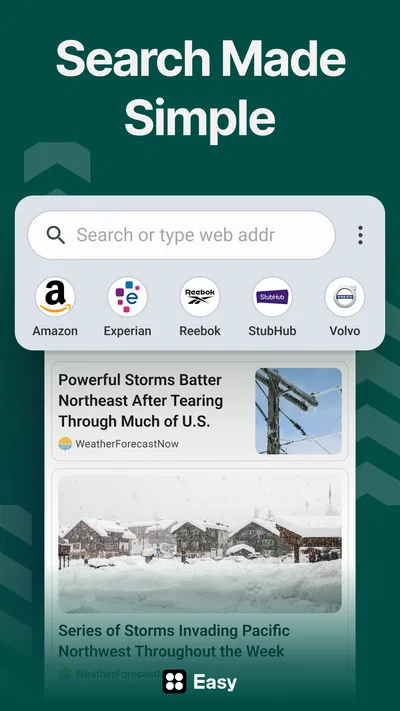
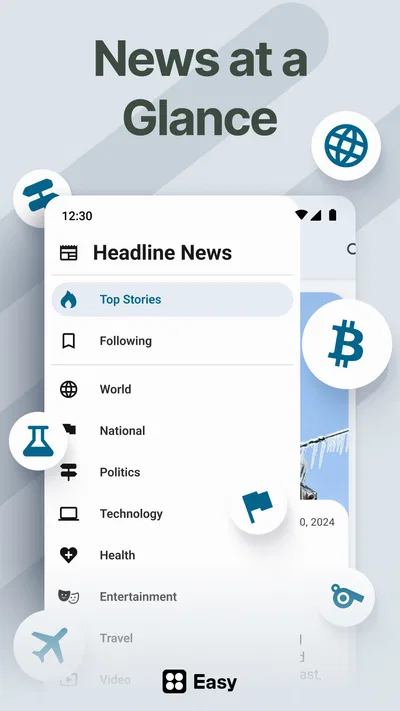
 Analysis byAppsAward
Our review of Easy Homescreen
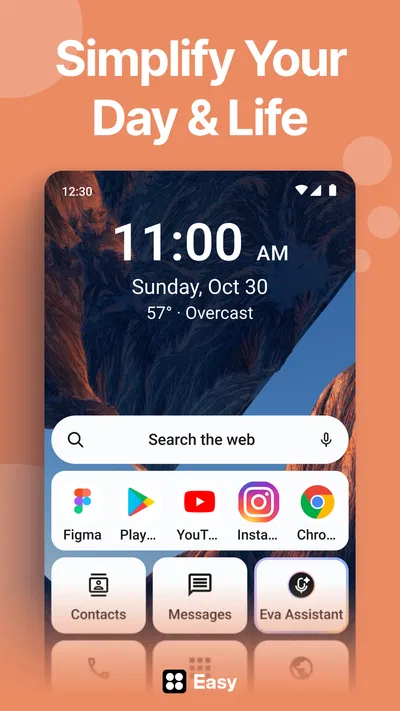
I like home-screen tools best when they make a phone easier to use, not just prettier. Easy Homescreen is a personalization app from Homescreen Apps that focuses on changing the look and arrangement of the screen you return to throughout the day. Its appeal is practical: you can tailor fonts, icons, and shortcuts so frequently used actions are easier to spot and reach. I’d consider it when the default layout feels cluttered or anonymous, but I wouldn’t expect it to replace every part of Android’s launcher experience.
Start with a useful baseline, not a full redesign
My advice is to begin with one small change and live with it for a while. A new font or a clearer set of icons can make a familiar screen feel more personal, but changing everything at once makes it harder to tell which choices actually help. Easy Homescreen is most useful when customization serves a routine: make the apps you reach for obvious, reduce visual noise, and keep the layout understandable at a glance.
That distinction matters because home-screen personalization can easily become a hobby of endless tweaking. If I were setting this up for everyday use, I’d first decide which apps deserve the most immediate attention—perhaps messages, maps, a calendar, or a work tool—then use the available shortcuts and icon choices to give those priorities a consistent place. The goal is not a dramatic before-and-after screenshot. It is finding something without scanning a crowded screen.
The app is free to install and is rated for Everyone. It has an average rating of 4.0 from around 305,000 ratings, with roughly 27,000 written reviews and over 10 million installs. Those figures suggest that it has found a broad audience, though they don’t tell me whether its particular style will suit your phone or habits. The current version is 1.10.29, and it requires Android 9 or later.
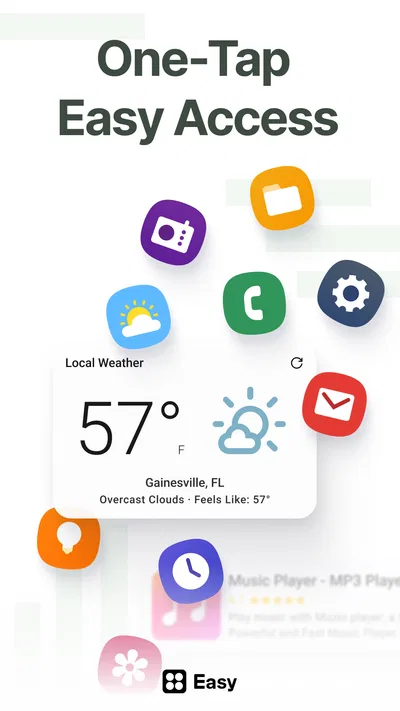
One everyday example is getting ready to leave home. If I routinely check the weather, open a travel app, and message someone, I can arrange the screen so those choices are easy to identify rather than buried among less-used icons. Shortcuts can make that routine feel more direct, while familiar icon styling helps me recognize what I need quickly. The benefit is modest on any single tap, but repeated actions are exactly where a tidier screen can make a difference.
What the customization is good for
Easy Homescreen sits in the personalization category, but its strongest idea is the combination of appearance and access. Fonts affect readability and mood; icons help establish a visual order; shortcuts can reduce the steps between seeing the screen and doing something. I find that mix more useful than cosmetic changes alone, provided the options let you create a layout that still feels clear.
It is also a reasonable choice if you want to make a phone feel less generic without taking on a complicated setup project. Someone who enjoys matching a screen to their preferences may appreciate the ability to adjust several visible details in one place. Someone who only wants to launch apps faster may care more about shortcut placement than decorative choices. Thinking about which of those goals matters most can keep the setup focused.
Settings and choices worth checking
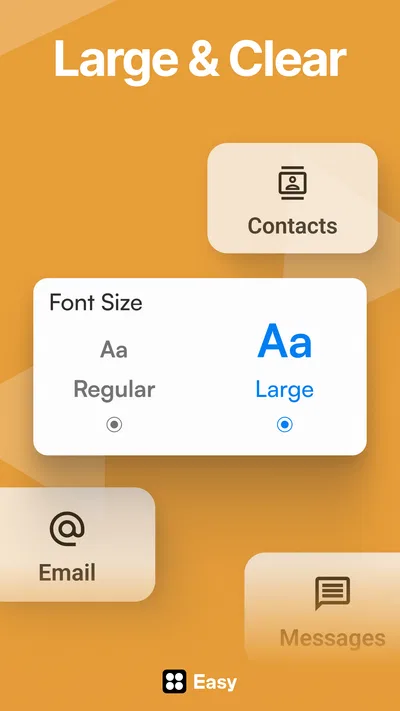
Before settling on a font, I’d check it against the names and labels you read most often. A style can look attractive in a preview but become tiring if letter shapes are difficult to distinguish at normal viewing size. Readability matters especially when you glance at the screen in a hurry. If a decorative choice makes labels harder to scan, I’d choose a simpler one even if it looks less distinctive.
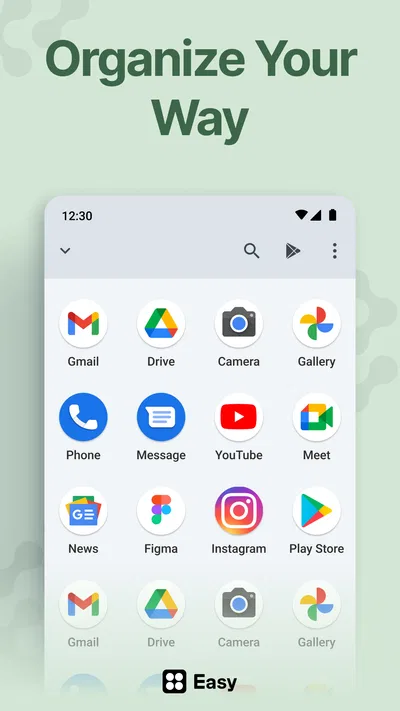
I’d apply the same practical test to icons. A coordinated appearance can make a screen feel calmer, but visual consistency is not helpful if several icons become difficult to tell apart. Keep the apps you depend on recognizable, and avoid choosing a look purely because it makes a screenshot feel polished. The best arrangement is the one you can navigate without pausing to decode it.
It is worth thinking about how much change you want before investing time in a full makeover. Easy Homescreen is free, with in-app purchases ranging from $0.99 to $29.99 per item. I’d start with the free experience and work out whether its approach fits your needs before considering a purchase. That is particularly sensible if you mainly want a small improvement rather than a broad, carefully themed setup.
Another useful check is how the customized screen works with the way you already use Android. If you rely on a particular launcher layout or have built a system around widgets and folders, make changes gradually and see whether the new arrangement supports that system or gets in its way. I would not assume that a personalization app automatically replaces every launcher function. Treat it as a tool for the parts it actually helps you change, and keep the rest of your phone’s workflow in mind.
Build repeatable habits around shortcuts
The most effective setup is usually one you can repeat. I’d group shortcuts around a few recurring moments—starting the day, heading out, or beginning work—rather than trying to make every app equally prominent. A home screen with too many competing priorities recreates the clutter it was meant to solve. Give the most common actions visual prominence and let occasional tasks remain elsewhere.
A practical way to refine the layout is to notice hesitation. When you unlock the phone, what do you search for, and which icon do you overlook? Adjust one of those points, then use the screen normally for several days. This small feedback loop is more reliable than rearranging everything based on a first impression. It also prevents a common customization trap: changing the layout so often that muscle memory never has a chance to form.
For example, a student who checks a timetable, opens a study app, and contacts a group regularly could prioritize those actions, while someone who uses a phone mainly for family communication might give messaging and photo access greater prominence. The same icons and fonts won’t suit both people equally. Easy Homescreen is most helpful when the design reflects an actual routine rather than a theme borrowed from someone else.
There is a trade-off between a screen that looks coordinated and one that remains instantly legible. If you are setting up a phone for a family member who prefers familiar symbols, retaining recognizable icons may be more valuable than making every element match. If you share a device or regularly help someone else navigate it, consistency and clarity matter more than a highly individualized design. Personalization should make the screen easier for its main user, not create a puzzle for everyone else.
Where it differs from standard alternatives
The simplest alternative is to keep the default home screen and make only basic changes through Android’s existing settings. That is a good option if you are satisfied with the built-in choices and want to avoid maintaining another customization layer. Easy Homescreen makes more sense when you specifically want its combination of fonts, icons, and shortcuts, rather than just moving apps around.
A more extensive launcher can be a better fit for people who want deep control over screen grids, gestures, folders, or other parts of the interface. I would choose that route if the main complaint is structural—for instance, if you want to rebuild how pages and app access work. Easy Homescreen’s appeal is more approachable: personalize the visible experience and make common actions more convenient, without turning setup into a technical project.
That narrower focus is both a strength and a limit. It can be appealing if you want a few meaningful adjustments and don’t want to learn a large set of launcher controls. It may feel restrictive if you expect advanced layout management or want to fine-tune every part of the interface. The right comparison is not which approach offers the most options, but which one solves the specific annoyance you have.
Limits to keep in mind before committing
Personalization always asks for some attention: you need to choose a look, decide what deserves a shortcut, and then allow yourself time to see whether the choices work in daily use. If you enjoy tuning your phone, that process is part of the appeal. If you want a screen that changes nothing and simply behaves exactly as it did before, even a straightforward customization app may feel like unnecessary effort.
There is also a practical ceiling to what a visual refresh can fix. A new font will not make a disorganized set of apps meaningful, and a shortcut cannot help if you have not decided which action should be easiest to reach. I would start with the behavior you want to improve—less searching, faster access, or a more comfortable look—and judge each customization by that standard. If it does not address the problem, remove it rather than adding more decoration.
Easy Homescreen is not the choice I’d make for someone who wants a comprehensive replacement for their Android launcher, nor for someone who is already happy with the default screen. It is more compelling for a person who wants a manageable layer of personal style plus a clearer route to familiar actions. Keeping expectations at that level makes it easier to appreciate what the app is meant to do.
My verdict after weighing the everyday use
I’d recommend Easy Homescreen to a friend who wants a more personal Android screen and would genuinely use shortcuts to simplify repeated tasks. Its strongest payoff comes from combining a readable visual style with a deliberate arrangement, not from making the phone look radically different. Start small, prioritize actions you repeat, and give the layout enough time to become familiar before deciding whether it works.
Homescreen Apps has made a free app with a broad reach, and its 4.0 average gives a useful sense of how it is received without guaranteeing a perfect fit. The paid items may matter if you want more from the customization experience, so I’d explore the no-cost setup first. Overall, I see it as a practical middle ground between leaving the screen untouched and adopting a more involved launcher.
My recommendation is to try it when your home screen feels harder to use than it should, especially if you can name a few actions you want to reach more quickly. Skip it if you want extensive launcher controls, dislike adjusting your setup, or already have a layout that works well. Used with a clear purpose, Easy Homescreen can make everyday phone habits feel more organized without demanding that you rebuild the way Android works.
Pros
- Simple controls make it easy to customize the home screen.
- A clean layout helps keep frequently used apps accessible.
- Useful for people who prefer a less cluttered interface.
- Customization options let users tailor the screen to their needs.
- The lightweight design can suit older or less powerful devices.
Cons
- Some customization options may be limited compared with full launchers.
- The interface may feel too basic for users who want advanced tools.
- Compatibility can vary across Android devices and versions.
- Changes may take time to set up to personal preference.
- It may offer fewer widget options than other home screen apps.
Best Personalization App 2026
Our verdict
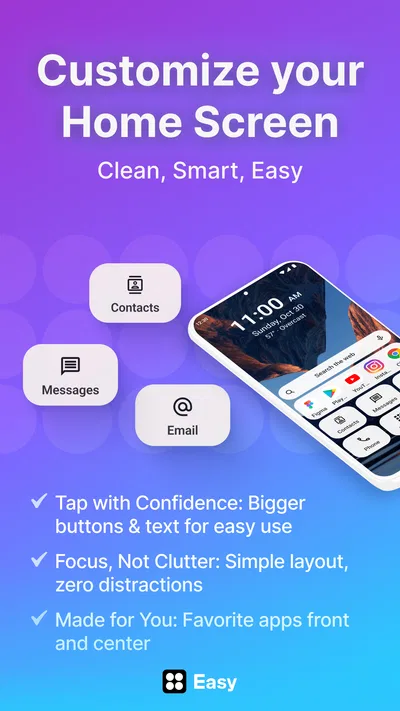
Customize & simplify your home screen: personalized fonts, shortcuts, and icons.
Frequently Asked Questions
What is Easy Homescreen, and what does it do?
Easy Homescreen is designed to make an Android phone’s home screen simpler to navigate, particularly for people who prefer a clear layout and straightforward access to everyday functions. Depending on the version and device, it may provide larger icons, simplified shortcuts, or an easier-to-read interface. Features can vary, so check the app listing and your device’s compatibility before downloading.
Is Easy Homescreen suitable for older adults or people who find smartphones difficult to use?
A simpler home-screen layout can be helpful for older adults, first-time smartphone users, or anyone who finds a busy screen confusing. The benefit depends on the options included in the version you install and how well they fit the user’s needs. Before relying on it, try the available settings and confirm that important contacts, apps, and phone functions remain easy to reach.
Does Easy Homescreen replace my phone’s default launcher?
A home-screen app generally works by becoming the launcher, which controls the screen you see when you return to Home. Easy Homescreen may ask you to set it as the default launcher, and Android usually lets you switch back through system settings. The exact steps and behavior can differ by Android version and device manufacturer, so review the setup prompts carefully.
Is Easy Homescreen free, and does it include ads or in-app purchases?
Pricing, advertising, and optional purchases can change between releases, regions, and app stores. Check the current Google Play listing for the price and any notes about ads or in-app purchases before installing. Also review the publisher information and recent user feedback, since these can help clarify what the current version offers and whether any features require payment.
What should I check before downloading Easy Homescreen?
Confirm that your Android version is supported, download the app from a trusted app store, and read its current permissions and privacy information. A launcher may need access to display and organize parts of the home screen, but you should understand any permission requests before granting them. If you are setting it up for someone else, make sure they can still find essential apps and know how to return to the previous launcher.

Download Easy Homescreen
Similar apps
View all 9.3
Zedge™ Wallpapers & Ringtones
Personalization
 8.3
Emoji Battery & Shimeji Pet
Personalization
 8.0
Super HomeScreen
Personalization
 8.4
Easy Mail - Email Launcher
Personalization