- Award score
- 4.0Rating
- 1,000,000+installs
- Free
App information
Screenshots
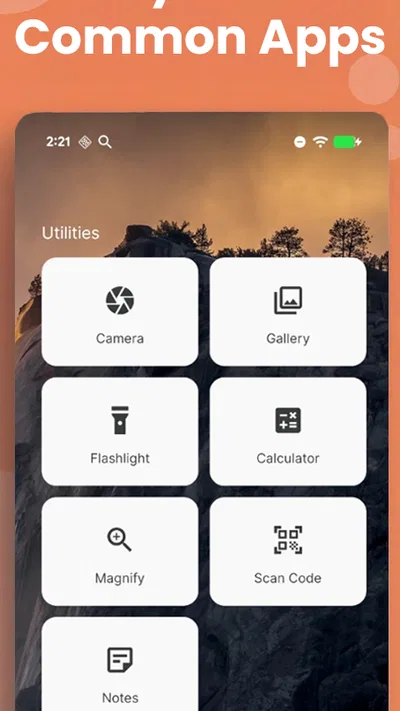
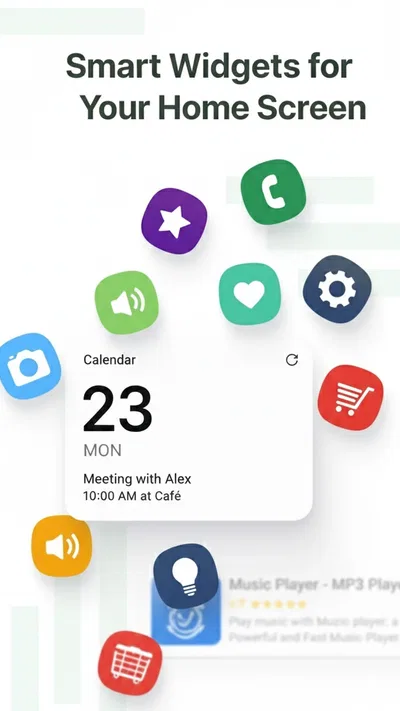
 Analysis byAppsAward
Our review of Super HomeScreen
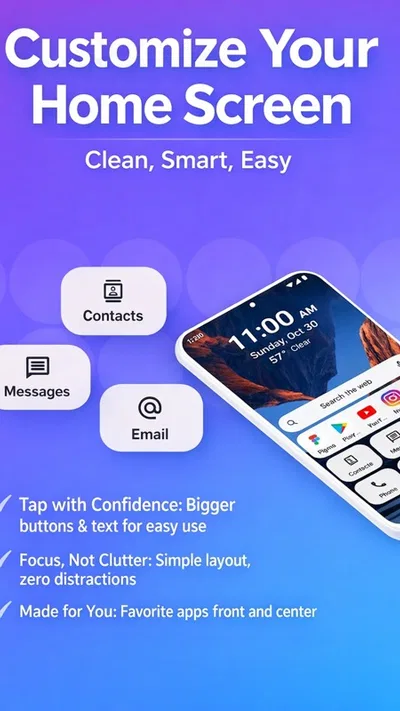
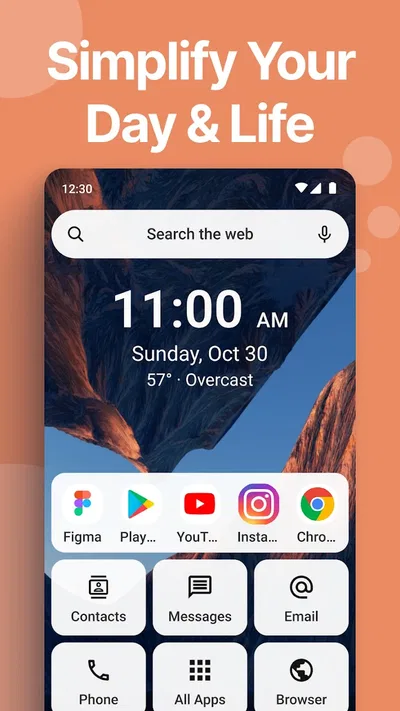
I judge a launcher by what happens between unlocking the phone and getting on with my day. A home screen should make the next action obvious, not give me another layer to manage. Super HomeScreen is aimed at people who want useful information close at hand and a quicker route to their essentials. Its focus makes sense, though it also means the experience is less about expressive customization and more about whether its layout fits your routine.
When the home screen depends on fresh information
As a personalization app, Super HomeScreen takes a practical approach to changing the home screen: it presents itself as a launcher centered on speed and information. That distinction matters. Many launchers compete on icon packs, animations, elaborate themes, or highly adjustable grids. Here, I would first ask whether I want the screen I see most often to help me check things quickly, rather than simply look different.
Connectivity becomes relevant whenever a home-screen element needs current information. A launcher can still be a useful way to organize access to apps, but anything that relies on updated content may feel less immediate when the connection is slow or unavailable. I would therefore treat quick access and live information as separate benefits: the former can help with navigation, while the latter depends on how the phone is connected and what the launcher is displaying.
That distinction is useful in everyday planning. If I unlock my phone to check something time-sensitive, I want the screen to make the next step easy. But I would not build a critical routine around any changing information until I had tried it on my own network and device. The practical test is simple: use the home screen during the kind of brief checks you actually make, then see whether it saves taps or merely puts another item in view.
A different priority from a theme-first launcher
Compared with the usual alternatives in the Android launcher category, Super HomeScreen’s stated emphasis is utility rather than decoration. That can be a welcome trade-off for someone who opens the same few apps and wants a less cluttered path to them. Someone who enjoys shaping every detail of a setup, on the other hand, may be happier with a launcher whose main appeal is deep visual control.
I would also resist judging a launcher solely by how much it displays. More information on one screen is only an improvement if it is readable and relevant at a glance. If a busy layout makes you stop and search, the speed benefit disappears. Give the arrangement a few normal days before deciding: a home screen that looks promising during setup may feel different when you are checking it while distracted.
On the move, quick checks matter most
The most convincing use case for this kind of launcher is a short, repeated phone interaction. Picture stepping out to catch a bus, unlocking your phone with one hand, and wanting to move directly to the app or information you need. A focused home screen can reduce the small bits of friction that add up across a day, provided its organization matches your habits.
That mobile setting also exposes weak points. A screen that depends on visual scanning may be less convenient in bright sunlight, while a layout with too much competing content can be awkward when you are walking or multitasking. I recommend arranging the phone around actions you perform without much thought, rather than trying to make every possible shortcut equally prominent. Keep the first glance for the things you genuinely check often; less-used destinations can stay a step away.
For a work phone, the appeal may be having a calmer starting point for frequently used tools. For a personal phone, it may be reducing the time spent hunting through app pages. In either case, the launcher is most useful when it supports a consistent routine. If you regularly change your priorities, or prefer discovering apps through a more conventional app drawer, a simpler familiar layout may be less demanding.
What to do when information feels stale
A sensible way to evaluate any information-focused home screen is to notice what happens after the phone has been idle, after moving between Wi-Fi and mobile data, and when the connection is unreliable. I would check whether the screen returns to a useful state without extra fiddling and whether the main shortcuts remain easy to reach. These are not exotic tests; they reflect ordinary moments when a phone changes networks or has been asleep in a pocket.
If something appears delayed, first distinguish a launcher problem from a connection problem. Try opening the relevant destination directly and compare what it shows with the home screen. If the destination is current but the launcher view is not, restarting the launcher or refreshing the screen in the normal way may help; if both are stale, the network or source app may be the cause. I would avoid repeatedly changing settings before making that comparison, since it can make the real source of the delay harder to identify.
This is also why I would keep a reliable route to essential apps. A launcher should make access easier, but important tasks should not depend on a single information panel being current. The useful habit is to treat the home screen as a convenient overview, then open the relevant app when accuracy matters. That small distinction keeps an occasional update delay from becoming a bigger interruption.
Using it thoughtfully on a limited connection
If you are careful about mobile data, pay attention to when you use the launcher and which parts of your routine appear to require fresh information. I would compare behavior on Wi-Fi and mobile data during normal use rather than assume that every glance has the same network cost. The practical goal is not to avoid useful information altogether; it is to make sure the screen earns its place instead of prompting repeated checks that do not help.
A useful trial is to leave the layout alone for a day and note when it genuinely saves a trip into another app. If a particular item leads you to refresh or open it again and again, reconsider whether it belongs in your first-glance area. This is a small but meaningful trade-off: a screen that is always inviting attention can make the phone feel less efficient, even if it displays more at once.
For travelers, commuters, or anyone moving between strong and weak coverage, I would favor predictable shortcuts over relying on changing content for every task. That does not mean the launcher is unsuitable for mobile use; it means its strongest role is helping you reach what you need, while network-sensitive checks remain something to verify in context.
Who is likely to appreciate the approach
Super HomeScreen is a reasonable option for someone who wants a practical home-screen refresh and values speed and information more than elaborate visual effects. It is free, has an Everyone content rating, and is developed by lighten apps. Its average rating is 4.0 from around 5,600 ratings, with 342 written reviews, while installs have passed one million. Those figures suggest a sizeable audience, but they cannot tell you whether its particular style will suit your habits.
The app was released on August 28, 2025, and version 3.2.7 requires Android 8.0 or later. I would check that your phone meets the system requirement before trying it, then judge it by the time it saves in your own routine rather than by popularity alone. The useful question is not whether a launcher can show more, but whether you can reach your most common actions with less effort.
I would skip it if your priority is extensive aesthetic tinkering, if you dislike an information-led home screen, or if you want to avoid depending on network-fresh content for quick decisions. A conventional launcher may be a better fit when familiarity and a straightforward app grid matter more than a new overview. Likewise, if your current setup already gets you to essential apps instantly, switching may add adjustment without a meaningful payoff.
My connectivity verdict
After weighing its focus, I see Super HomeScreen as a practical launcher to try when your home screen feels like a blank doorway rather than a useful starting point. Its strongest case is for people who make frequent, brief checks and want a more direct path to their everyday phone use. The main trade-off is that an information-centered experience needs to be judged under real network conditions, not just while setting up the phone.
I would install it, keep the arrangement modest at first, and pay attention to whether it reduces repeated app-hunting over several ordinary days. If it does, the focused approach may be worth keeping. If the screen feels busy, if updates seem unreliable in your usual mobile settings, or if you mainly want visual freedom, another launcher is likely to suit you better. For me, that makes this a worthwhile but deliberately specific choice: useful when its priorities match yours, not a universal replacement for every home screen.
Pros
- Quick access to favorite apps and shortcuts saves time.
- Customizable layouts make it easier to organize the home screen.
- A familiar Android-style interface can ease the switch from another launcher.
- Widgets provide useful information at a glance.
- Personalization options let users tailor the screen to their taste.
Cons
- Some customization options may take time to set up.
- Launcher features may vary across iOS versions and devices.
- Widgets can take up valuable screen space.
- A new layout may require reorganizing existing app shortcuts.
- Frequent visual changes can make the interface feel less consistent.
Best Personalization App 2026
Our verdict
Your essentials at a glance. Efficient launcher focused on speed & information.
Frequently Asked Questions
What is Super HomeScreen, and what can I use it for?
Super HomeScreen is an Android app intended to customize or enhance the device’s home screen. Depending on the version and your device, its features may include shortcuts, widgets, or visual changes that make frequently used apps and information easier to reach. Check the app’s current store description and screenshots before downloading, since available features can differ by release and device.
Is Super HomeScreen compatible with my Android phone or tablet?
Compatibility depends on the app’s minimum Android requirement, the version of Android installed on your device, and sometimes the device manufacturer’s interface. Before installing, review the requirements shown on the app’s official store listing. If the app does not appear in your store or is marked incompatible, avoid unofficial download sources, which may provide outdated or altered files.
Does Super HomeScreen replace my phone’s default launcher?
A home-screen customization app may work alongside the launcher already installed on your device, or it may ask you to select it as the default home app to apply certain changes. The exact behavior depends on Super HomeScreen’s version and feature set. Review its setup prompts carefully; you can usually return to your original launcher through your Android system’s default-app settings.
Is Super HomeScreen free, and does it include ads or in-app purchases?
Pricing and monetization can change over time, so check the current listing in Google Play before installing. It should indicate whether the app is free, contains advertisements, or offers in-app purchases. Also review any purchase details before confirming payment. If you want to avoid unexpected charges, do not start a trial or purchase unless you understand its price and renewal terms.
What should I check about permissions and privacy before installing Super HomeScreen?
Home-screen apps may request permissions or access related to shortcuts, notifications, files, or other features, but the requirements vary by app version. Read the permission prompts and the developer’s privacy information, and grant only access that makes sense for the feature you want to use. You can review or change many permissions later in Android settings; avoid downloading modified versions from unofficial websites.

Download Super HomeScreen
Similar apps
View all 9.3
Zedge™ Wallpapers & Ringtones
Personalization
 8.0
Easy Homescreen
Personalization
 8.3
Emoji Battery & Shimeji Pet
Personalization
 8.4
Easy Mail - Email Launcher
Personalization