
- Award score
- 4.6Rating
- 100,000,000+installs
- Free
App information
Screenshots
 Analysis byAppsAward
Our review of Microsoft Authenticator
Signing in should not feel like a chore, but passwords can make it one: they are easy to forget, awkward to enter on a phone, and important to protect. Microsoft Authenticator is built to make account access more convenient while adding another layer of protection. I find its appeal clearest when it becomes part of a steady sign-in routine rather than an app I open only when something goes wrong.
A smoother baseline sign-in routine
The basic idea is straightforward: use an authentication app to help verify that it is really you when you sign in. Instead of relying on a password alone, an account can ask for an additional confirmation. That extra step is the heart of Microsoft Authenticator, and it changes the sign-in experience from remembering every credential to responding to a verification request when needed.
In practice, the best routine starts before you need it. I would set up the accounts I use regularly, follow each account’s enrollment instructions, and complete a test sign-in while I have time to resolve any setup questions. That small bit of preparation matters. Authentication tools are most helpful when they are ready before a busy workday, a new device setup, or an unexpected sign-in prompt.
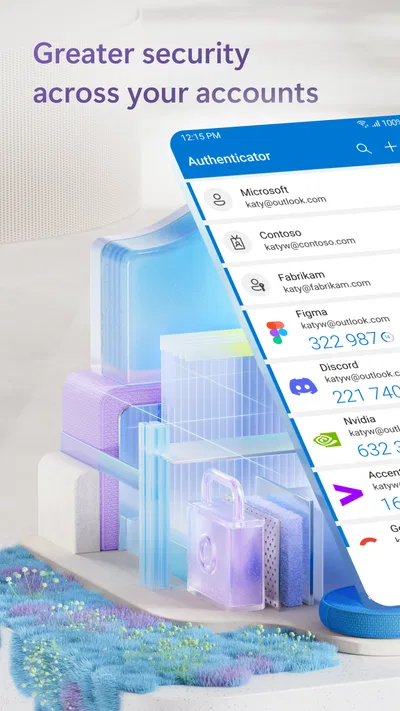
The app is aimed at people who want easier access without treating convenience and security as opposites. Its store summary emphasizes fewer password hassles and better account protection, which is a useful way to understand the product’s purpose. It is not a general password manager or a replacement for thoughtful account security; it is a tool for the verification part of signing in.
That distinction also helps set expectations. An authenticator can support a safer sign-in process, but it does not make every account automatically secure. Strong, unique passwords where they are still required, careful attention to unexpected prompts, and keeping recovery options current remain part of the job. I like that framing because it encourages a practical habit instead of suggesting that installing one app solves everything.
Make setup part of account housekeeping
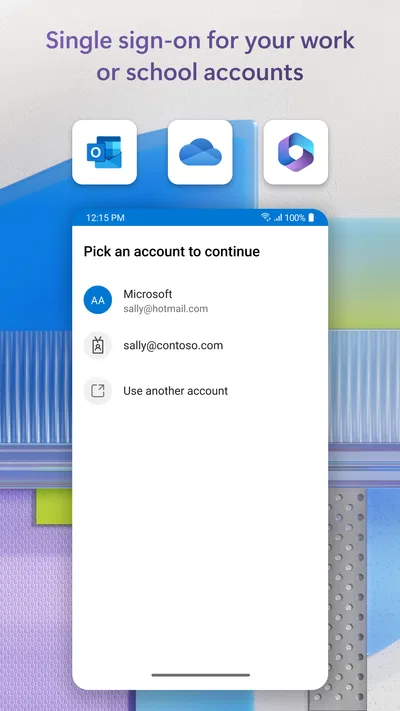
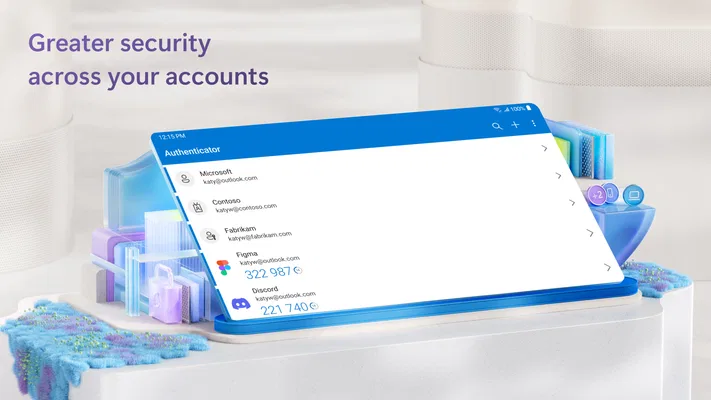
When adding an account, I would work through the account’s own security settings and follow the on-screen enrollment steps carefully. It is worth checking the account name shown in the authenticator afterward, so verification prompts are easier to recognize. If you use several accounts for work and personal matters, clear labels and a quick review can help prevent confusion when a sign-in request appears.
I would also avoid rushing through the first setup just to get past a prompt. Read what the account is asking you to approve, and make sure the request matches an action you just started. If a verification request arrives out of the blue, treating it as a reason to pause is a sensible habit. Convenience is valuable, but a confirmation should still be deliberate.
For a business app, that kind of calm, repeatable workflow is more useful than flashy presentation. The point is to reduce friction while keeping the user involved in the decision. Once the routine is familiar, the extra verification step feels less like an interruption and more like a normal part of protecting access.
Settings and habits worth checking
Authenticator apps are only as useful as the setup around them. I would take time to review the security options for each account, confirm that the account is enrolled as intended, and understand what the account expects during sign-in. Those checks happen partly in the account’s own settings, so it helps to think of the app as one component in a wider security arrangement rather than the whole arrangement by itself.
It is also sensible to keep the phone itself protected with a reliable screen lock and to install app updates through the app store when available. These are ordinary device-care habits, not complicated security rituals. They reduce the chance that a misplaced or casually accessed phone becomes an easy route to account prompts. The app works best when the device it lives on is treated as important.
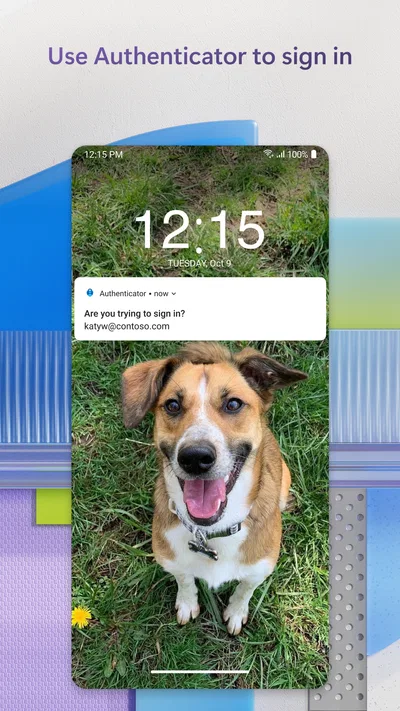
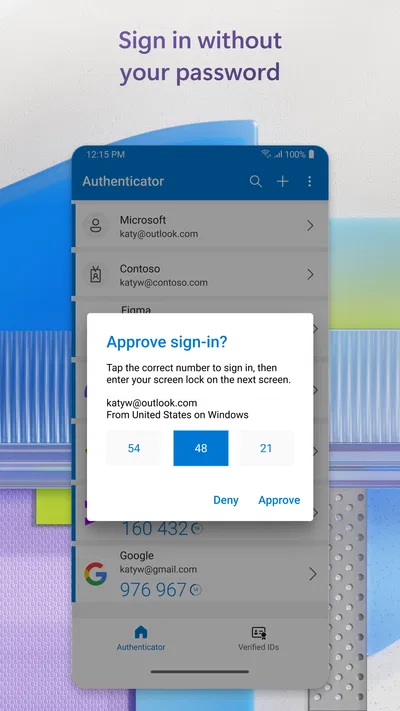
Notifications deserve attention as well. If a sign-in request appears, check whether you initiated it and whether the account context makes sense. A quick tap out of habit is exactly what a careful workflow should avoid. I prefer a simple personal rule: approve only requests that correspond to something I am doing right then, and investigate anything unexpected through the account’s normal sign-in process.
Build a routine you can repeat
Experienced users tend to benefit from consistency more than from constant tinkering. I would establish a short sequence: start the sign-in myself, inspect the prompt, confirm only when it matches, and then continue. Repeating the same steps makes it easier to spot an unusual request and reduces the temptation to approve blindly when multitasking.
For people managing both work and personal accounts, separating those contexts mentally can help. Before approving, take a moment to identify which account is involved and what action triggered the request. That pause is small, but it is a dependable safeguard. It also makes troubleshooting easier: if a request seems unfamiliar, you can retrace what you were attempting rather than guessing.
Shortcuts should mean removing unnecessary effort, not skipping judgment. Keeping the app easy to reach on your phone can make legitimate sign-ins less cumbersome, but the approval decision still deserves attention. I see that balance as the best kind of efficiency: fewer pointless delays, with the important security check left intact.
It can help to make account maintenance a regular part of personal or workplace housekeeping. When you change devices or review account security, revisit the authentication setup and make sure you understand how you will sign in. A little preparation is less stressful than discovering a gap when access is urgent. This is especially true for accounts that support work, payments, communications, or other important tasks.
Where the convenience has limits
An authenticator is not magic, and it cannot remove every point of friction from digital life. You still need to follow the sign-in process each account uses, keep track of your device, and pay attention to what a prompt is asking. Some accounts may continue to require passwords or other steps, so the practical experience depends on the account’s own setup. The app’s value is in supporting verification, not in promising that every login becomes identical.
That makes preparation important. If a phone is unavailable, damaged, or being replaced, access to accounts can become more complicated. I recommend reviewing each important account’s recovery choices and keeping those details current. Do this through the account’s normal security settings, and make sure the recovery route is one you can actually use. Planning ahead is more reliable than hoping you will remember what to do in a stressful moment.
There is also a human limit: people can get used to tapping through repeated prompts. That is why a consistent approval rule matters. An unexpected request is not just a nuisance to clear; it is a signal to stop and check. If the request does not match a sign-in you started, do not approve it simply because the screen looks familiar.
Finally, an authentication app should not be confused with a full security plan. Keep devices updated, use sensible account practices, and review important account settings from time to time. Those habits complement the app rather than compete with it. For me, that is the realistic way to assess any sign-in tool: judge how well it fits into a broader routine, not whether it claims to replace every other safeguard.
Who will get the most from it?
People who sign in to accounts frequently and want a more direct verification workflow are the obvious audience. It can also suit users who are trying to reduce dependence on remembering passwords at every turn, while still taking account protection seriously. Microsoft Authenticator is a business-category app from Microsoft Corporation, but its purpose can make sense for everyday personal account management too.
The scale of its adoption is notable: it has over one hundred million installs, with a 4.6 average from around 2.8 million ratings. Those figures suggest it is a familiar option for many users, though popularity alone does not determine whether it fits your setup. I would choose it based on the accounts you need to protect and how comfortably its verification process fits your daily routine.
The app is free, has an Everyone content rating, and was released on January 13, 2015. Its current version is 6.2609.6214, and it requires Android 8.0 or later. These details make it easier to assess basic compatibility and availability before installing. On iOS, check the app store for the version and requirements applicable to your device.
Getting comfortable without overcomplicating things
My preferred approach is to begin with the accounts I use most, learn how their verification prompts work, and then expand the setup only when there is a clear need. That avoids turning security setup into a sprawling project. Once the first few sign-ins feel familiar, it becomes easier to apply the same careful pattern elsewhere.
When something changes, such as a new phone or a revised account security setting, revisit the relevant setup instead of assuming the old routine still applies. A quick check can prevent confusion later. Keep the process simple, but do not skip the steps that establish how you will regain access if your usual device is unavailable.
For a shared or managed work environment, follow the organization’s instructions for account security. Personal preferences should not override the process an employer uses to protect work accounts. The app can be part of that process, while the account owner or organization determines how sign-in is configured.
A practical mastery verdict
Microsoft Authenticator is at its best when it becomes a quiet, dependable part of signing in. It can make verification feel more manageable and support stronger account access habits, particularly for users who are willing to set it up thoughtfully and pay attention to prompts. I appreciate its focused purpose: it helps with the moment where an account needs to check that the person signing in is really the account holder.
To get the most from it, pair the app with a few repeatable habits: enroll accounts carefully, recognize which account a prompt belongs to, approve only sign-ins you initiated, and review recovery options before you need them. Keep your device secure and treat unexpected requests as a reason to pause. None of those steps is complicated, but together they make the experience safer and more predictable.
There are limits, as there are with any authentication tool. The app does not eliminate every password or every account-specific step, and it cannot replace sound judgment or account recovery planning. For users who understand that, it offers a practical balance of convenience and protection. I would recommend considering it if easier sign-ins and an extra verification layer are priorities, especially when you are ready to make careful approval a regular habit.
Pros
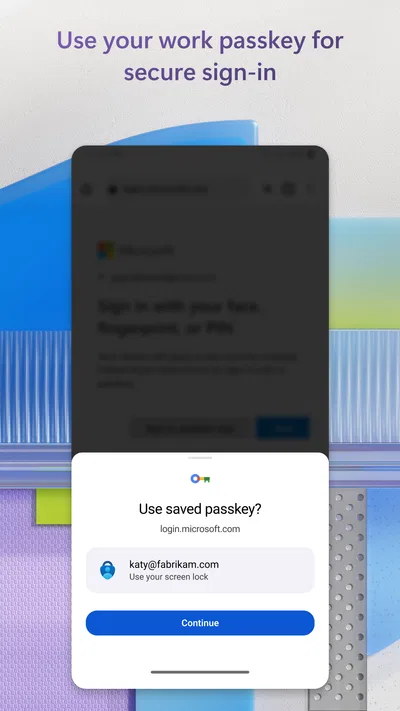
- Supports passwordless sign-in for compatible Microsoft accounts.
- Can autofill saved passwords in supported browsers and apps.
- Offers cloud backup for restoring accounts on a new device.
- Uses number matching to help verify sign-in requests.
- Works with many third-party services that support authenticator codes.
Cons
- Cloud backup requires an account and may vary by platform.
- Restoring accounts can require extra verification steps.
- Some work or school accounts need administrator setup.
- Push approvals depend on internet connectivity.
- Losing access to the device can complicate account recovery.
Best Business App 2026
Our verdict
No more passwords, easier sign-in, and greater protection for your accounts.
Frequently Asked Questions
What does Microsoft Authenticator do?
Microsoft Authenticator is a security app that helps verify your identity when you sign in to accounts. It can generate one-time verification codes and approve sign-in requests sent to your phone. Depending on the account and how it is configured, it can also support passwordless sign-in and autofill for saved passwords. Its features and setup options may differ between Microsoft accounts, work or school accounts, and other services.
Can I use Microsoft Authenticator with accounts that are not Microsoft accounts?
Yes. Microsoft Authenticator can generate time-based verification codes for many services that support authenticator-app verification, including some non-Microsoft accounts. You typically enable two-step verification in the service’s security settings and scan its QR code or enter a setup key in the app. Availability and instructions vary by provider, so check that service’s guidance before removing an existing verification method.
What happens if I lose my phone or get a new one?
Losing access to your phone can make sign-ins more difficult, so it is wise to prepare a recovery option before changing devices. Microsoft Authenticator offers cloud backup and restore capabilities, but what can be restored depends on your platform, account type, and backup settings. Some work or school accounts may need to be registered again. Keep recovery codes and another approved sign-in method somewhere safe, and follow Microsoft’s current transfer instructions.
Is Microsoft Authenticator free, and does it require an internet connection?
Microsoft Authenticator is generally available as a free download, although using it does not remove subscription or account requirements imposed by the services you sign in to. Verification codes are generated on the device and usually do not require an internet connection at the moment they are displayed. However, push approval requests, account setup, synchronization, backup, and some other features may require network access.
How secure is Microsoft Authenticator, and what should I know before downloading it?
The app adds a verification step beyond a password, which can make account access more resistant to stolen or reused passwords. Protect your phone with a screen lock, install the app from the official app store, and carefully review sign-in prompts before approving them. Never approve an unexpected request or share a verification code. Authenticator cannot guarantee account security on its own, and recovery and privacy options depend on your settings and account.

Download Microsoft Authenticator
Similar apps
View all 8.2
Zoom Workplace
Business
 9.3
Microsoft Teams
Business
 9.4
Indeed Job Search
Business
 9.1
DoorDash - Dasher
Business