
- Award score
- 4.6Rating
- 500,000,000+installs
- Free
App information
- Version
- 1416/1.0.0.2026183002
- Updated
- Requires
- Varies with device
- Price
- Free, in-app purchases
- Developer
- Microsoft Corporation
- Content rating
- Everyone
Screenshots

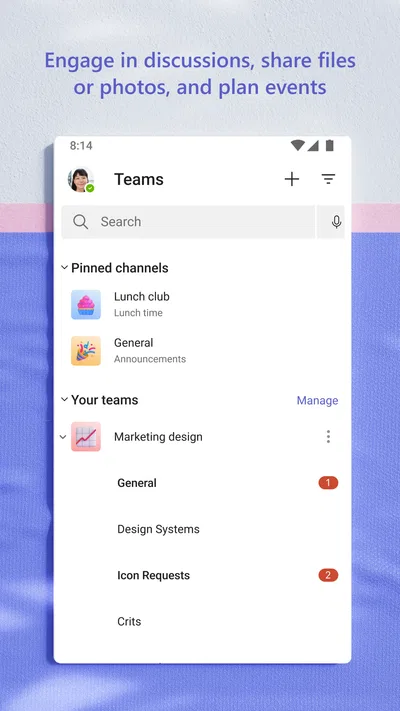
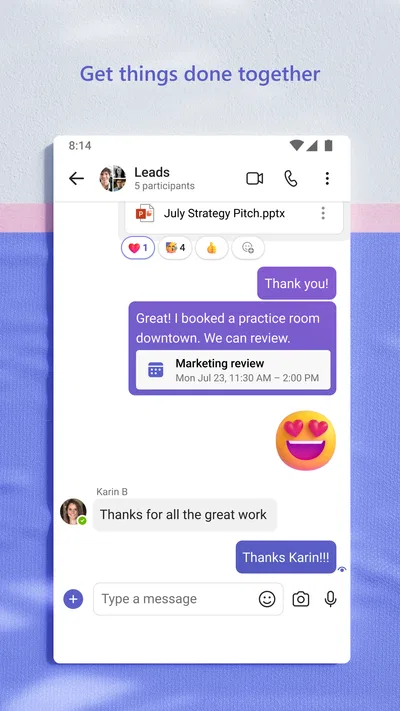
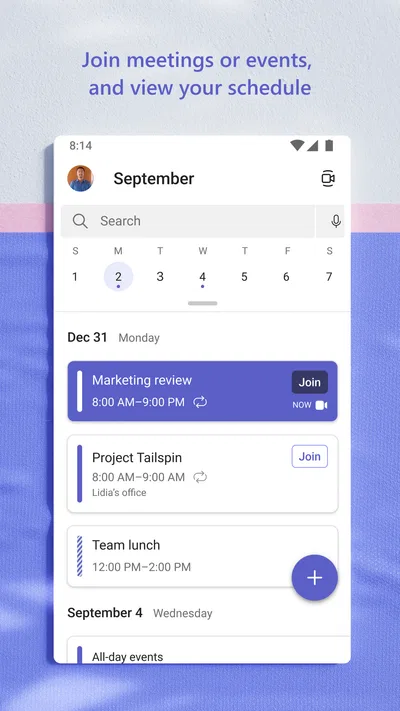
 Analysis byAppsAward
Our review of Microsoft Teams
When a team’s work is scattered across email threads, meeting links, and messages, the problem is rarely a lack of communication tools. It is that people cannot tell where a decision was made or what needs attention next. Microsoft Teams can help bring those conversations together, but I find it works best when a group agrees on how to use it rather than treating it as another inbox to check all day.
In my view, the app’s real value is less about adding more ways to chat and more about giving a team a shared place to coordinate. That can make a busy workday easier to follow, especially when conversations and meetings are already part of the group’s routine. It can also create noise if every discussion becomes an urgent notification.
Start with a workflow, not another inbox
Teams is a business app from Microsoft Corporation. It is free to install, is rated for Everyone, and has a 4.6 average from around 8.8 million ratings. It has passed 500 million installs, which reflects how widely it is used, though popularity by itself does not make it the right fit for every group.
Before adopting it, I would decide which work belongs in a shared conversation and which still belongs in email or another system. A useful starting rule might be: quick coordination goes in a team conversation, meeting discussion stays connected to the relevant work, and decisions that people will need later are summarized clearly. The exact arrangement should suit the team; the important part is making it predictable.
This distinction matters because a chat tool can make communication faster without making work clearer. If staff are expected to watch several channels constantly, Teams may simply move interruptions from one place to another. I would agree on reasonable response expectations and keep urgent matters distinct from routine updates. That small habit can make the app feel like a workspace rather than a stream that never ends.
Compared with using email as the default for every internal exchange, Teams is more convenient for short back-and-forth conversations and coordinating around meetings. Email can still be better for messages that need a formal record, careful external communication, or a recipient list that does not belong in a shared workspace. I would not try to replace every existing tool on day one; a clear division of jobs is easier to maintain.
Capture conversations so they remain useful
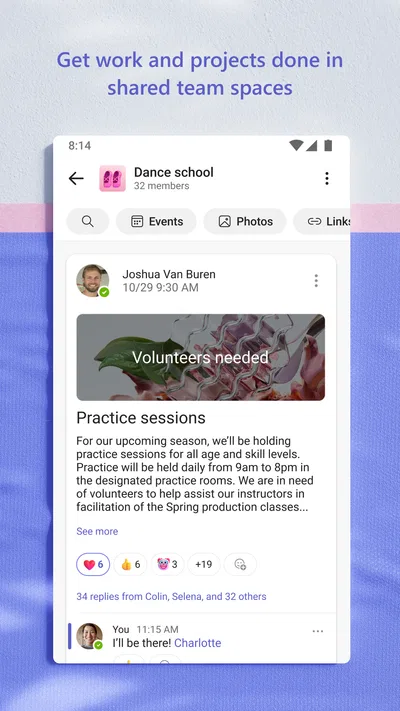
The app brings chat, meetings, and collaboration into one working environment. That combination is handy when a question raised in conversation leads to a meeting, or when a group needs to keep an ongoing discussion together. The benefit depends on where people put things: a useful update buried in an unrelated chat is still hard to find.
One practical approach is to use shared conversations for topics that have a continuing life, rather than creating a new thread for every passing thought. For example, a small project team could keep planning questions together, use a meeting to resolve a complicated choice, then post a concise recap in the relevant conversation. That recap should name the decision and the next owner, not merely say that the group talked.
This is one of the less obvious habits that makes a difference: write messages for the person who will need to find them later. A short subject-like opening, a clear request, and enough context to understand the issue are more valuable than a rapid sequence of one-line fragments. If a discussion becomes difficult to follow, I would move it to a meeting or summarize the current state instead of adding still more messages.
Teams can also serve people who split time between individual work and group coordination. A designer might use a conversation to clarify a review request, then return to focused work rather than keeping a separate email chain alive. A manager can use a meeting for a decision that needs discussion, while routine status updates remain in the shared space. The app is most useful when these choices reduce duplicate communication rather than create parallel versions of the same conversation.
There is a trade-off here. Chat feels immediate, but it is not automatically a durable project record. For a decision that affects future work, I would make sure the outcome is written plainly in a place the team already knows to check. Otherwise, people may remember the meeting differently or search through a long conversation to reconstruct what was agreed.
Build a routine the team can sustain
A sensible routine does not require people to be online every minute. I would begin the day by checking the conversations relevant to current work, identifying direct requests, and noting anything that needs a meeting. During focused work, I would avoid opening every notification as it arrives unless the team has a genuine need for immediate response. At the end of a meeting, I would capture decisions and responsibilities while they are still fresh.
For a realistic example, imagine a colleague asks for a change to a shared presentation shortly before a review. Rather than exchanging scattered messages, the team can use its existing conversation to clarify the requested change, discuss any uncertainty in a meeting if needed, and post a clear handoff afterward. The person completing the work then has one visible place to check for context. This is not magic automation; it is a communication habit supported by a shared app.
A second useful practice is to keep routine updates brief and purposeful. If a team has a regular check-in, I would post the information people need to prepare rather than turning the conversation into a running diary. This reduces the chance that important requests disappear among low-value commentary. It also gives teammates permission to catch up at sensible intervals instead of treating every message as a summons.
Teams is not necessarily the best home for every kind of information. A spreadsheet, document, or dedicated task system may remain the better source for detailed records and structured work. The app can help people discuss and coordinate around those materials, but a conversation alone is a weak substitute for a maintained plan. I would keep one authoritative place for each important work product and use chat to explain changes or ask questions.
That division also helps with onboarding. New teammates should be told where to ask common questions, how to recognize a request that needs a timely response, and where final decisions are recorded. Without those conventions, newcomers may see plenty of activity but still be unsure which messages matter. A little guidance at the start is more effective than expecting everyone to infer the team’s habits.
Where the workflow can break down
The main friction I would watch for is message overload. When several groups, chats, and meetings all demand attention, the app can become another source of context switching. People may respond quickly but lose time returning to the task they were doing. The remedy is not simply to mute everything; it is to reduce unnecessary conversations, clarify urgency, and avoid sending a message when a well-maintained shared note would serve better.
Another weak point is fragmentation. A team can discuss a project in one chat, hold a meeting elsewhere in its routine, and then keep the final decision in someone’s personal notes. Even though the app can bring communication together, it cannot make a group consistent by itself. Before moving work into Teams, I would choose a recognizable home for each ongoing topic and tell participants how to record outcomes.
There is also a social cost to making every exchange visible and immediate. Some people prefer a carefully written email for a sensitive or formal matter; others need uninterrupted time to do concentrated work. I would not insist that all communication move into chat. The better choice depends on the audience, urgency, and need for a lasting record.
Teams is a business app, not a universal replacement for every collaboration product. If a group mainly needs lightweight conversations and already has a dependable meeting and document workflow, adding another workspace may create duplication. If the team relies on a specialized project tool for assigning and tracking work, that tool may remain the clearer place to manage deadlines. Teams makes more sense when its conversations and meetings are useful enough to justify being part of the daily routine.
The app is free to install, while in-app purchases range from $9.99 to $129.99 per item. I would check what a particular organization needs before assuming the free installation covers every requirement; the practical question is whether the version and services available to that team match its workflow. The current version is 1416/1.0.0.2026183002, and the app was released on November 2, 2016. Those details can help identify the app, but the everyday experience will still depend heavily on how a group uses it.
Who will get the most from it
I would recommend Microsoft Teams to people whose work already involves regular group discussions, meetings, and handoffs, especially when colleagues need a shared place to coordinate. It is a strong fit for teams willing to establish a few simple conventions and keep final decisions easy to locate. It can be useful for a small group as well as a larger organization, provided the chosen setup does not overwhelm people with parallel channels and constant updates.
I would hesitate to recommend it to someone who works mostly alone, rarely needs meetings, or already has a simple and reliable way to communicate. A person who wants an uncluttered chat app for occasional messages may find a lighter alternative easier. Likewise, teams that need precise task tracking should not mistake a busy conversation for a project plan.
My advice is to start with one real workflow rather than trying to move every conversation at once. Pick a recurring coordination problem, decide where questions and decisions should go, and see whether the team can maintain that habit without increasing interruptions. If it makes handoffs clearer and saves people from searching through scattered messages, keep building on it. If it adds another place to monitor without improving clarity, simplify the process or choose a different tool.
That is the most honest way I would judge Teams: not by how many conversations it can hold, but by whether people can leave a discussion knowing what happens next and where to find the answer later. Used with restraint, it can give a working group a dependable shared rhythm. Used without boundaries, it can become one more feed competing for attention.
Pros
- Free accounts can join meetings hosted by other people.
- Teams integrates with Microsoft 365 apps for work and school.
- Meeting captions can make conversations easier to follow.
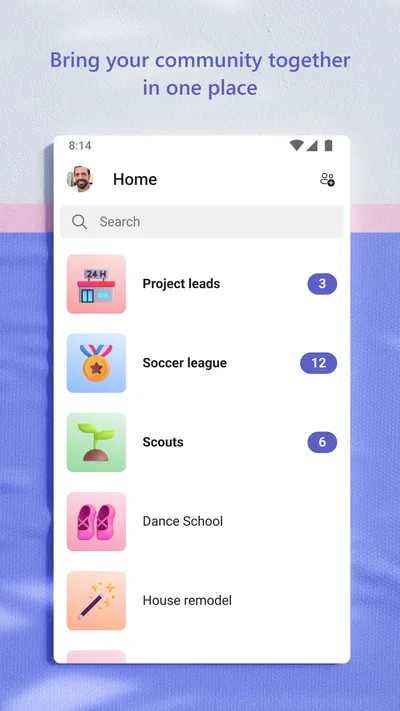
- Channels keep conversations organized by project or topic.
- Guests can collaborate without needing a full Teams account.
Cons
- Some features require a paid Microsoft 365 plan.
- Notifications can become overwhelming in busy workspaces.
- Large meetings may use significant battery and data.
- Finding older messages can take time in active channels.
- The interface can feel complex for first-time users.
Best Business App 2026
Our verdict
Chat, meet, and collaborate to achieve more together, all in one place on Teams
Frequently Asked Questions
What is Microsoft Teams used for?
Microsoft Teams is a communication and collaboration app for work, school, and other groups. It brings together chat, audio and video calls, meetings, file sharing, and collaboration tools in one place. People can use it to message individuals or groups, join scheduled meetings, and work on shared files. Available features can depend on the account type, organization settings, and app version.
Is Microsoft Teams free to download and use?
The Teams app can be downloaded without charge, and Microsoft offers a free version with a set of communication and collaboration features. Some capabilities, such as advanced meeting controls, larger organizational tools, or expanded storage, may require a paid Microsoft plan or access provided by an employer or school. Check the current plan details and your organization’s policies before relying on a specific feature.
Can I use Microsoft Teams without a work or school account?
You may be able to use Teams with a personal Microsoft account, but access and available features can differ from those offered through a work or school account. Organizations often control sign-in, meeting access, and file permissions, so a guest may need an invitation or approval. If you are joining a meeting, check the link and sign-in instructions supplied by its organizer.
Does Microsoft Teams support video calls and meetings on mobile?
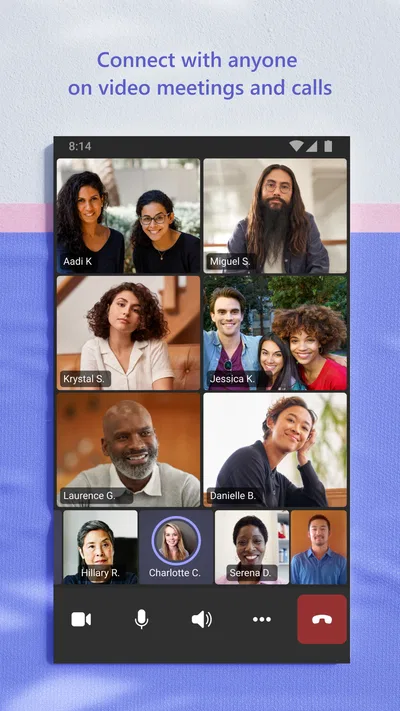
Yes, the mobile app supports joining meetings and making audio or video calls, subject to your device, account, and organization settings. You can typically use controls for your microphone and camera, view participants, and participate in chat during a meeting. A stable internet connection is important, and video calls can use substantial mobile data, so Wi-Fi may be preferable when available.
What should I know about privacy and notifications before installing Microsoft Teams?
Teams may request access to features such as your microphone, camera, contacts, or notifications when you use related functions; you can review and manage app permissions in your device settings. Work or school accounts may also be subject to organizational policies and administrator controls. Notification behavior can be customized in the app, which is useful if frequent chat and meeting alerts would be disruptive.

Download Microsoft Teams
Similar apps
View all 8.2
Zoom Workplace
Business
 9.4
Indeed Job Search
Business
 9.3
Microsoft Authenticator
Business
 9.1
DoorDash - Dasher
Business