- Award score
- 4.8Rating
- 500,000,000+installs
- Free
App information
Screenshots
 Analysis byAppsAward
Our review of Canva: AI Photo & Video Editor
The first time I open Canva, I don’t need to arrive with a polished idea. I can begin with a rough notion—a small event announcement, a social post, or a short clip—and shape it into something presentable as I go. That makes this art and design app approachable for people who aren’t trained designers, while still giving experienced creators room to make deliberate choices. My main advice to a newcomer is simple: start with one specific job, not the expectation that you need to learn every tool at once.
What to expect when you start
Canva is a free app from Canva, with in-app purchases ranging from $1.49 to $300 per item. Its focus is practical visual creation: you work on designs for different purposes, rather than opening a blank canvas and being expected to know exactly how to build everything. The app’s AI-oriented pitch is that a prompt can help turn an idea into visual material, but I’d treat that as a starting point to edit, not a finished design that automatically understands your taste.
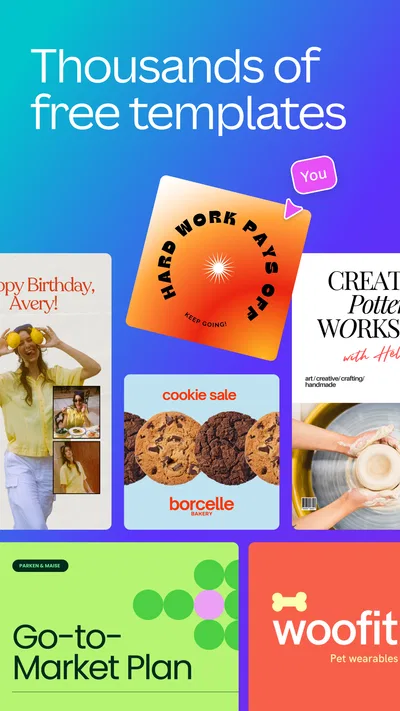
The first screen can feel busy because a tool meant to serve many kinds of projects has to offer plenty of starting points. Resist the urge to browse endlessly. Decide what you need to make, then choose a format or template that is close to that purpose. A birthday invitation, a simple class presentation, and a short promotional video have different priorities; picking the right starting shape makes the later decisions easier.
Articles related to Canva: AI Photo & Video Editor
That template-led approach is Canva’s biggest difference from a traditional image editor. In a more specialized editor, I might have finer control over a particular craft, but I would also need to build more of the layout myself. Canva helps with structure and visual direction, which is especially useful when the goal is a clear, attractive result rather than a deep technical editing session.
Canva has an average rating of 4.8 from around 28 million ratings, and it has been installed over 500 million times. Those numbers suggest broad appeal, but they don’t mean every workflow will suit every person. I find it best for quick, adaptable design tasks, especially when I want a result that looks organized without spending a long time learning specialist software.
Choose a small first project
For a reassuring first attempt, make something with a clear purpose and only a few essential parts. A simple announcement is a good example: one title, one supporting line, and one image or decorative element. You will learn how to move around the editor, change text, and judge spacing without getting pulled into a complicated project.
Keep the original goal visible while you work. It is easy to confuse “more decorated” with “more effective,” particularly when a template offers many details to adjust. I usually ask whether someone could understand the message at a glance. If not, simplifying the design is often more useful than adding another visual effect.
Getting through the first setup
After installing, I’d first decide what I want to make and then browse the relevant project options. The app is rated Everyone 10+, and it is free to download, though some purchases are available inside it. That distinction matters: you can explore and create without treating the first screen as a commitment to buy, but you should pay attention to whether a particular item or option is presented as a purchase before building a design around it.
When a template looks promising, inspect its overall composition before editing. Look at where the main message sits, how much room the image gets, and whether the layout matches the amount of text you actually need. Choosing a template only because its colors are attractive can lead to awkward editing later if its structure is wrong for your content.
Then replace the sample wording with your own before fine-tuning appearance. This small order-of-operations tip saves time: real text may be longer or shorter than the placeholder, and that changes the balance of the page. I’d rather adjust the layout once around the actual message than polish a design and then squeeze new wording into it.
Canva’s current version is 2.383.0, and it supports devices running version 8.0 or later of its minimum operating system. If you’re deciding whether to use it on an older device, check that your operating system meets that requirement before planning your workflow. For anyone who can install it, the most useful setup is not a perfect configuration; it’s simply having a concrete first project ready.
Your first meaningful result
Here is a realistic everyday scenario: you need to tell a few people that a community get-together has moved to a new time. I’d start with an announcement layout, replace the sample headline with the new time and place, and remove decorative text that does not help people act on the message. Then I’d check that the key details remain easy to read and that the image supports, rather than competes with, the information.
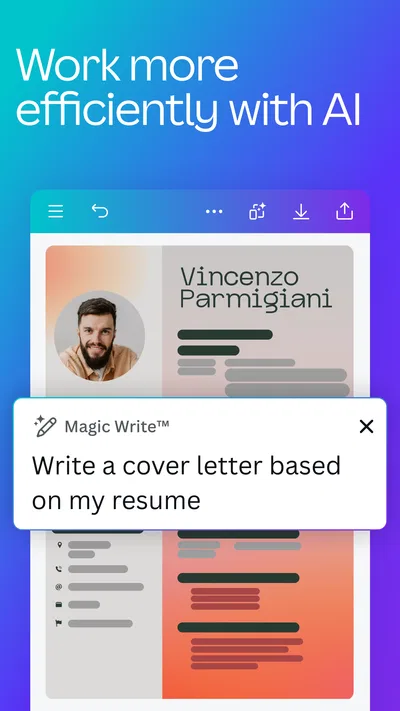
That first finished draft is more valuable than an elaborate experiment because it teaches the core rhythm of the app: choose a starting point, put in your real content, then refine. If you are exploring prompt-based generation, use a prompt that describes the purpose and mood in plain language, and inspect the result carefully. Generated material can give you a direction to work from, but I would still check whether it fits the message and make any needed changes instead of assuming the first output is ready to share.
One useful habit is to duplicate a promising version before trying a major redesign, when the workflow you are using allows it. That gives you a safer way to compare a clean, simple layout with a more expressive alternative. I also recommend judging a design at the size people will actually see it. Text that seems comfortable while zoomed in can become hard to read when the design is viewed as a small post or on a phone screen.
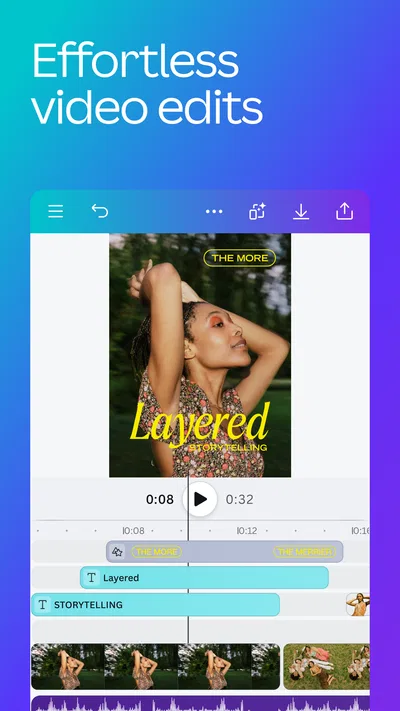
For a short video, the same principle applies: make the message and sequence understandable before spending time on embellishment. Think about what viewers need to notice first and what should follow. A visually lively clip can still feel confusing if its most important point arrives too late or disappears among competing elements.
Where beginners can get stuck
The most common confusion is assuming that everything visible in the editor is equally necessary. Canva offers a broad design environment, so it can tempt a new user into trying every option before finishing anything. I get better results by treating extra decorations and effects as optional. If a change does not improve clarity, mood, or emphasis, I leave it out.
Another point to watch is the difference between a template and your final design. Templates are useful scaffolding, but they can make different projects look alike if you keep every original choice. Change the wording, adjust the visual emphasis, and choose imagery that fits your specific message. A small number of thoughtful edits usually does more than changing every color and detail at random.
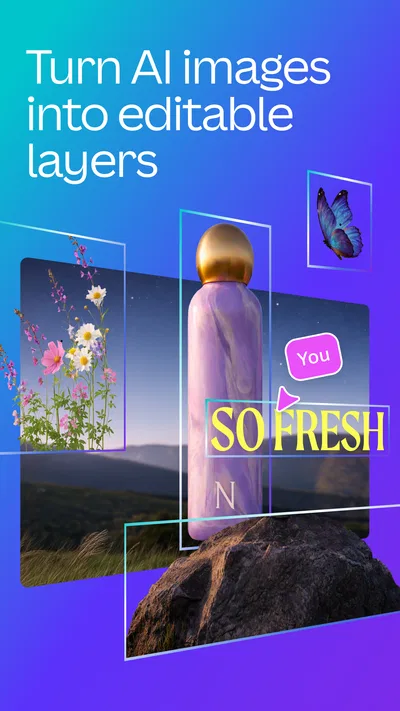
AI-generated content brings a different kind of friction. A prompt can help you move past a blank page, but the result may need refinement to match the exact subject, tone, or composition you had in mind. I would not rely on generation alone for a design where a precise detail is critical. Review every visible element, especially text and information that someone will use to make a decision.
It also helps to keep the purchase model in mind. Canva is free to install, but in-app purchases range from $1.49 to $300 per item, so not every option should be assumed to be included at no cost. If you are working to a strict budget, look at the choices attached to the element or workflow you plan to use before investing time in a particular design direction.
When Canva is the right fit—and when it isn’t
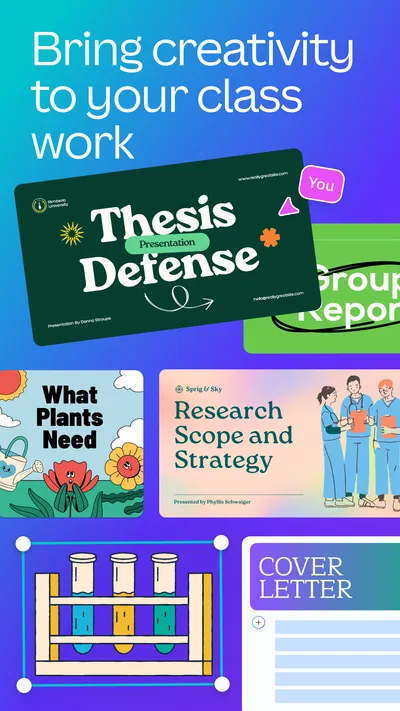
I’d recommend Canva to someone who regularly needs clear visuals but does not want every project to begin from scratch. It is particularly handy for students, families, community organizers, small teams, and casual creators who need to assemble information into a presentable design. The built-in template approach is also useful when I want a quick draft that I can customize rather than a blank screen that demands a full layout plan.
If your work depends on highly detailed image manipulation, exact control over every pixel, or a specialized professional workflow, a dedicated photo or illustration editor may be the better tool. Canva’s strength is making a wide range of common design jobs approachable; that breadth is not the same as deep control in every discipline. Likewise, if you enjoy building layouts entirely from scratch, templates may feel like an unnecessary layer between you and the canvas.
Compared with the usual alternatives in art and design, Canva sits on the accessible, all-purpose side. A basic drawing app is often a more natural choice for sketching by hand, while a specialist photo editor can be preferable for intricate retouching. Canva makes more sense when the output needs to combine text, imagery, and a ready-made visual structure without requiring a long setup. The trade-off is that convenience can make it easier to settle for a familiar template instead of developing a distinctive style.
There is also a practical distinction between making something quickly and making it consistently. For one announcement, a template can save effort. For a recurring project, I’d settle on a small set of visual choices—such as a restrained color palette and consistent text emphasis—and reuse that direction rather than choosing a completely different look each time. This turns Canva from a one-off shortcut into a more dependable part of a personal or group workflow.
A sensible next step
Once your first design is complete, make one intentional improvement rather than reopening every decision. Try shortening the headline, giving the main information more room, or removing a decorative element that draws attention away from the purpose. Comparing that revision with your first draft is a better way to learn than switching through unrelated templates and effects.
If you enjoyed the process, try a second project in a different format, such as moving from a static announcement to a short video. That will show whether the app’s broader range matches the way you like to work. If you only need occasional, highly specific editing, keep a specialist alternative in mind instead of forcing every task into one tool.
Overall, I find Canva most useful as a friendly bridge between an idea and a finished visual. It lowers the barrier to making something polished, and its prompts and templates can help when inspiration is thin. The best results still come from a human choice about what matters, what can be removed, and whether the design communicates clearly. I’d start small, check any paid options as they appear, and keep the project’s purpose ahead of the urge to decorate.
For a first-time user, that is a comfortable way in: choose one real task, make a straightforward draft, and improve it with a few deliberate edits. Canva is not the right answer for every specialist design job, but for everyday graphics and approachable creative work, I think it is worth trying. It is free to download, carries an Everyone 10+ age rating, and gives newcomers a practical place to find out whether template-based creation fits their habits.
Pros
- Templates make it easy to create polished designs quickly.
- The drag-and-drop editor is approachable for beginners.
- Projects can sync across devices through a Canva account.
- Collaboration tools let teams edit and comment on shared designs.
- The app supports exports in several common file formats.
Cons
- Many templates and assets require a paid subscription.
- Some advanced editing tools are less precise than desktop software.
- The large asset library can make browsing feel overwhelming.
- A reliable internet connection is useful for many features.
- Export options can vary depending on the design and subscription.
Best Art & Design App 2026
Our verdict
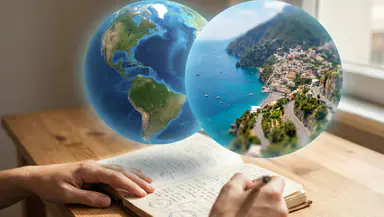
Generate with a prompt. Turn your ideas into actual videos, photos, or elements.
Frequently Asked Questions
What can you do with Canva: AI Photo & Video Editor?
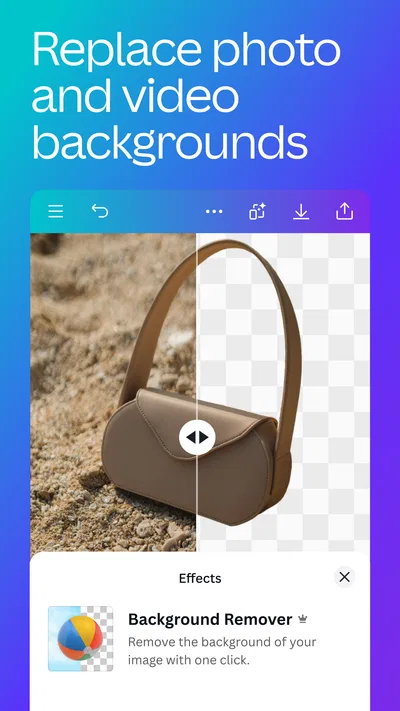
Canva is a design and editing app for creating social media posts, presentations, flyers, invitations, videos, and many other visual projects. It combines ready-made templates with tools for adding text, graphics, photos, and audio. AI features can help generate or edit visual content, though their availability and usage limits may depend on your plan, location, and the current version of the app.
Is Canva: AI Photo & Video Editor free to use?
Canva can be downloaded and used without a paid subscription, and its free plan includes a range of templates, design tools, and content. However, some premium templates, stock assets, advanced features, and AI tools may require Canva Pro or another paid plan, or may have usage limits. Check the price and subscription terms shown in the app before starting a trial or purchase.
Do you need design experience to use Canva?
No professional design experience is required. Canva’s templates and drag-and-drop editor make it possible to start with a pre-arranged layout and customize its text, colors, images, and other elements. The number of options can feel overwhelming at first, especially when browsing assets, but starting with a template is usually a straightforward way to make a polished design without building everything from scratch.
Can you use Canva to edit photos and videos on a phone?
Yes. The mobile app supports creating and editing visual projects, including photo-based designs and videos, using touch controls. You can select a template, add or adjust media, and customize elements on your device. Editing a detailed project on a small screen may take more time than working on a larger display, and certain tools or assets may be restricted by your account plan.
Can you download or share designs made in Canva?
Canva offers options to export or share finished projects, with available formats depending on the design and the features you use. You can generally save suitable files to your device or share a design through supported options, while collaboration features can help others view or edit a project. Before publishing or distributing work, review the licensing terms for any stock media and confirm the export settings meet your needs.

Download Canva: AI Photo & Video Editor
Similar apps
View all 7.6
Google Flow
Art & Design
 9.3
Artmate: Drawing Together
Art & Design
 7.5
Nexus - AI Video Generator
Art & Design
 8.5
Vidix-AI Photo Video Generator
Art & Design