- Award score
- 3.8Rating
- 10,000,000+installs
- Free
App information
Screenshots
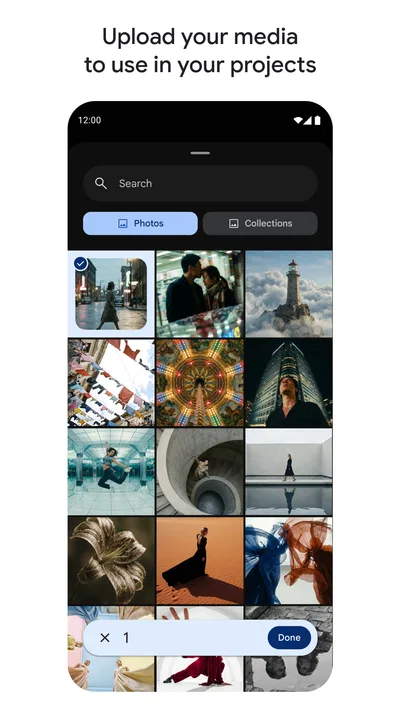
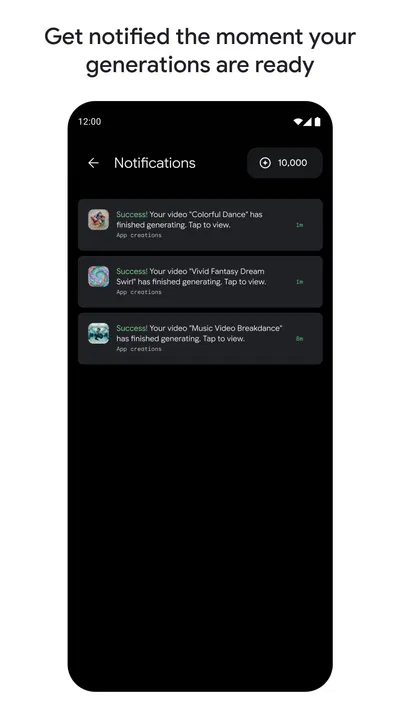
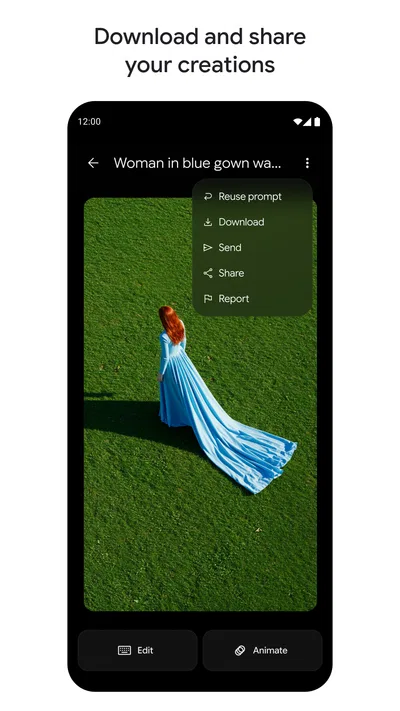
 Analysis byAppsAward
Our review of Google Flow
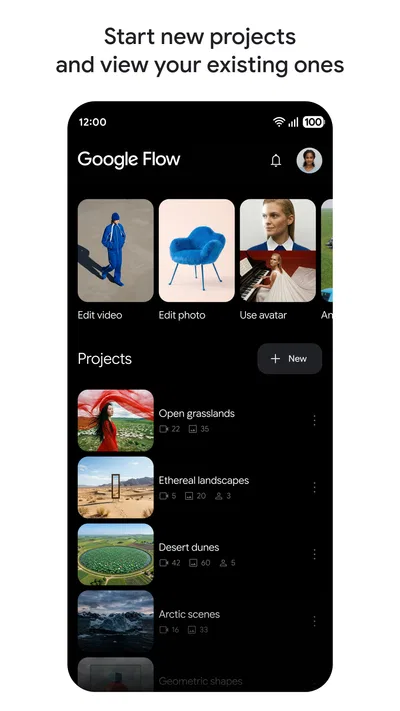
I approach Google Flow as a place to explore visual ideas with AI, not as a replacement for a full drawing or image-editing program. That distinction matters. It changes what I expect from the app: I want a quick way to test a direction, find a useful starting point, or make a concept easier to explain—not necessarily a finished design with every detail under my control.
It is an Art & Design app from Google Labs, and its appeal is straightforward: bring a creative prompt to an AI-oriented studio and see where the idea can go. In my experience, this kind of tool is most rewarding when I arrive with a clear purpose but remain open to unexpected results. If I need exact, repeatable control over every line and layer, I would reach for a conventional design app instead.
Starting with a useful creative brief
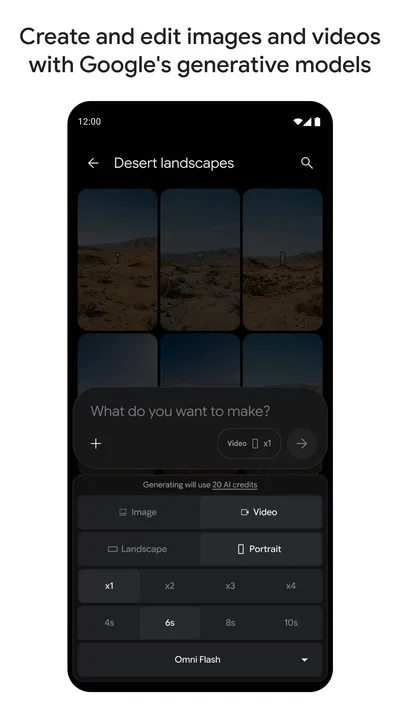
The most practical baseline workflow is to begin with the job the image needs to do. “Make something beautiful” leaves too much open; a brief that identifies the subject, mood, visual style, and intended use gives the tool more direction. For instance, I might describe a calm illustrated scene for a personal project, then decide whether the first result feels close enough to refine or whether the idea needs a different framing.
Articles related to Google Flow
I try to separate the core idea from decorative details. First I state what must be present, then add a small number of choices about atmosphere or appearance. This makes it easier to judge what changed between attempts. If I alter the subject, style, and mood all at once, I cannot tell which instruction helped, and the next prompt becomes guesswork.
A realistic everyday use is preparing a visual concept before sharing it with a friend or collaborator. I can explore a few ways an invitation, mood board, or personal project might feel, then use the strongest direction to guide a more precise tool or a human designer. That is a better fit than treating an AI result as a guaranteed, production-ready asset.
The app is free, which makes casual experimentation easy to consider. Google Flow has an average rating of 3.8 from around 35,000 ratings, and it has passed 10 million installs. Those figures suggest broad interest, but they do not tell me whether a particular person will like the creative process. The useful question is whether AI-led exploration matches the way you prefer to work.
Make each attempt answer a question
I get more value from a prompt when I know what I am testing. One attempt might explore a warmer palette; another might see whether a more minimal composition makes the subject clearer. This small habit turns browsing through generated ideas into a decision-making process. It also reduces the temptation to keep adding adjectives without knowing what problem they are meant to solve.
When a result is nearly right, I would preserve the parts that already work in the next instruction and change only the part that does not. That is a general prompt-writing discipline rather than a claim about a special control in the app. It helps maintain a clear creative direction and makes comparisons more meaningful, especially when an early result has a useful composition but the wrong mood.
Check the practical details before settling in
Before relying on Google Flow for regular work, I would check how it behaves on the device I plan to use and whether its current controls suit the project. The listed current version is 1.591.0, and the stated minimum operating-system requirement is Android 7.0. The app is rated Teen, so it is not presented as an all-ages experience; that is worth considering if a younger person will use it.
I also recommend inspecting the choices the app presents before building a routine around them. Creative tools can change their controls and options over time, and an interface detail that matters to one workflow may not matter to another. Rather than assume there is a particular advanced setting, I would test the available controls directly and note which ones genuinely affect the result I need.
For a focused session, I would keep a short record of the prompt and any visible settings that contributed to a promising result. That record can be as simple as a note in my own workspace. The point is not to imply that the app contains a hidden prompt library; it is to make my process repeatable even when the next session begins from scratch.
This approach is especially helpful when working on a small series of related images. I can keep the subject and overall visual direction consistent in my own brief, then vary one element at a time. The trade-off is that consistency still requires attention: an AI-generated image should be checked against the other pieces rather than assumed to match them automatically.
Build a faster rhythm without chasing every result
Experienced use is often less about discovering a secret button and more about reducing needless decisions. I would start with one clear brief, assess the result against a specific goal, and make the next prompt a deliberate adjustment. If an attempt moves away from the goal, I would return to the essential description rather than keep stacking corrections onto it.
A second useful habit is to define a stopping point. For a rough concept, the first result that communicates the idea may be enough. For a visual that will represent a project publicly, I would spend longer checking composition, legibility, and whether the image actually says what I intend. Without that distinction, it is easy to spend time polishing an exploration that was only meant to help make a decision.
I would also keep the app’s role clear when switching between tools. Google Flow can be a starting point for creative exploration, while a traditional drawing or layout app is usually the better place for precise typography, measured spacing, careful layer edits, or a final export with strict requirements. Moving between those roles is not a failure of the AI tool; it is a sensible workflow.
Compared with a standard drawing app, the attraction here is the possibility of getting visual directions without manually constructing every element. The compromise is less direct control over the precise result. Compared with a template-based design tool, the creative starting point may feel more open, but a template can be faster when the job is a familiar format with fixed dimensions and predictable text placement.
Where the limits matter
The biggest limitation to keep in mind is the gap between an appealing concept and a dependable final deliverable. An image can look convincing at a glance while still missing a detail that matters to the brief. I would inspect any result before using it, especially if someone else will rely on the visual to understand a product, event, or instruction.
AI-assisted creativity can also make iteration feel productive even when it is not moving the work forward. If successive prompts produce different interpretations rather than a controlled refinement, I would simplify the brief and decide what is non-negotiable. If the task depends on exact placement or consistent details across several assets, a hands-on editor may save more time than repeated experimentation.
Another practical trade-off is that the user still needs to make creative decisions. The app can help explore an idea, but it cannot decide which version suits the audience or whether the image is appropriate for its context. I would treat the output as material to evaluate, not as an automatic answer. That mindset makes the tool more useful and helps avoid mistaking novelty for quality.
Google Flow is not the right choice for someone who wants a conventional canvas-first experience, dependable manual control, or a predictable template for routine business graphics. It is also a poor match if the task cannot tolerate interpretation or if every detail must remain uniform without careful review. In those situations, a dedicated editor or a structured layout app is the safer choice.
Who will get the most from it
I would recommend giving it a try if you enjoy visual brainstorming, want to explore a concept before committing to a detailed design, or find it easier to react to images than to imagine them from a blank page. It can suit hobbyists and curious creators who are comfortable refining an idea through clear instructions and judging the result with their own eyes.
People who already have a strong creative process may appreciate it most as one step in a larger workflow. A designer could use an AI-led studio to consider directions, then move to a familiar tool for exact adjustments. Someone making a personal project might use it to clarify a mood before choosing colors or materials. In both cases, the human decision remains central.
The app was released on May 18, 2026, and its current version is 1.591.0. Those details are useful for identifying the release context, but my recommendation rests more on fit than on version numbers: try it when exploration is the task, and choose another tool when precision is the task. Google Labs has made a creative option that is easy to approach, but the best results still depend on a thoughtful brief and a willingness to edit your expectations.
A grounded verdict on making it part of your routine
My verdict is positive with a clear boundary. Google Flow is worth considering as an AI-focused creative workspace for generating and evaluating visual directions, particularly when I want to get past a blank page. I would not make it my only design tool, and I would not assume that a promising image needs no further scrutiny.
For a first session, choose one small, real task; write a brief with a clear subject and mood; and decide beforehand what would count as a useful result. Keep the next change narrow, compare the outcome against the original goal, and stop when the concept has done its job. That repeatable routine is more valuable than chasing a perfect prompt. If you want an exploratory partner for visual ideas, the app may fit naturally; if you need exact control from the first stroke to the final layout, a traditional creative app will likely serve you better.
Pros
- Turns text prompts into short AI-generated video clips.
- Supports image-to-video generation for more visual control.
- Offers camera movement controls for shaping each shot.
- Can help creators prototype scenes without filming.
- Integrates with Google’s AI tools and creative workflow.
Cons
- Availability may depend on your country and account plan.
- Generation can take time when demand is high.
- Results may vary in quality between prompts.
- Video generation can use limited monthly credits.
- Generated clips may need editing before publication.
Best Art & Design App 2026
Our verdict
Your AI creative studio
Frequently Asked Questions
What is Google Flow, and what can you create with it?
Google Flow is an AI-powered filmmaking tool designed to help turn written ideas into cinematic video scenes. Depending on the features available to your account, you can use prompts to generate clips, create or adapt visual elements, and build scenes with a more consistent look. It is aimed at creative experimentation and storytelling rather than conventional video editing, so generated results may need refinement before they are ready to share.
Is Google Flow available on Android and iOS?
Google Flow is primarily accessed through a web browser, so it may not work like a conventional app installed from the Google Play Store or Apple App Store. You can check the official Flow website and your Google account for current access details, supported browsers, and regional availability. Mobile access and editing may be more limited than using a computer, particularly for reviewing clips or managing a larger project.
Does Google Flow cost money, and are there usage limits?
Access, pricing, and generation limits can depend on your Google account, location, and the plan or promotional offer available at the time you use Flow. AI video generation may use credits or other monthly limits, and those terms can change. Before starting a project, review the pricing and usage information shown by Google, especially if you expect to generate many versions or longer sequences.
What should I know about prompts, generated videos, and creative control in Google Flow?
Flow can interpret text instructions to produce visual scenes, but results are not guaranteed to match a prompt exactly. Details such as movement, objects, lighting, or character continuity may vary between generations, so clear prompts and repeated adjustments can help. Treat each output as a draft: inspect it carefully, make changes where possible, and avoid assuming that separate clips will automatically form a perfectly consistent finished film.
Is Google Flow safe to use, and what happens to the content I submit?
As with any generative AI service, avoid submitting confidential material, personal information, or content you do not have permission to use. Check Google's current privacy terms, content policies, and information about how prompts and generated media are handled before uploading or creating anything sensitive. Also review the rights and usage conditions that apply to generated outputs, since they may affect how you can publish or use a video.

Download Google Flow
Similar apps
View all 9.6
Canva: AI Photo & Video Editor
Art & Design
 9.3
Artmate: Drawing Together
Art & Design
 7.5
Nexus - AI Video Generator
Art & Design
 8.5
Vidix-AI Photo Video Generator
Art & Design